CINERA HELP
Aerial guide
CINERA Aerial is where a drone team runs its operations: the aircraft and kit, the crew and their certificates, each operation from the first map sketch to the post-flight record, and the paperwork Transport Canada expects. The Aerial portal on the web plans and keeps the record; the CINERA Aerial phone app goes to the field with the pilot.
The examples follow a demo drone unit flying for Long Light, an invented feature shooting around Calgary. Every person and place in them is made up.
Before you start
- Your organisation. Aerial works per organisation. The organisation's owner invites you from Settings → Team; once you accept, the portal opens on your organisation's dashboard. If you belong to more than one, you choose one under Select organization when you sign in. If you see "No active organization membership", ask your organisation's owner to add you.
- Plans. What your organisation can do depends on its Aerial plan. See the pricing page for the plans and what they cost.
- Signing in. Your CINERA account, two-factor sign-in and subscription are covered in the Account guide.
- The rules are yours. CINERA helps you plan, record and prove what you did. It does not replace your own airspace checks or your pilot certificate: you remain responsible for flying within the Canadian Aviation Regulations.
A few terms
The portal uses Transport Canada's words. In short:
- Basic, Advanced and SFOC are the categories of operation. Basic and Advanced follow the pilot certificate you hold; an SFOC (Special Flight Operations Certificate) is the separate approval for anything outside them.
- VLOS is flying within visual line of sight; BVLOS is beyond it.
- PIC is the Pilot-in-Command, the one person responsible for the flight. A VO is a Visual Observer.
- AGL is height above ground level. A NOTAM is a Notice to Airmen.
- ERP is your Emergency Response Plan. IMSAFE is the pilot's fitness check before flying.
- CARs 901.49 is the regulation on reportable incidents, which the post-flight record follows.
Getting set up
Before your first operation, put your organisation's basics in place:
- Equipment → Aircraft → Add aircraft for each drone: manufacturer, model, serial number, registration and MTOW.
- Settings → Credentials → Add credential for each certificate: your RPAS pilot certificate (Basic or Advanced), operator certificates, insurance, first aid. Each records the number, issuing authority, and issue and expiry dates.
- Settings → Operator Profile: operator name, TC cert number, address, email and phone. These appear on your quotes.
- Settings → Region: home jurisdiction, language and format, and units. Only the owner can change these.
- Settings → Quote Defaults: currency, payment terms, how many days a quote is valid and the footer text, used to pre-fill new quotes.
- If you fly DJI aircraft that connect to CINERA, register each one under Settings → Devices → Register Device with its serial number, and link it to the aircraft.
Dashboard
Dashboard is your operation at a glance.
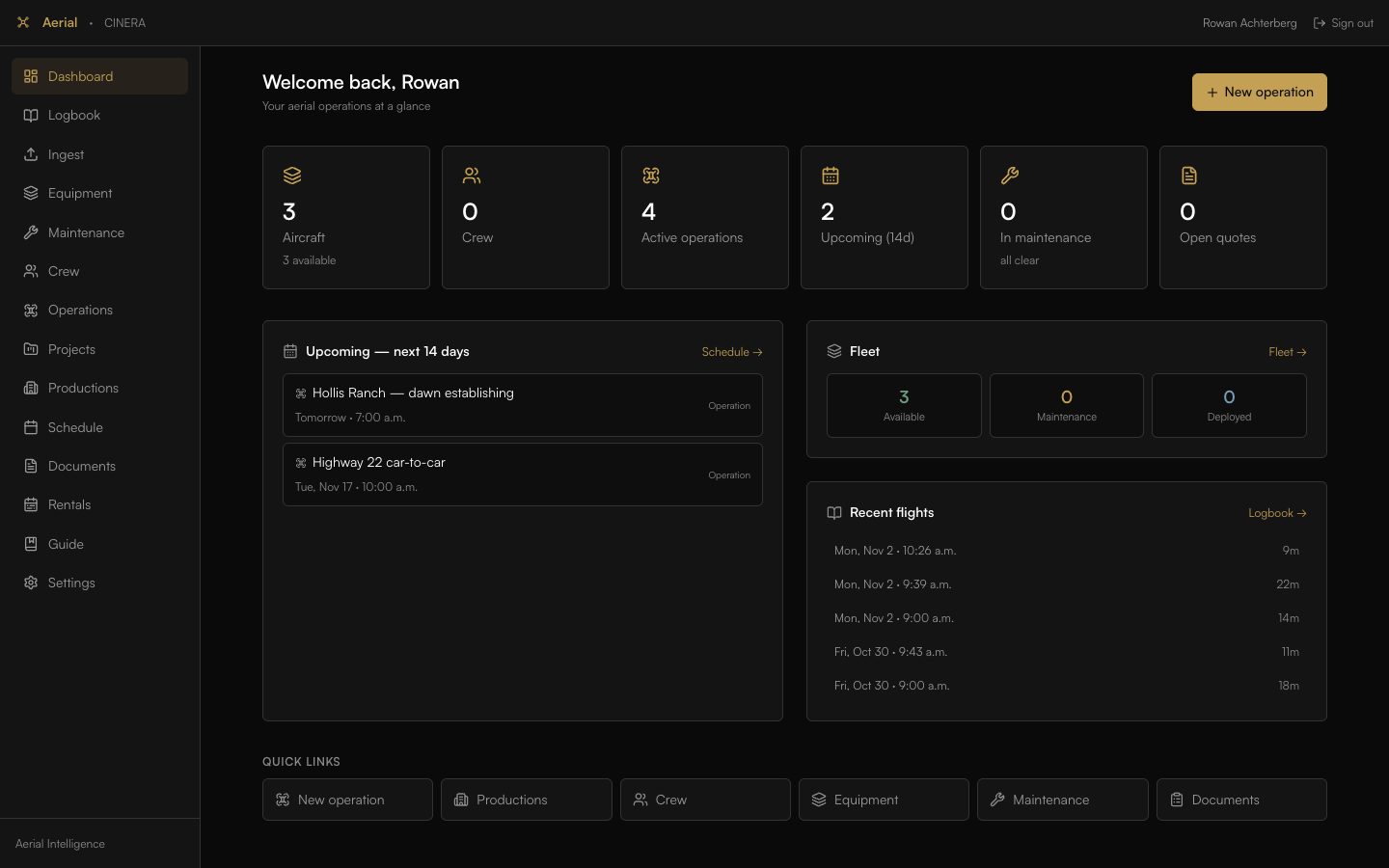
- Tiles count your Aircraft, Crew, Active operations, what's coming up in the next 14 days, what's In maintenance and your Open quotes.
- Upcoming lists what's scheduled in the next two weeks; Schedule → opens the calendar.
- Fleet health shows how many aircraft are Available, in Maintenance or Deployed, next to your most recent flights (Logbook → for the rest).
- Quick links start a New operation or jump to Productions, Crew, Equipment, Maintenance and Documents.
Operations
An operation is one planned piece of flying: where, when, with which aircraft and crew, and under what approval. It is the centre of everything in Aerial. Operations lists them with their status, category, aircraft, pilot and dates.
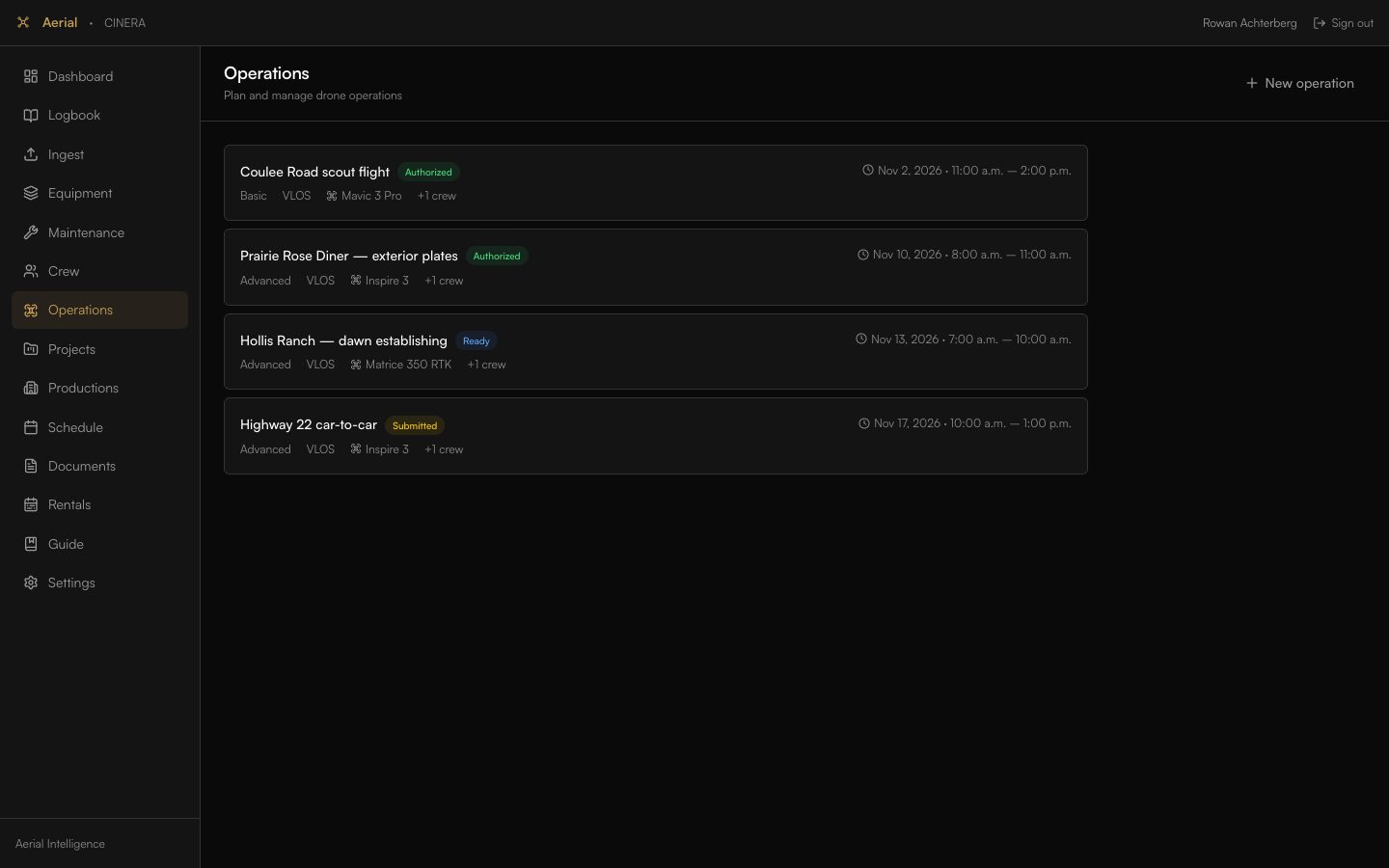
To plan one, choose New operation:
- Give it an Operation name that says what it is ("Long Light Unit B, Bow River overflight").
- Pick the Pilot-in-Command, the Aircraft and, if it's for a client job, the Production.
- Set the Category (Basic, Advanced or SFOC), the Operation type (VLOS or BVLOS) and the Activity (filming, photography, survey and so on).
- Enter the payload and operating weights, the Start and End, and the Max altitude AGL (m). Add crew as Pilot-in-Command, Visual Observer or crew.
- Draw the operating area on the map with the polygon, rectangle or circle tools.
The map shows airspace where CINERA has airspace data for your area: control zones, aerodromes and heliports, advisory areas and restricted or prohibited zones, each in its own colour, with your operation on top. Click a zone for its name, class and altitude limits. Where CINERA has no current airspace data, the map says so: check NAV Drone or NAV CANADA directly before you fly.
Each operation carries a status you set as it moves along: Draft, Ready, Submitted, Authorized, Denied, Expired or Cancelled.
Inside an operation
An operation opens on tabs, in the order you work through them:
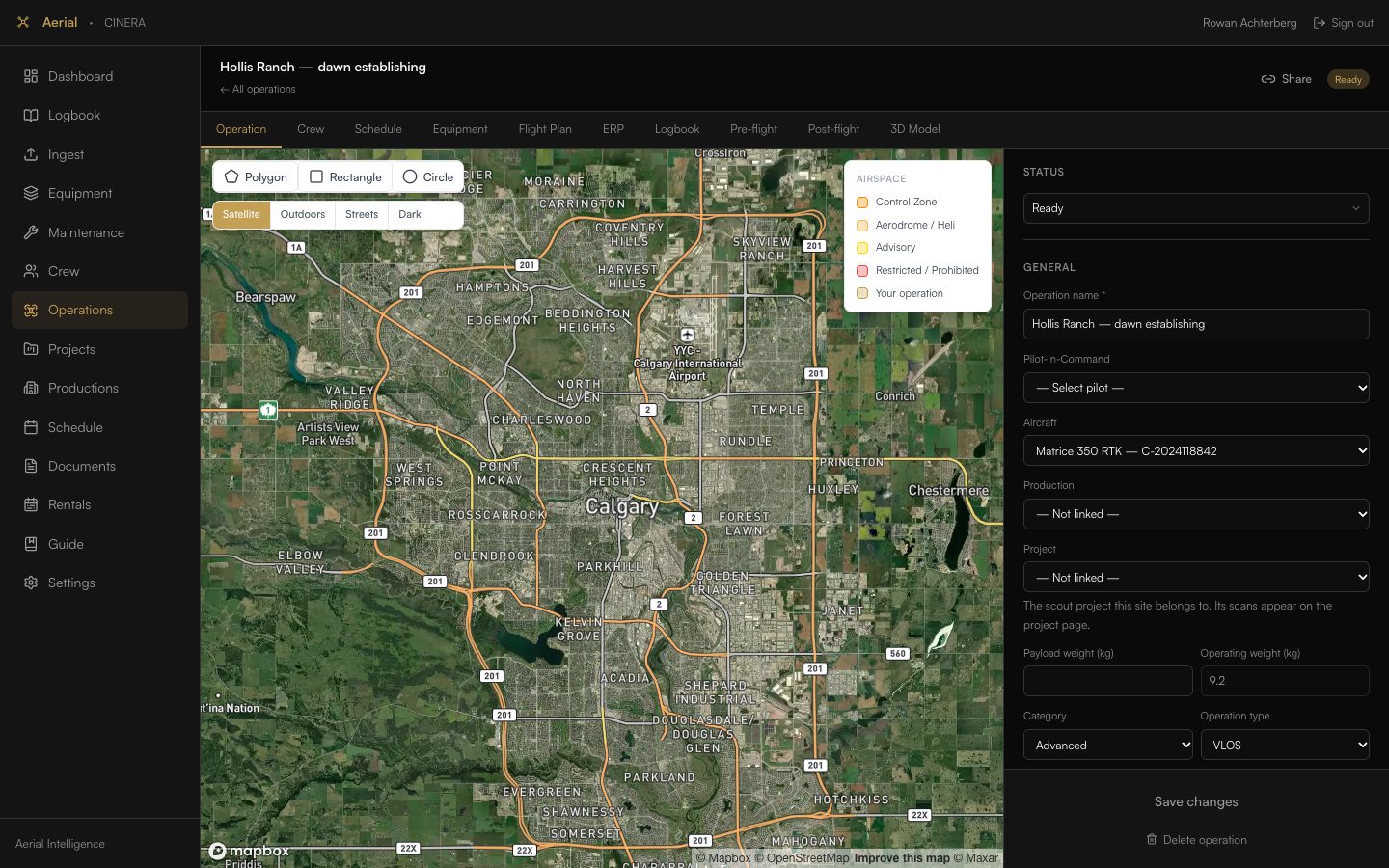
- Operation: the details above, the operating area on the map, Site Photos (they appear in the risk assessment of every pack you generate from the operation) and notes. Link the operation to a scout Project here so its scans show on that project. Save changes keeps your edits.
- Crew: who's flying and in what position (Pilot-in-Command, Operator, Visual Observer, Flight Assistant, Camera Operator and more). Only one person can be PIC. Each row shows that person's credentials, so an expired certificate is visible before the day.
- Schedule: the start and end, the location name and the airspace class.
- Equipment: Book equipment reserves systems and items from your inventory for the operation.
- Flight Plan: the operating area name, max altitude, airspace class and NOTAM reference; your setups and moves; the Abort criteria; and the Lost-link procedure with the return-to-home altitude.
- ERP: emergency contacts by role (ATC, fire and rescue, medical, site coordinator, police), the assembly point and nearest hospital, and the emergency procedures. A new ERP starts from the aircraft's standard procedures, which you can edit for this site.
- Logbook: notes from the day, such as a site check, a shot note or a concern, each with a priority.
- Pre-flight: the weather advisory and the pre-flight checklist (see below).
- Post-flight: the debrief and incident record (see below).
- 3D Model: build a 3D reconstruction of the site from the flight's photos, follow its progress and Open 3D viewer when it's ready.
Share creates a public link to the operation, with personal contact details hidden, and Download PDF gives you the same as a document. Revoke link stops the link working.
Pre-flight
On the day, open the operation's Pre-flight tab.
- Weather advisory assesses wind, temperature, precipitation and geomagnetic activity (Kp) at your operating area and gives a Go, Caution or No-Go. Show factors explains each one. It needs an operating area drawn on the map.
- The Pre-flight checklist has seven checks: NOTAMs checked, Airspace verified, Weather acceptable, Batteries charged, Equipment checked, Site clear and Crew briefed. When all seven are ticked the operation is marked Cleared. If you tick weather against a Caution or No-Go advisory, that is recorded.
- The pilot's IMSAFE declaration (illness, medication, stress, alcohol and drugs, fatigue, eating and emotion) is made in the Aerial app or from the shield icon on a flight in the Logbook. Any factor flagged means the flight shouldn't go ahead without review.
Post-flight
The Post-flight tab is the debrief and, if something went wrong, the incident record.
- Write the Outcome (completed, partial, scrubbed) and How the day went.
- If a reportable incident happened, tick Reportable incident occurred (CARs 901.49), choose the triggers that apply (a collision or risk of collision, leaving the operating boundary or altitude limit, and the rest of the list), and record the severity, description, cause analysis, corrective action and when operations resumed.
- Save draft while you work. Finalize makes the record permanent and read-only, as the regulation's retention rule requires, so save a draft first if you're unsure.
- Generate report produces the record as a PDF.
Logbook and flights
Logbook is your flight record.
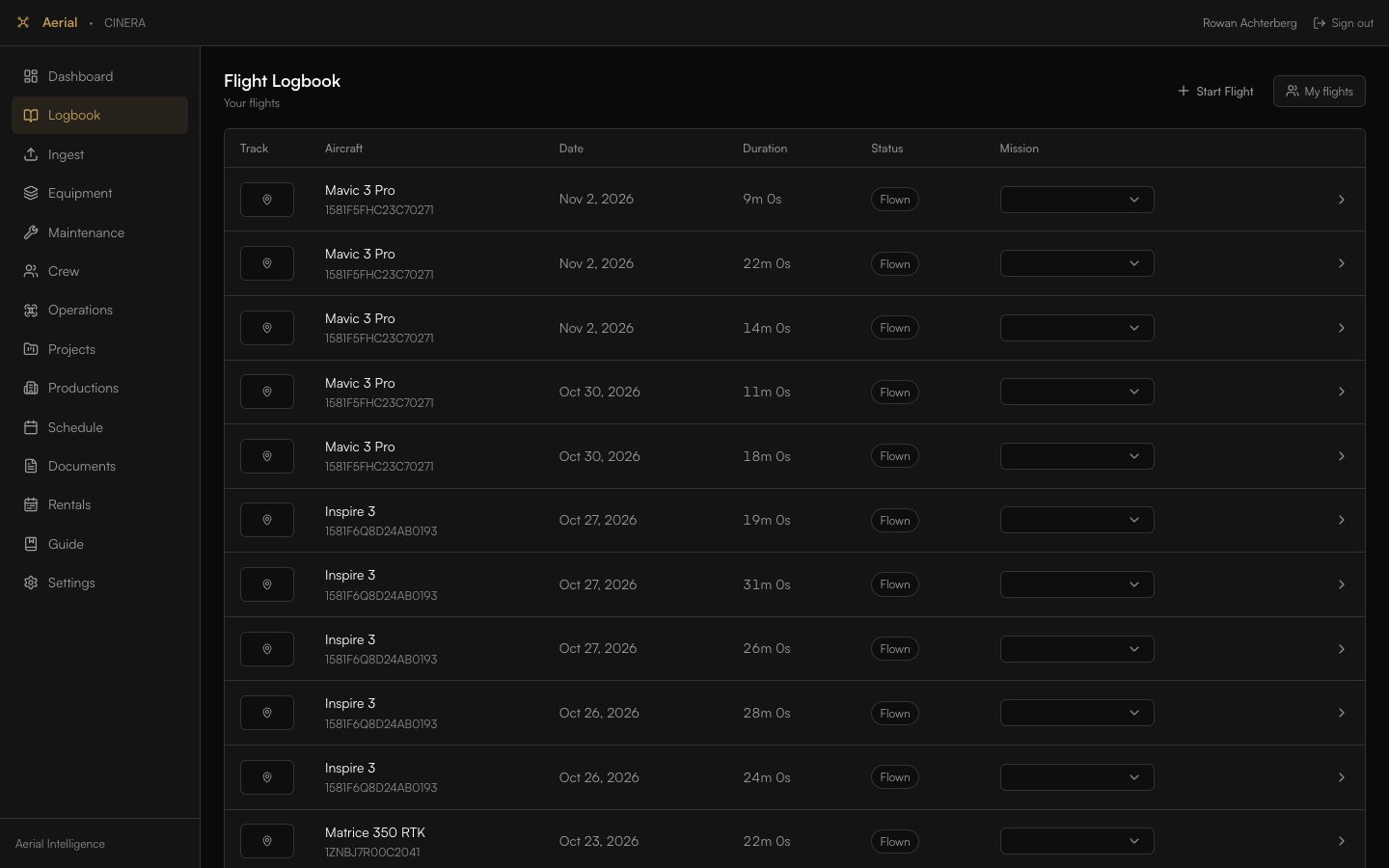
- Start Flight opens a flight for an aircraft, optionally with the DJI serial number. Flights started in the Aerial app and flights read from uploaded logs land here too.
- Each row shows the aircraft, date, duration and status, and the operation it belongs to. Open a flight for its track and stats.
- Unlinked media holds photos and video that haven't been matched to a flight yet; link each one to the right flight.
Ingest is where you upload flight logs: drop DJI flight logs on the page. Each file comes back with a result:
- Ingested files are read in the background.
- If the aircraft's serial number isn't in your fleet, add it under Equipment and the file goes through.
- If more than one flight matches, Select the correct flight.
- A log that matches no planned flight creates a new flight for you to reconcile: Assign to me, and choose its production with Assign production….
Equipment
Equipment holds everything you fly with, on five tabs:
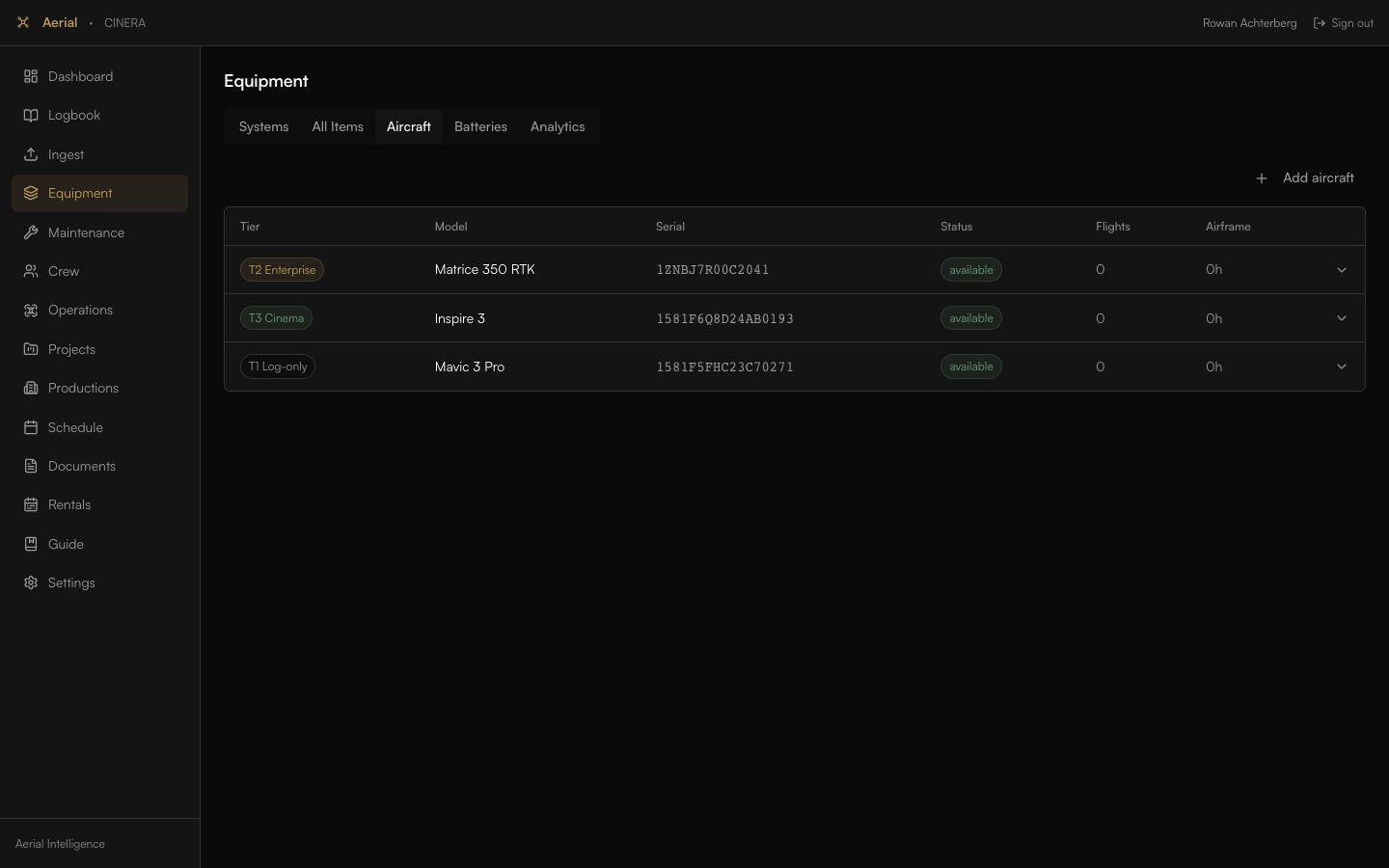
- Systems: kits made of several items ("Matrice 350 primary kit": drone, payload, batteries). New system builds one; add and remove items from it.
- All Items: every piece of kit, searchable and filtered by category and status (Available, In use, Maintenance, Retired). Add item records the manufacturer, model, serial, part ID, and the day rate and unit cost you use for quotes.
- Aircraft: each drone with its registration, serial, MTOW, firmware and tier: T1 Log-only (you upload its logs after flying), T2 Enterprise or T3 Cinema (aircraft that connect to CINERA directly).
- Batteries: Add battery for each pack.
- Analytics: total flights, airframe time, average per week and, per aircraft, whether its maintenance is All clear, Due soon or Overdue.
Open an aircraft for its Overview, its SOP / ERP (the standard procedures and emergency contacts that pre-fill a new operation's ERP) and HMS, the health alerts the aircraft reports.
Maintenance
Maintenance lists your maintenance rules, by airframe hours or by days, with when each was last done and when it's next due. Rules turn Due soon and then Overdue as they approach. Filter by asset, show inactive rules, and log a maintenance event when the work is done.
Crew and credentials
Crew is your roster.
- Add crew member with name, email, phone, position (pilot, Visual Observer, camera operator, gimbal technician and more) and their certificates, each with its number and expiry.
- A certificate expiring within 60 days is flagged; an expired one shows in red. A banner at the top counts the crew members with expired or expiring credentials.
- Your own certificates are under Settings → Credentials, and the Aerial app shows them on your phone.
Productions and quotes
Productions tracks your clients' jobs: film, TV series, commercial, documentary. Each has a status (Prospect, Active, On Hold, Completed).
New production walks you through the production details, key contacts and, if you like, an initial quote. A production then opens on tabs:
- Overview: the production's details and the airspace research notes (NOTAM references, ATC contacts, NAV CANADA coordination, SFOC status).
- Book a Shoot: pick shoot dates and the systems, items and crew you need; they're reserved and added to the quote.
- Contacts: the producers, directors and coordinators you deal with.
- Quotes: New quote with shoot days, crew size and line items; tax and totals are worked out for you. Mark Sent, then Mark Accepted or Mark Declined. Invoice turns a quote into an invoice.
- Invoices: each invoice moves from draft to sent to paid (or overdue).
- Crew: who's on the job, added from your roster.
- Operations: the operations linked to this production.
- Work Plan: the director's notes, the production brief, shot requirements and reference links (moodboard, storyboard, shot list, call sheet).
Projects and scans
Projects shows the scout projects your operations are linked to and the scans made for them. A scan merges one or more flights into a 3D model of a location; it moves through Waiting for flights, Merging flights, Ready to crop, Building exports and Ready. Open a scan to crop it and share it. For how scans are captured and used, see the Capture guide.
Schedule
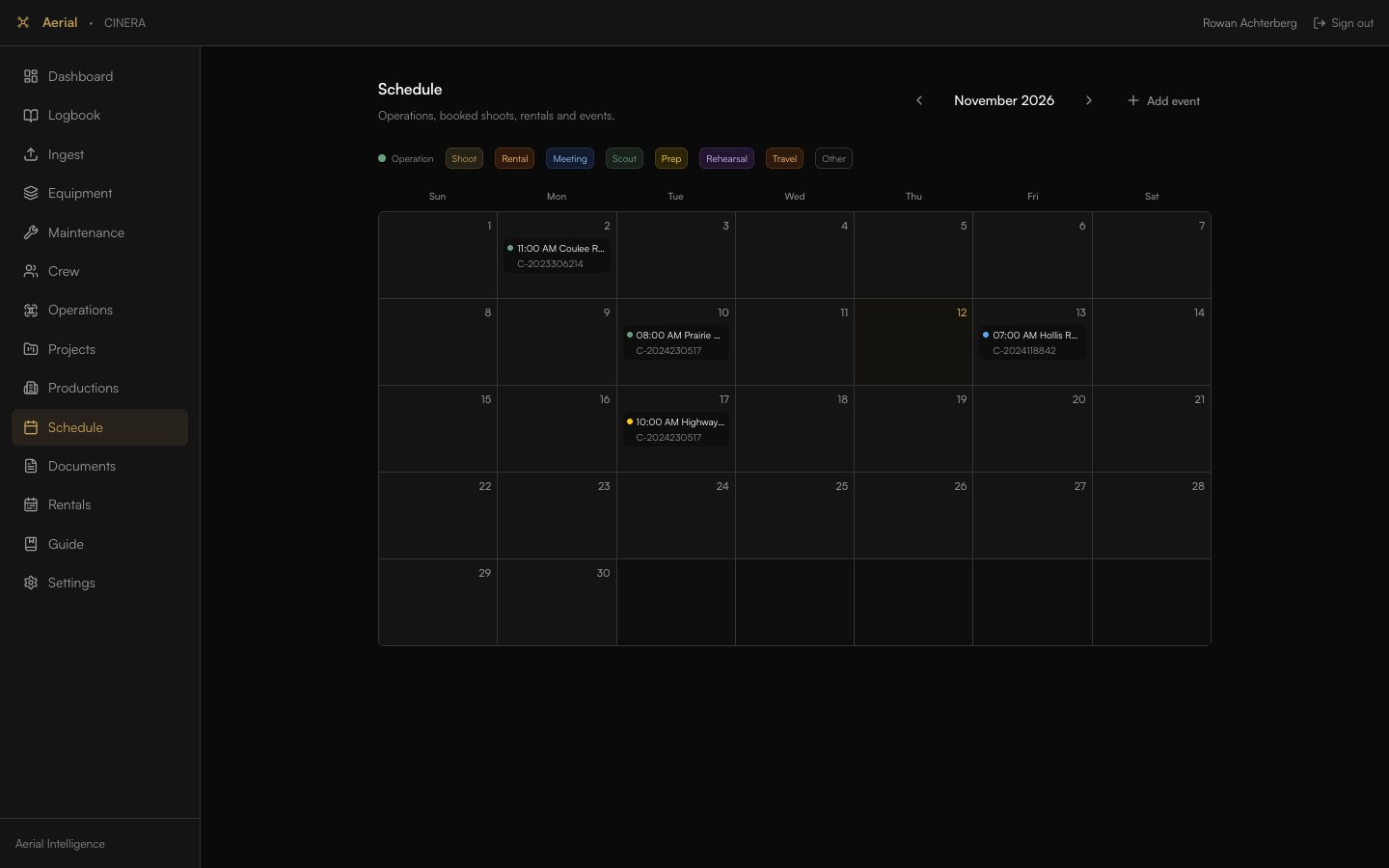
Schedule is your calendar. Operations appear on it; Add calendar event adds scouting days, prep, rehearsals, meetings and travel, optionally tied to an operation or production.
Documents
Documents holds two kinds of paperwork.
- Production-day packs. Generate pack picks an operation and a production date, and assembles the flight plan summary, risk assessment, crew safety memo, location details and emergency response, filled in from the operation. (The first time, Set up default templates.) Open a pack to review it, add site photos, Finalize it and download it as a PDF.
- Authorizations. Add Authorization records an airspace authorization from NAV CANADA or NAV Drone: its status, operation details, operational parameters and any overlapping zones. Import from PDF reads them from the authorization you received.
Rentals
Rentals tracks aircraft you rent out or in. New rental records the aircraft, renter, dates, daily rate, pickup and return, insurance, and any crew or kit that goes with it. Rentals move from reserved to active, and you Mark Returned or Cancel rental at the end (both are final). Overlapping rentals for the same aircraft aren't allowed.
Settings
Settings holds your Credentials, Devices, Team (the owner invites teammates by email, with an invite link to copy, and can resend or cancel an invitation or remove a member), Operator Profile, Region, Quote Defaults and Appearance (your colour scheme).
The Aerial app
The CINERA Aerial phone app is the pilot's side of the portal, for the field.
- Operations. Your organisation's operations, with everything you need on site: the aircraft, crew, schedule, flight plan (operating area, max altitude, weather minimums, abort criteria), authorization, the ERP with its procedures and the nearest hospital and ATC, the production brief and the packing list. The calendar button at the top opens the schedule.
- Pre-flight. Pick today's operation, work through the pre-flight checklist and make your IMSAFE declaration. Submit Declaration records it. If all is well you're CLEARED; if anything is flagged, review it with your supervisor before flying.
- Logbook. + Start Flight opens a flight. While it's live, the flight's screen shows altitude, speed, battery and signal (for aircraft that connect to CINERA); Land closes it.
- Fleet. Each aircraft's specifications, airframe hours, maintenance and recent flights.
- Documents. Your production-day packs. Add site photos from the camera or your library.
- Offline. Operations are kept on the phone, so you can open them without signal. An IMSAFE declaration made offline waits on the phone and sends when you're back in signal; Settings → Sync shows what's waiting, with Sync now.
- Notifications. Turn on Flight alerts to be told when a flight in your organisation starts or lands.
- Settings also shows your organisation and role, and your pilot certificate and flight review status. Certificates are added on the web, under Settings → Credentials.
- Help. Settings → About → Help and guide opens this page.
Getting help
Email support@cinera.ca.
Last reviewed November 2026.