CINERA HELP
Your account guide
This guide covers what every CINERA user shares, whichever portal or app they work in: signing in, two-factor sign-in, your settings, notifications, your plan, and deleting your account. Each portal's own guide covers the work you do there.
The examples use Long Light, an invented feature shooting around Calgary, and its demo people, such as Arjun the scout (arjun@demo.cinera.ca). Every person and place in them is made up.
Before you start
- One account for everything. Your CINERA account is one email and password. It signs you in to every CINERA web portal at cinera.ca and every CINERA phone app: Scout, Manager, Team, Client, Art, Guard, Aerial, Weather and Cinera Capture.
- What you see depends on your role. Which portals open for you, and what you can do on a production, is set by your plan and by the people you work for. A location manager decides your role on their production; see the Manager guide for team permissions.
- Your email is fixed. You can't change your sign-in email yourself. Email support@cinera.ca to change it.
Signing in
On the web, go to cinera.ca and sign in on the Welcome Back page with your email and password, then Login. CINERA takes you to your own portal: a scout to Scout, a location manager to Manager, and so on.
- Forgot your password? sends you an email with a link to set a new one. If the link has expired, the sign-in page offers to send a new one.
- In a phone app, sign in with the same email and password. Forgot password? Reset it sends the same reset email. Some apps also offer New to CINERA? Create account.
Two-factor sign-in
Two-factor sign-in adds a second step: after your password, CINERA asks for a 6-digit code from an authenticator app on your phone, such as 1Password, Google Authenticator, Authy or Microsoft Authenticator. Someone who learns your password still can't get in without your phone.
Turning it on
Open your account settings (see Where your settings are) and find Two-Factor Authentication: under Security in the Scout and Manager portals, or on the Account settings page elsewhere. Film Commission and City Portal staff find it in their portal's settings.
- Choose Enable Two-Factor Authentication.
- Scan the QR code with your authenticator app. If you can't scan it, type the key shown under Can't scan? Enter this key in the app instead into the app.
- Enter the 6-digit code the app shows and choose Turn on two-factor.
The card then says On. From now on, signing in asks for a code from that app.
Signing in with a code
- On the web, after your password you see Two-factor verification. Enter the current code from your authenticator app and choose Verify. If you have more than one authenticator, pick the one you're using.
- In a phone app, the app asks for the code after your password in the same way. Use a different account goes back to the sign-in screen. Phone apps ask for the code from their latest versions; keep your apps up to date.
- Codes change every 30 seconds. If a code doesn't match, wait for the next one and enter that.
- Spaces in the code don't matter ("123 456" works).
A backup, and losing your phone
- Add a backup now. Once two-factor is on, choose Add another authenticator to set up a second app or device. Either one can then sign you in.
- Removing an authenticator. Each one is listed with the date you added it. Choose Remove, then Confirm remove. You need to have signed in with a code in this session to remove one; if CINERA says so, sign out and back in with your code first.
- Lost every device? There are no printed backup codes. Email support@cinera.ca and a CINERA administrator will reset two-factor on your account, so you can sign in with your password and set it up again. While you wait, the Two-factor verification page lets you Sign out.
Who has to use it
Two-factor sign-in is optional for most people, and we recommend it for everyone.
It is required for staff of film commissions, cities and CINERA itself. From 23 November 2026, opening the Film Commission portal, the City Portal or CINERA's admin pages without an authenticator on your account takes you straight to setting one up before you can continue. Until then, those portals show a reminder at the bottom of the page with Set it up now.
Where your settings are
Settings live in a different place in each portal, but hold the same things:
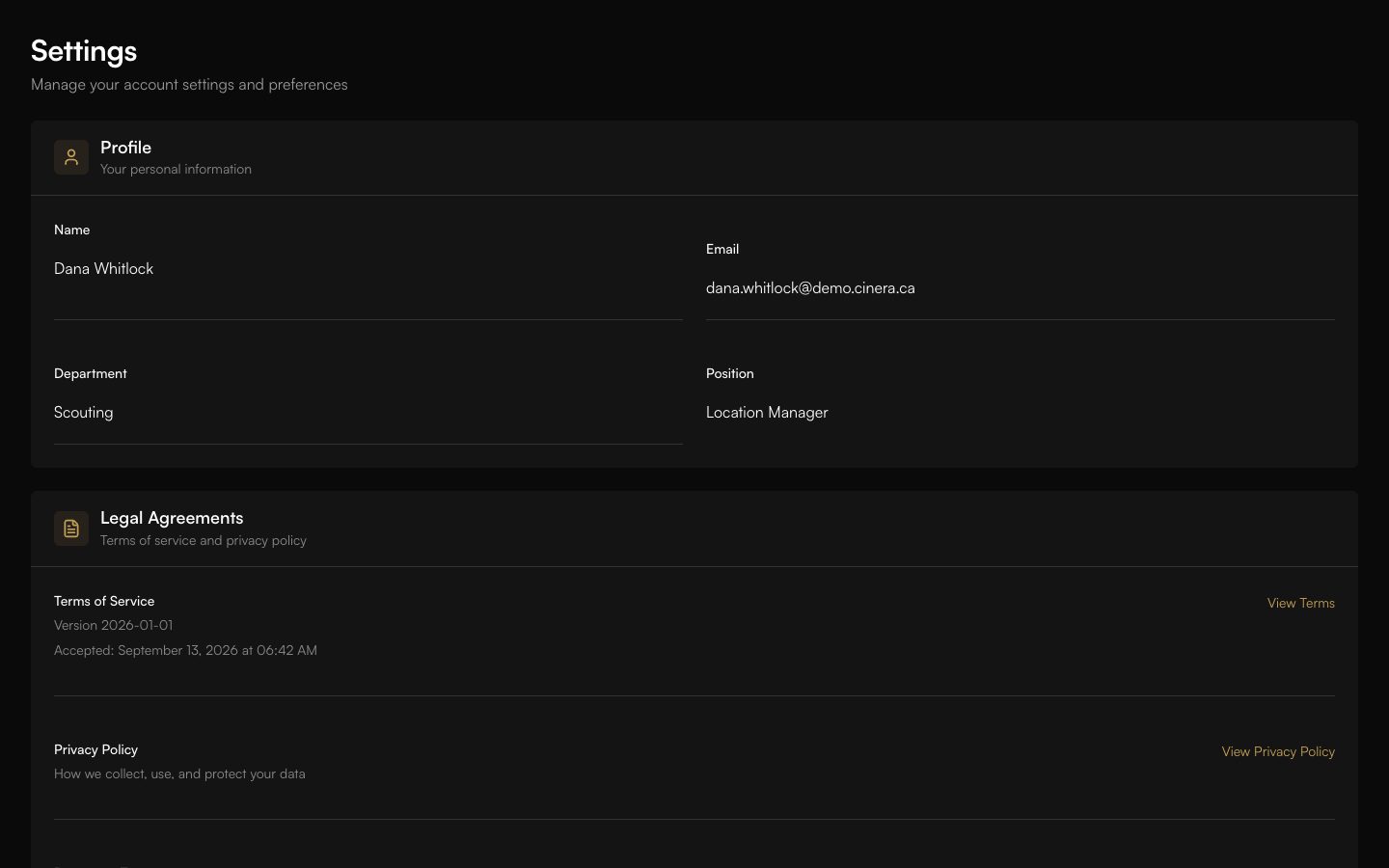
- Scout and Manager portals: Settings opens Account Settings, with the tabs Account, Billing & Payment, Productions & Access, Notifications, Connected Apps, Security, Appearance and Help & Support. The Manager portal adds Team Permissions; Scout adds Commissions and Photography (see the Scout guide).
- Other web portals: the Account settings page, with Notifications and Help & Support in the settings sidebar. The Client portal has its own settings page (see the Client guide).
- Phone apps: Settings in each app (see Settings in the phone apps).
Profile
On the Account settings page:
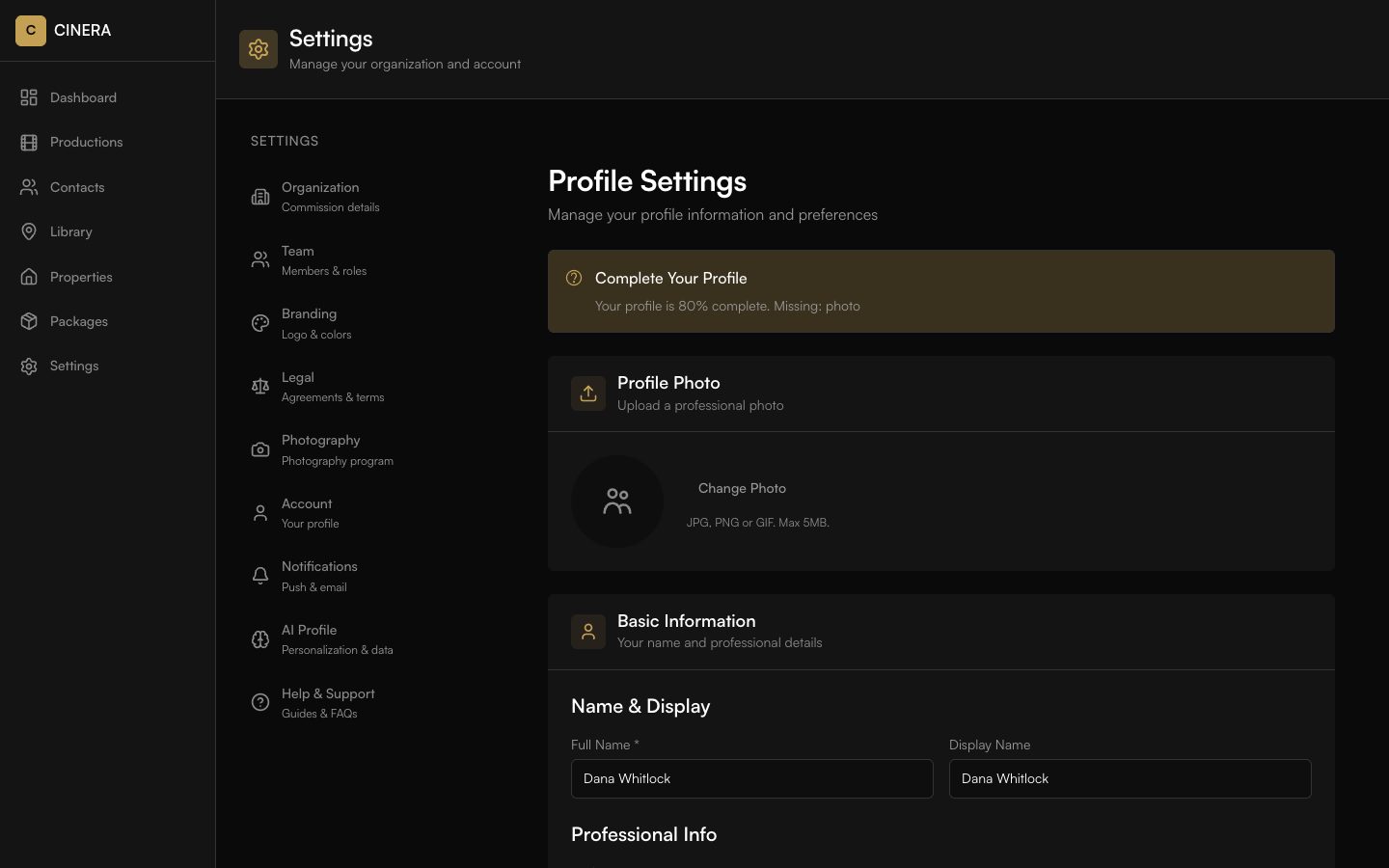
- Profile: your Photo, Full Name, Phone and Job Title. Your Email is shown but can't be edited here.
- Public Profile (scouts): turn on Profile Visibility to show a public profile at cinera.ca/scout/your-username, with a Username, Tagline and Bio. View profile opens it as others see it.
- Upload Preferences: AI Auto-Tagging adds descriptive tags to the photos you upload, so your library is easier to search. You can always edit or remove the tags.
- Appearance: choose a light or dark theme, or follow your device.
In the phone apps, Account shows your name, email and role. The Client app lets you edit your name there.
Security and signing out
- Password: enter your current password and a new one twice, then save.
- Sign Out signs you out on this browser. In a phone app, Sign Out is near the bottom of Settings. If the Scout app still has field work waiting to sync, it warns you first.
Notifications
Choose what CINERA tells you about under Notifications in your settings (the page is called Notification Settings). Each switch saves as soon as you change it.
- Phone notifications are push notifications on every device you're signed in on: Messages, Locations & approvals, Call sheets, Production alerts and Flight alerts (CINERA Aerial flights in your organisation starting or landing).
- Email: Call sheets, the call sheet itself with your call time and the RSVP link.
- In-app notifications: the notification bell inside CINERA.
- Permit emails appear on the Notification Settings page for permits filed through a city portal.
Safety and weather alerts are always sent; they have no switch. Push notifications only reach a phone that has allowed notifications for the app; check Settings → Permissions in the app.
Productions & Access
Productions & Access (or Productions on the Account page) lists every production you can open and what you are on each one: your role and the parts of the production you can see. Your role is set by the production's location manager. If you're on a Dailies or Review project, it's listed under Dailies, with any invitation still pending.
If you're not on any production yet, it says so. Ask the location manager to add you.
Connected Apps
Connected Apps links CINERA to the tools you already use:
- Dropbox and Google Drive: import location folders and photos. Connect to link your account; Manage once it's connected.
- Capture One: publish locations straight from Capture One. It shows Active when it's included on your account.
Your plan
You can see your plan in your settings, on the web and in the app you bought it in.
- Plans bought in an iPhone app (Scout App, Scout Pro, Location Manager, Art Department Pro, Art Crew App) are billed by Apple. On the web, App Store subscription shows the plan, and when it renews or ends. Manage in the App Store changes or cancels it. On an iPhone you can also go to Settings → your name → Subscriptions.
- Plans bought on the web are under Billing & Payment in the Scout and Manager portals: your Subscription, Upgrade your plan, and your payment methods.
- In the phone apps, SUBSCRIPTION shows your Plan, Billing and Status, with a button to manage it and Restore Purchases if you've bought a plan on another device.
For what each plan costs, see the pricing page.
Pause Account. On the Account settings page (or tab) you can pause instead of leaving. While paused, your data is kept and you can still view your locations, packages and contacts, but uploads and sharing are off, and your plan moves to a reduced paused rate (see the pricing page). Reactivate any time to get your full plan back.
Organisations and productions
Most people work inside one organisation and switch between productions rather than organisations.
- Productions. On the web, choose the production in the portal you're working in. In the Team app, Change Project in Settings; in the Client app, Switch production under PRODUCTION.
- Film commissions. If you belong to more than one commission, switch between them in the Film Commission portal's header (see the Film Commission guide).
- Cinera Capture shows whether your scans live in your organisation's workspace or a personal one; see the Capture guide.
Settings in the phone apps
Every CINERA phone app lays out Settings in the same order, so you can find things in any of them:
- ACCOUNT: your name, email and role.
- The app's own sections, for example SUBSCRIPTION and MY PORTFOLIO in Scout, NOTIFICATIONS (your Alerts) in Manager and Client, PRODUCTION in Client.
- APPEARANCE: Theme: light, dark or system.
- SYNC: whether the app syncs over WiFi + Cell or WiFi Only, and in some apps what's waiting to sync.
- PERMISSIONS: camera, location, notifications and so on, as the app needs them.
- ABOUT: the app's version and build, and Help and guide, which opens that app's guide on cinera.ca/help.
- LEGAL: Privacy Policy, Terms of Service and End User License Agreement.
- Sign Out, then Delete Account, last.
Not every app has every section: an app with nothing to sync has no SYNC. Cinera Capture follows the same order with its own sections.
Deleting your account
You can delete your account from the web or from any phone app.
- On the web, Delete Account is at the bottom of the Account settings page (the Account tab in the Scout and Manager portals).
- In a phone app, Delete Account is the last row in Settings. The app asks twice (Continue, then Delete My Account) and signs you out.
Your account is kept for 90 days and then permanently deleted with its data. Until then you can change your mind: sign back in and choose Cancel Deletion on the Account settings page.
If you pay through the App Store, deleting your account doesn't cancel the subscription. Cancel it in the App Store (the phone app's delete prompt offers Manage Subscription), or Apple keeps charging you.
Getting help
- Every portal's settings have Help & Support, and every phone app has Settings → About → Help and guide, which opens that app's guide.
- All the guides are at cinera.ca/help.
Email support@cinera.ca.
Last reviewed November 2026.