CINERA HELP
Film Commission guide
The Film Commission portal is where a film commission runs its locations office: the library of filmable places in its area, the productions that get in touch, the packages it sends them, and the partners it works with. This guide is for commission staff: commissioners, location and liaison staff, and analysts.
Examples follow a producer on Long Light, an invented feature shooting around Calgary. Every person and place in them is made up.
Before you start
- Access is by invitation. A Commissioner in your office invites you from Settings → Team. The email opens an Accept Your Invitation page: sign in, or create your account there, and you join the commission. For signing in, passwords and two-factor sign-in, see Your account.
- Signing in. The portal has its own sign-in page at Film Commission Portal. If you are not commission staff, it sends you back there. Browse commission galleries on that page opens the public Explore pages instead.
- Roles. Each person has one of three roles:
- Commissioner: everything, including settings, the team and finalising economic-impact reports.
- Staff: inquiries and responses, packages, the library and contribution review.
- Analyst: reads everything and prepares economic-impact reports. Buttons your role cannot use are hidden or refused.
- More than one commission. If you belong to two commissions, a Commission menu appears next to the name at the top. Pick one and the whole portal switches to it.
- Your area. Everything you see is your commission's own: its library, its inquiries, its packages. Permits appear only once CINERA has linked your commission to a jurisdiction.
Dashboard
The Dashboard is the morning view.
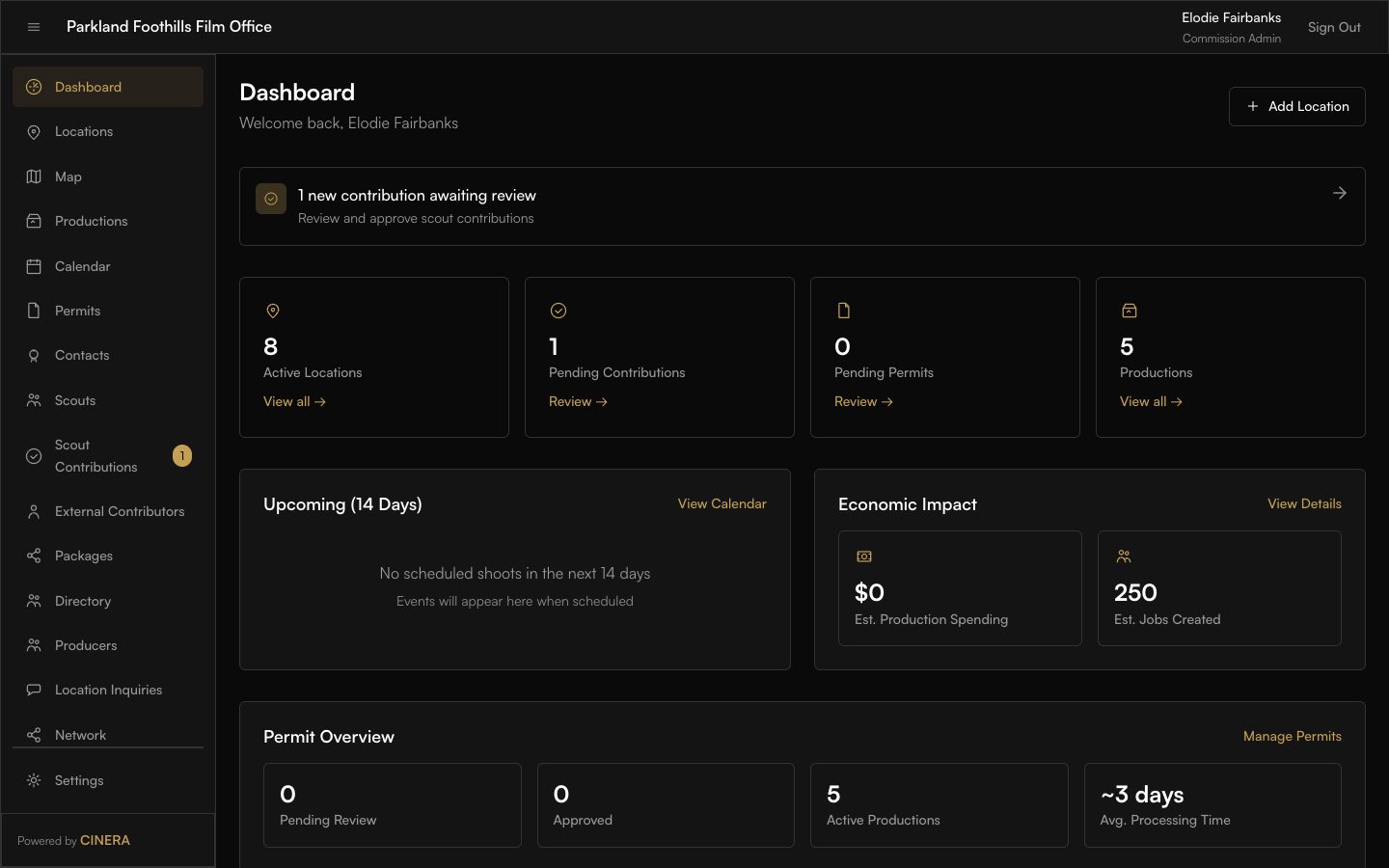
- Alerts at the top flag what needs you: new scout contributions, permit applications waiting, and approved permits whose shoot ends in the next 7 days.
- The cards count Active Locations, Pending Contributions, Pending Permits and Productions, each with a link through.
- Upcoming (14 Days) lists scheduled shoots; View Calendar opens the full calendar.
- Economic Impact shows estimated production spending and jobs; View Details opens Economics.
- Permit Overview counts permits pending review, approved, and productions active.
- Add Location starts a new library location.
Locations
Locations is your library: every place your office can offer a production.
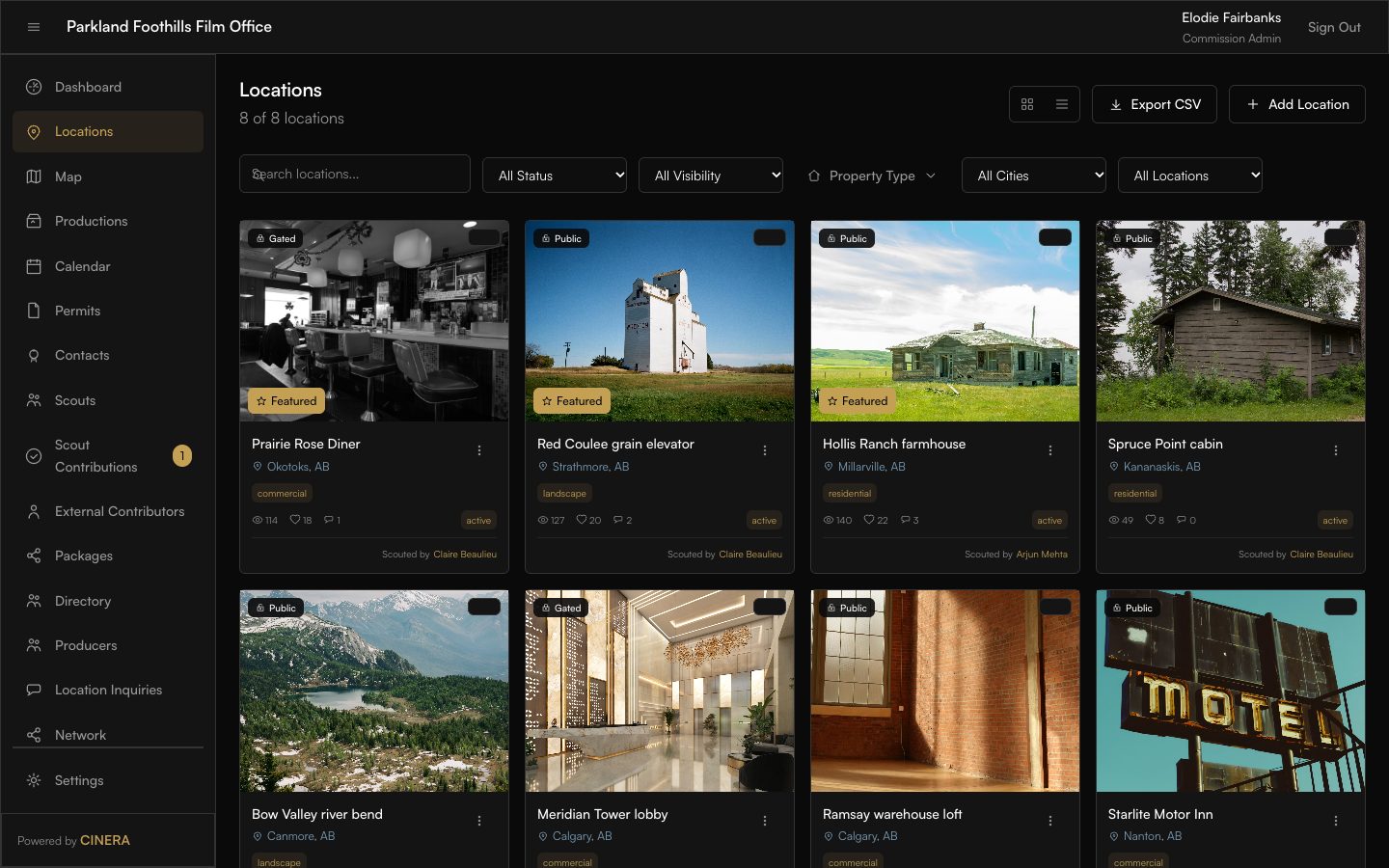
- Switch between grid and list. Search, and filter by status, visibility, property type, city and featured.
- Select several locations to Delete, Set Visibility... (Make Public or Make Gated) or Set Status... (Active, Inactive, Archived) in one go.
- Export CSV downloads the Location library.
Add Location opens the form: photos first (drag them in, click one to make it the Hero, drag to reorder), then the name, description, property type, address, property details and filming and accessibility notes.
- Visibility decides who sees a location in your public gallery. Public (Anyone Can View) shows it to everyone. Gated (Requires Login) shows a preview and asks producers to register for the rest.
- There are two addresses. Public Address (Visible to all) is the general area ("Inglewood, Calgary"). Full Address stays private and is shown only to people allowed to see it.
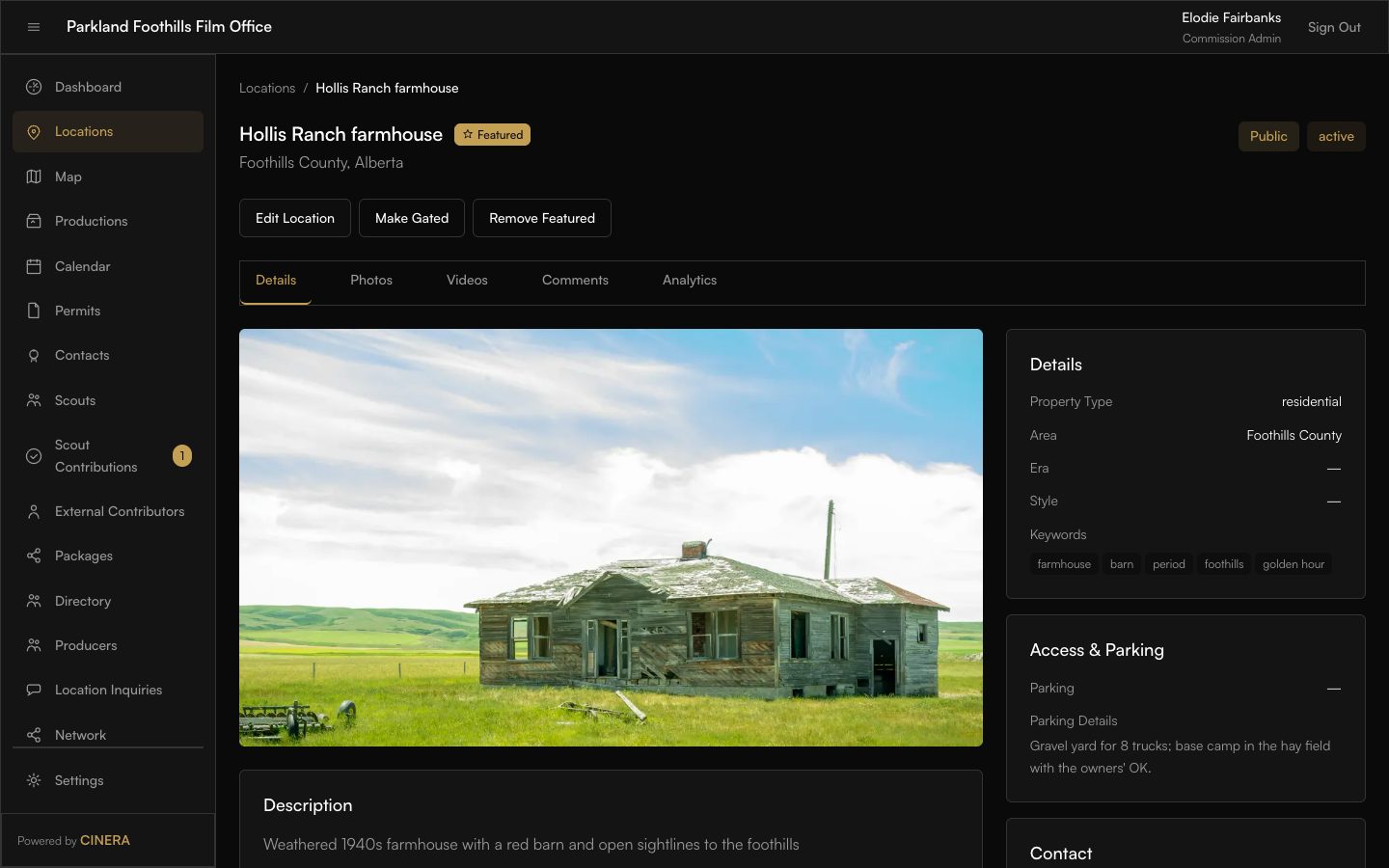
Open a location to edit any of it, manage photos (Set as Hero, Delete) and videos, and see its Statistics: views, saves and inquiries. Internal Notes are for your team and never leave the office.
Map
Map shows the whole library on one map, with filters for status and property type. Double-click a pin to open the location.
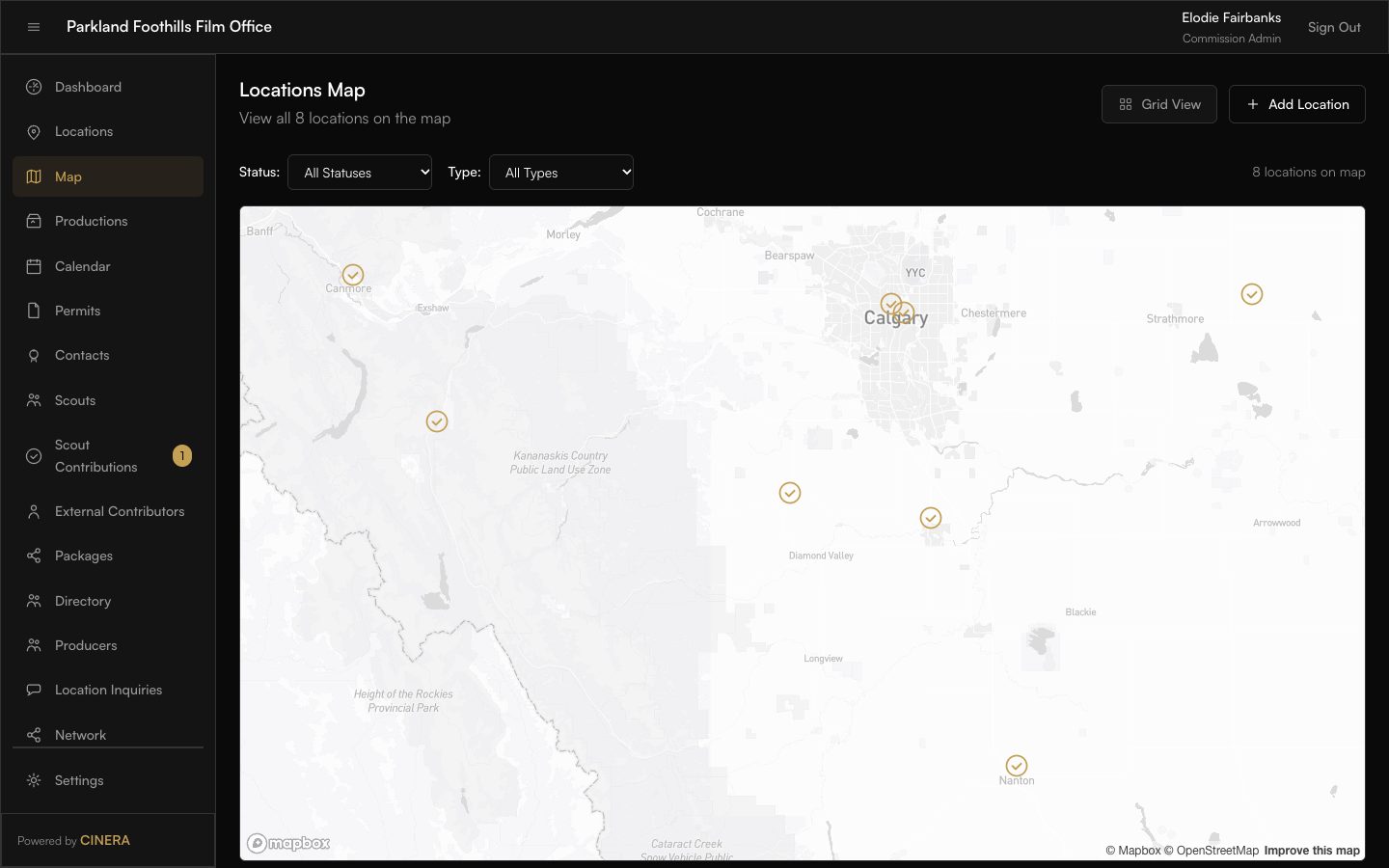
- Locations without a stored point are placed from their address, within your commission's own area.
- A location CINERA still cannot place sits at the centre of your area, marked Approximate position. Open it and correct the address to fix it.
Productions
Productions is the list of every production inquiry your office is handling, from first contact to wrap.
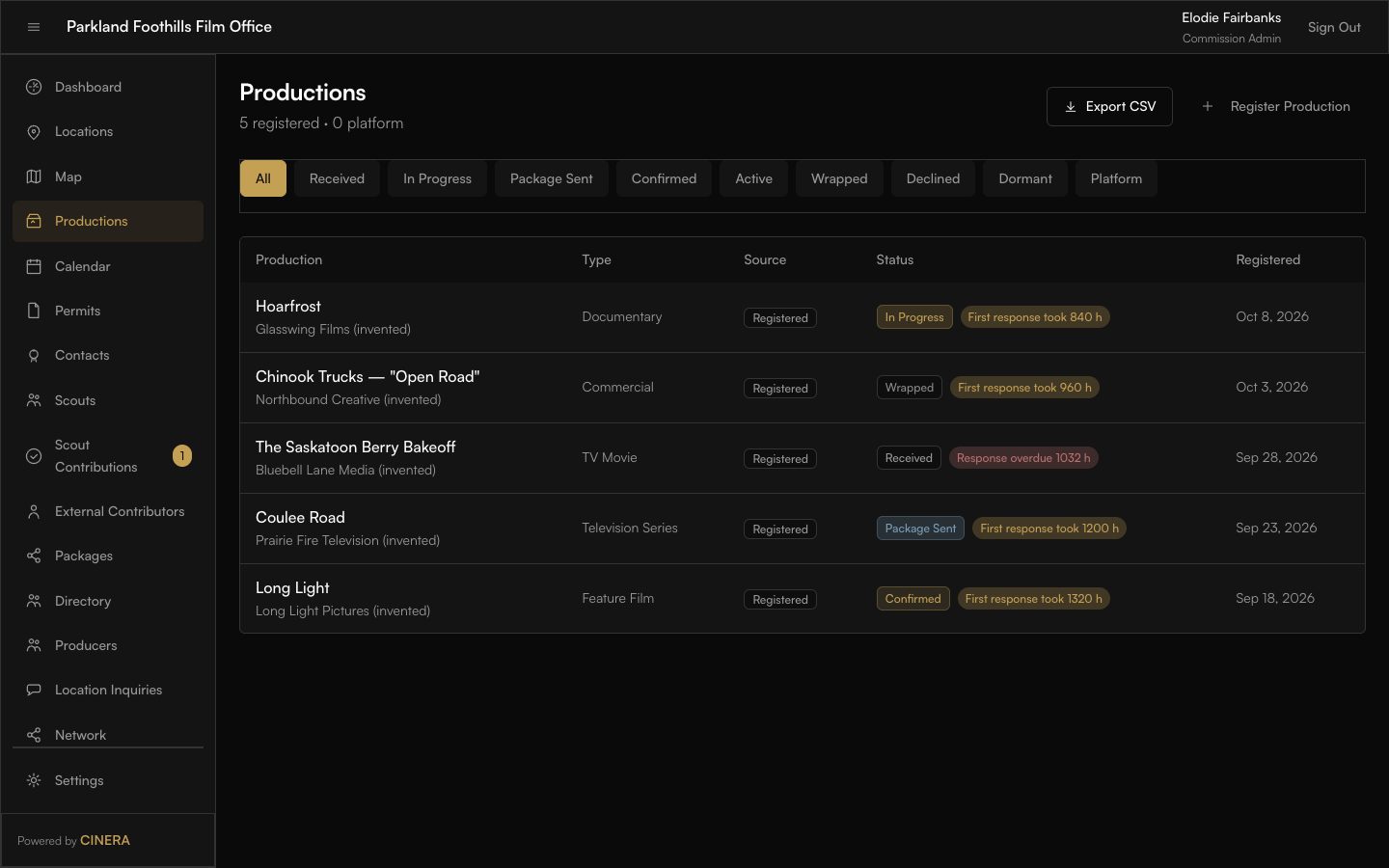
- Register Production logs one that reached you by phone, email or walk-in: production and company, type, source, contact, schedule, budget range and crew size.
- Inquiries from your public gallery arrive here on their own, at Received, with Website as the source. That covers a producer's general inquiry to your commission and an inquiry about one of your locations. CINERA also emails your office's contact address when one comes in.
- The filters follow the stages: Received, In Progress, Package Sent, Confirmed, Active (in production), Wrapped, Declined, Dormant. Platform lists productions on CINERA that have named your commission.
- Response time. Each new inquiry carries a badge against your office's response time: Respond within…, then Response overdue… if no one moves it in time. A Commissioner sets the hours in Settings.
Click a production to open its panel: the details, the shoot dates, any scout reports linked to it, and the Inquiry status control.
- Move to… moves the inquiry to its next stage. Only the moves that make sense are offered. Show full history lists every change, with who made it and when.
- Once a production has wrapped, Post-Wrap Follow-Up records how it went: a satisfaction rating, any community issues, actual spend, jobs created and liaison notes.
Export CSV downloads Production inquiries or the Inquiry status history.
Location Inquiries
Location Inquiries holds questions sent from your library locations' public pages about places listed by their owners. Each is also on Productions, so it runs through the same stages.
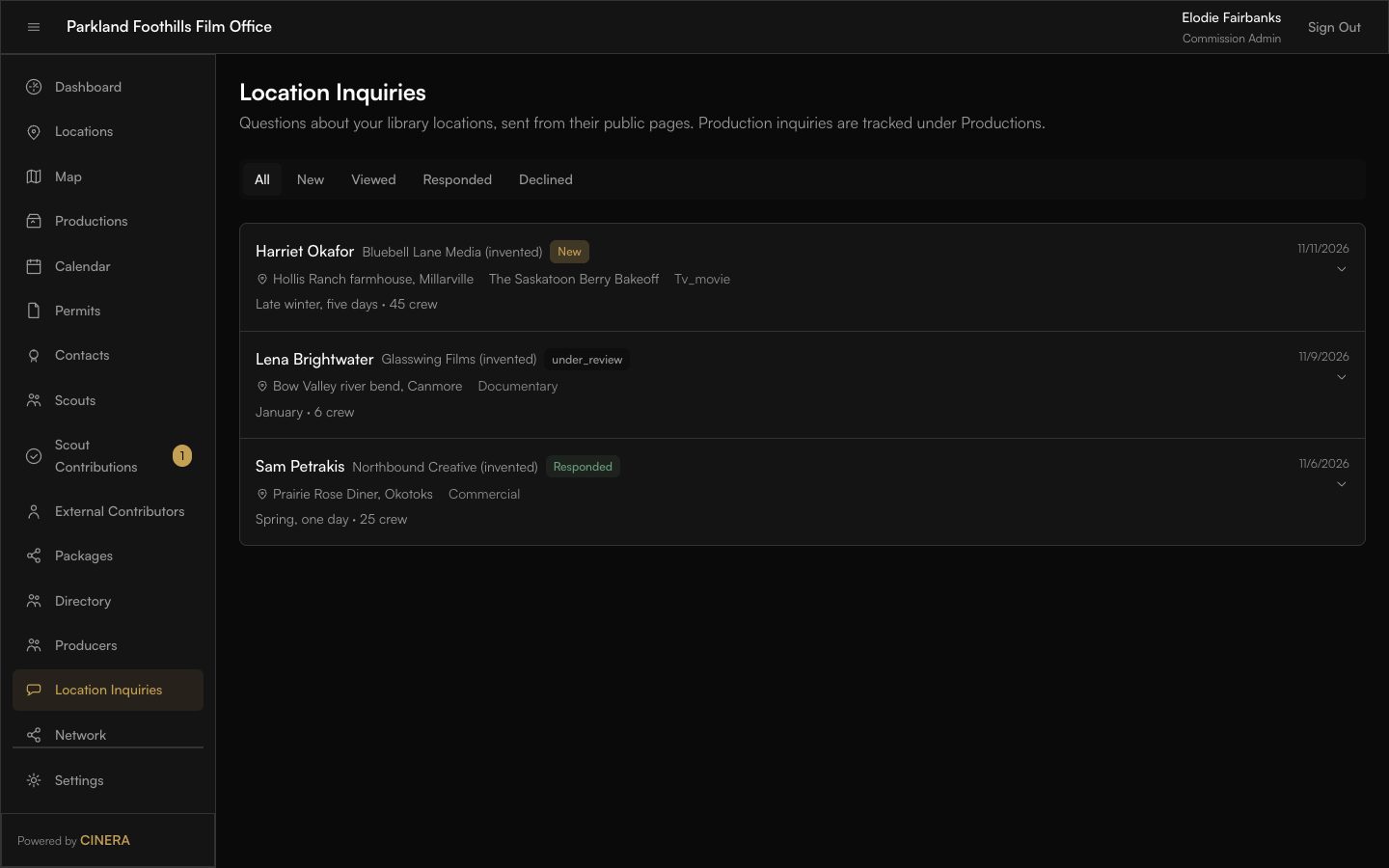
- Filter by New, Viewed, Responded and Declined. Open one to read the message and contact details.
- Draft Response writes a reply for you to check. Edit it, then send it or copy it into your own email. Only staff who can respond to inquiries see the button.
Calendar
Calendar shows scheduled shoots and production shoot windows by month, or as a list. Colours show approved, pending and denied permits. Click a date to see what's on it.
Permits
Permits lists the film permit applications in your jurisdiction, with the number, production, location, dates and status. Filter by status, or open one for its company, contact, shoot dates, filming locations and the applicant's notes. The city's film office reviews and issues permits in its own portal (see City and Permits); here you follow them.
Contacts
Contacts is your office's directory: production companies, property owners, crew and vendors.
- Add Contact, then search or filter by Productions, Owners and Vendors.
- Each contact has a type, company, email, phone and notes. Edit or delete from the card's menu.
Scouts and contributions
Scouts and property owners can add to your library. Everything they send waits for your review.
- Scouts lists the scouts who have registered to contribute to your database, with their background check. Approve, Reject, Suspend or Reinstate each one. Open a scout for their bio, work areas and contribution record.
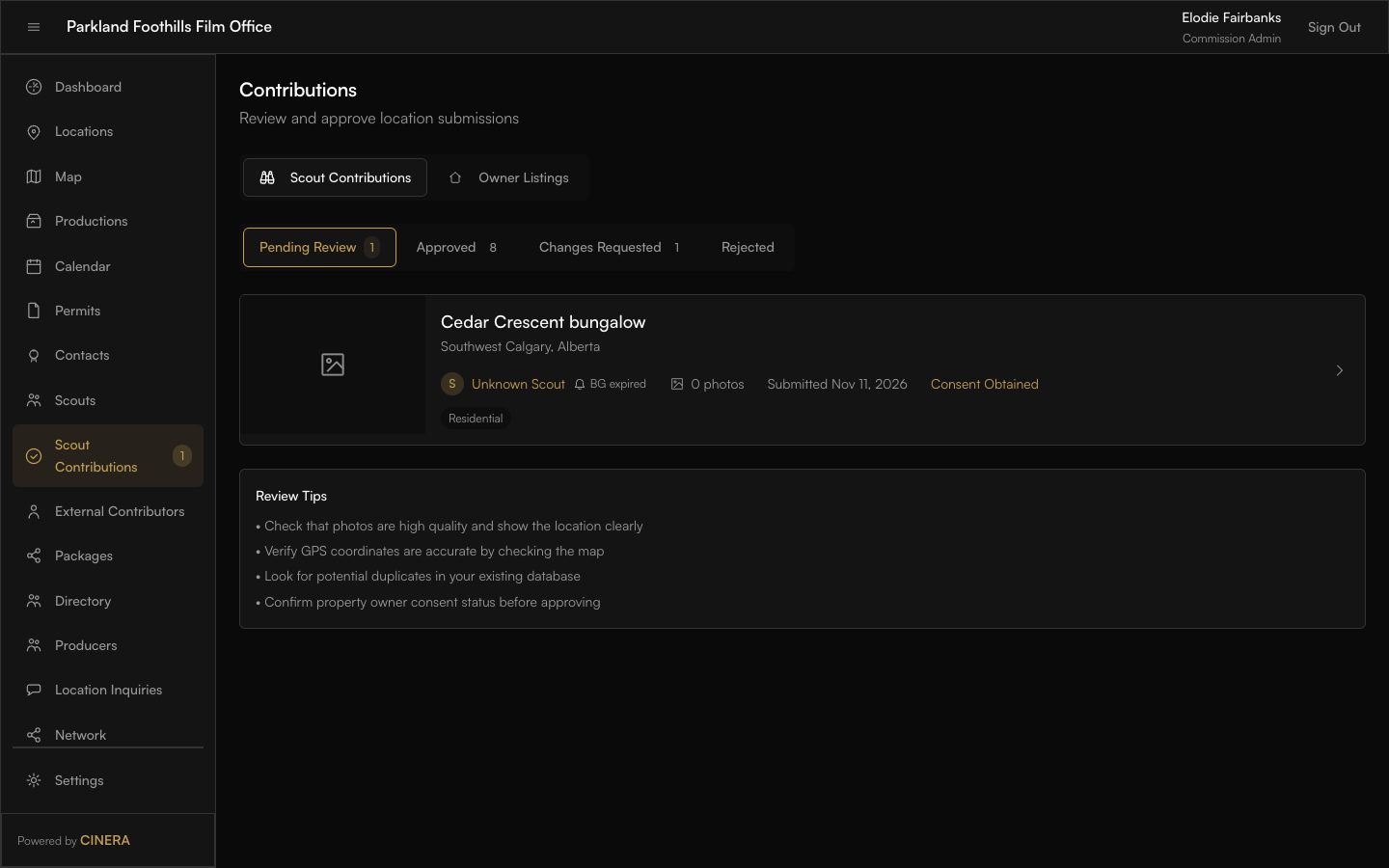
- Scout Contributions is the review queue. Scout Contributions tabs run Pending Review, Approved, Changes Requested and Rejected. Owner Listings shows properties owners have submitted to you: Submitted, In Review, Published, Revision Requested and Rejected. Staff are emailed when a scout submits or resubmits.
- Open a contribution to review it. The Review Checklist checks for at least 12 photos, valid GPS, owner consent, a valid background check and no duplicate in your library; Potential Duplicates lists near matches. Then Approve (choose Gated or Public), Request Changes with feedback the scout reads, or Reject with a reason.
- Open an owner listing to Approve & Publish it into your library, Request Revision with feedback, or Reject it. The owner is told either way. See the Property Owners guide for their side.
- External Contributors is for scouts who aren't on CINERA. Create Invite Link makes a link you can share by email or text, with optional maximum uses and an expiry. Submissions through it appear on the same page for you to Approve or Reject. Deactivate a link to stop it working.
Packages
A package is a set of your locations sent to a producer by a private link.
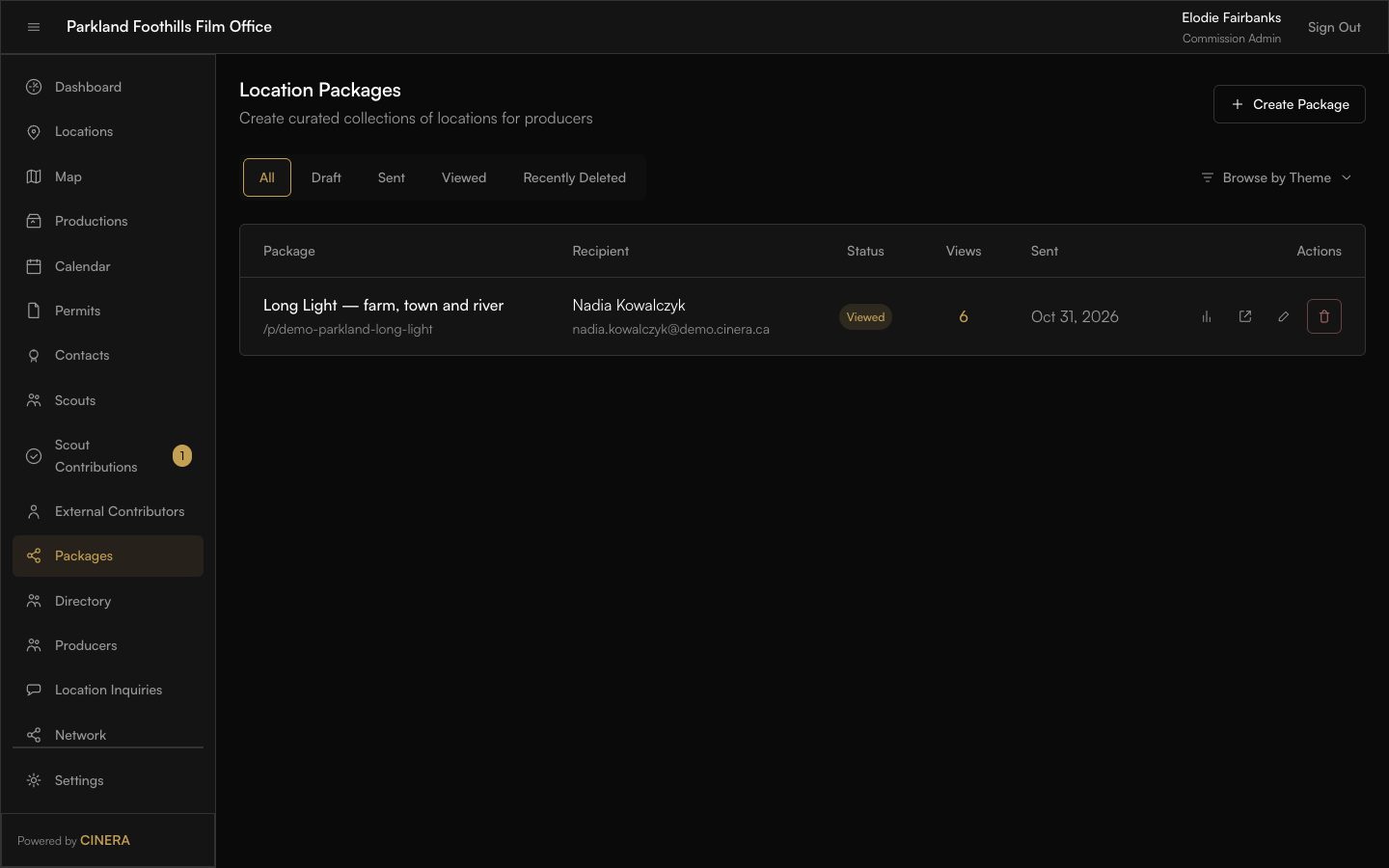
- Create Package: give it a name, recipient and email(s), a reply-to address and a cover message. Choose an expiry, whether photos can be downloaded, and an optional password.
- Under Package Structure, add the scripted locations ("Bank Interior"), then drag options into each one from Available Locations. Search finds locations by name, city, keywords or AI tags.
- Save Draft keeps it; Save & Send emails it. Editing a sent package offers Save & Resend.
- When editing, Recommended Local Vendors pins crew and services from your Directory to the package.
- Browse by Theme on the Packages page groups your library into ready-made sets ("Period Architecture", "Rural Settings"); Create package with these starts a package from one.
- From the list you can view, edit, or open Analytics: views, unique visitors, time on page, which locations drew the most attention (marked HOT), and inquiries from the package, which you can answer there.
- Deleted packages go to Recently Deleted for 30 days, where you can restore them or delete them for good.
Directory and Producers
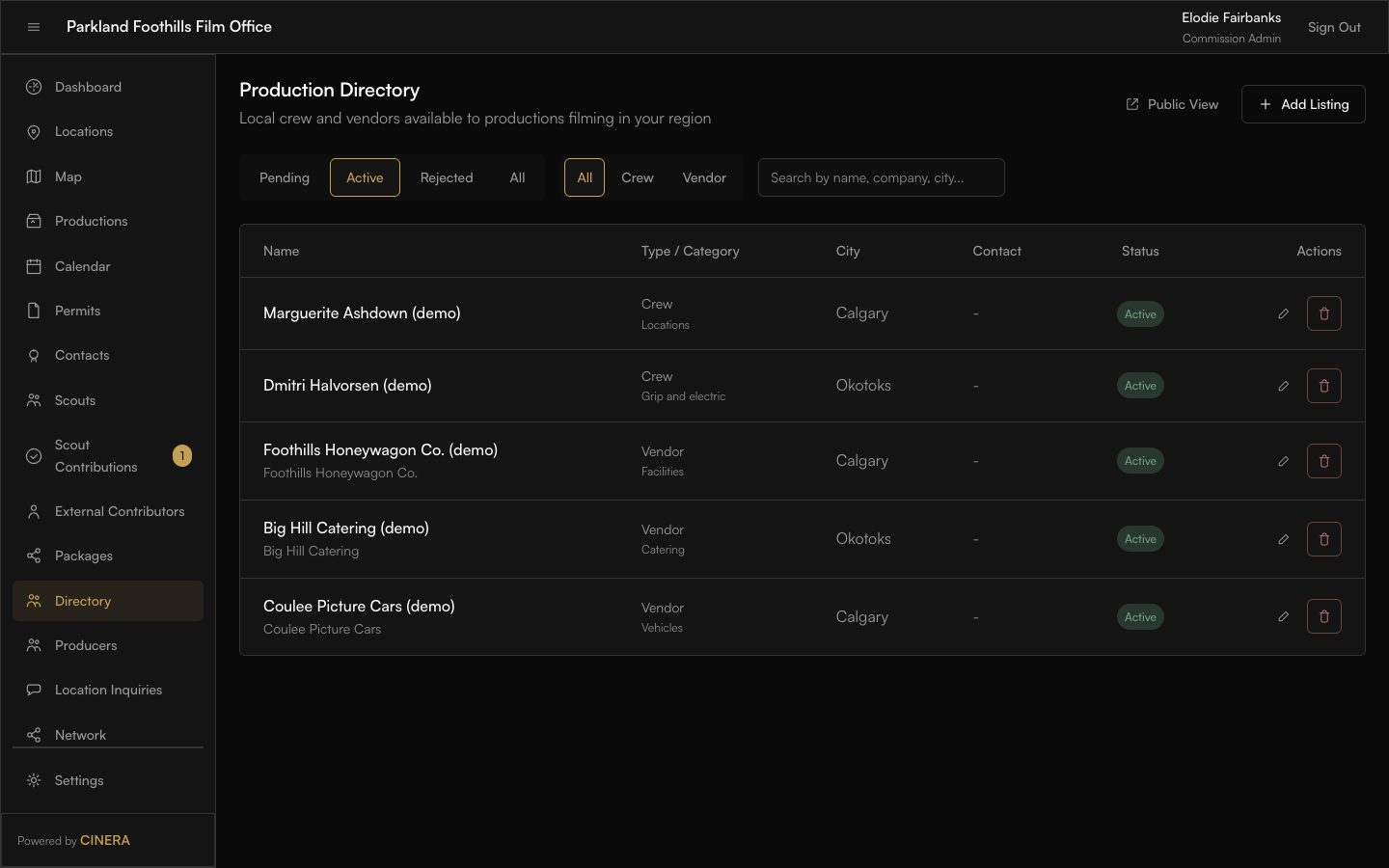
- Directory is your Production Directory of local crew and vendors. Add Listing publishes one straight away; listings others submit wait for you to Approve or Reject. Public View shows it as productions see it.
- Producers lists the people you've sent packages to: how many packages, how many views, and when you first and last contacted them.
Network
Network connects your commission with partner municipalities on CINERA, so you can follow film permits in their towns.
- A Commissioner chooses Invite a municipality, picks the town and adds an optional message. You can share your office contact details with them. The invitation lasts 30 days, and you can Withdraw it until the town answers.
- The town's administrator accepts, and chooses what it shares: Permits in progress (each permit from submission until it's finished: number, production, status, shoot dates, location names and areas, and how many departments have cleared it) and Office contact details. Applicants' contacts, insurance, fees, internal notes and documents are never shared.
- Under Partner municipalities, each connection shows what each side shares. Permits in progress opens the town's list. Either side can change what it shares, or End connection with a reason both sides see. Ended and declined connections move to History.
Settings has a separate Network tab for your Network Trust Tier: see Settings below.
Community
Community keeps the office's community work in two tabs.
- Complaints: Log Complaint records a noise, traffic, parking or property-damage complaint, optionally linked to a production. Move it to Mark In Progress and Mark Resolved with resolution notes.
- Outreach Programs: Add Program records internships, networking events, screenings and workshops, with dates and participants.
Suitability Report and Gap Analysis
- Suitability Report matches a production's scripted locations against your library. Enter the production and contact, list the requirements ("INT. DETECTIVE'S OFFICE - NIGHT"), and Generate Report. Each requirement comes back with ranked options (Strong, Viable, Possible, Unlikely) and the gaps. Draft Response writes the cover email, and Past Reports keeps earlier ones.
- Gap Analysis shows what your library keeps failing to match: unmatched requirements, and locations that are suggested but rarely chosen. Use it to brief scouts on what to find.
Economics
Economics is your economic impact report.
- The dashboard shows direct spend, total impact, return on investment, local hire, production days and jobs supported for the year you choose. The multipliers are your commission's own, and the methodology says which.
- PDF, XLSX and CSV export the year's report.
- Productions lists the productions you report on. Add Production records one, with a confidentiality setting: commission only, aggregate only, or public. Send Intake Form emails a producer or accountant a form to report spend and employment, with an optional password.
- Open a production to enter its expenditure by category, its employment, and see its impact summary.
- Audit log (Commissioners only) is the record of every change to the figures. Corrections are added, never written over.
Analytics
Analytics shows how your library is used: total and active locations, views over time, inquiries, top locations, and breakdowns by property type and by area.
Settings
Settings has these tabs:
- General: your commission's name, URL slug, region, website and contact email. Toggles for Require approval for scout contributions and List commission in CINERA directory, and the Inquiry response time in hours, set by a Commissioner.
- Branding: your logo, shown in the portal header and on packages.
- Access: Public Database lets anyone browse your public locations in your gallery.
- Appearance: light, dark or system theme.
- Security: two-factor sign-in (see Your account).
- Team: everyone in your office and pending invitations. Invite Team Member takes an email, a role (the form shows what that role can do) and an optional personal message. From a member's menu a Commissioner can Change role or Remove from commission; pending invitations can be resent or cancelled.
- Network: your Network Trust Tier, from Private to Full Participant, which controls how your library takes part in matching beyond your office. CINERA changes it; ask through Contact Support to Request Upgrade.
- Help & Support: getting started notes and a form to report a problem.
Your public gallery
Your commission has a public page on Explore, with its public locations and gated previews.
From it, producers send you inquiries and property owners list with you. A link to it ending in your URL slug,
for example /explore/your-commission, is the one to put on your own website.
Getting help
Email support@cinera.ca.
Last reviewed November 2026.