CINERA HELP
Location Manager guide
The Manager portal is where a location manager runs a production's locations: the team, the scouts' submissions, what the clients get to see, the budget and the day-to-day coordination. The CINERA Manager phone app keeps the approvals, the daily lists and the team's messages in your pocket.
The examples follow Long Light, an invented feature shooting around Calgary, and Arjun, a demo scout on it. Every person and place in them is made up.
Before you start
- Plans. The Manager portal on the web comes with the Full Platform plan. App Access is the phone app only. See the pricing page for what each costs, and Settings → Subscription in the app for your plan.
- Who sees the portal. Location managers, Key ALMs, coordinators, ALMs and location PAs open the Manager portal. A scout goes to the Scout portal instead (see the Scout guide).
- Productions. Everything in the portal follows the production chosen in the header. A location manager who creates a production owns it, invites the team and decides what the clients see.
- Your account. Sign-in, two-factor sign-in, profile and subscription are covered in the Account guide.
The header
- The production menu next to the logo switches production. When the production has shoot days, a second menu picks the day; Coordination and Logistics follow it.
- The tabs are Overview, Productions, My Locations, Budget, Coordination, Logistics, Maps, Calendar, Messaging and Permits. Two menus follow them: Creative (Review, Narratives, Match) and Data (Reports, Storage).
- Messaging shows a count of your unread messages, wherever you are in the portal.
- Scout switches to the Scout portal, where you make packages (see Packages). The bell holds your notifications, the gear opens Settings, and your picture opens Account.
Overview
Overview is the production at a glance.
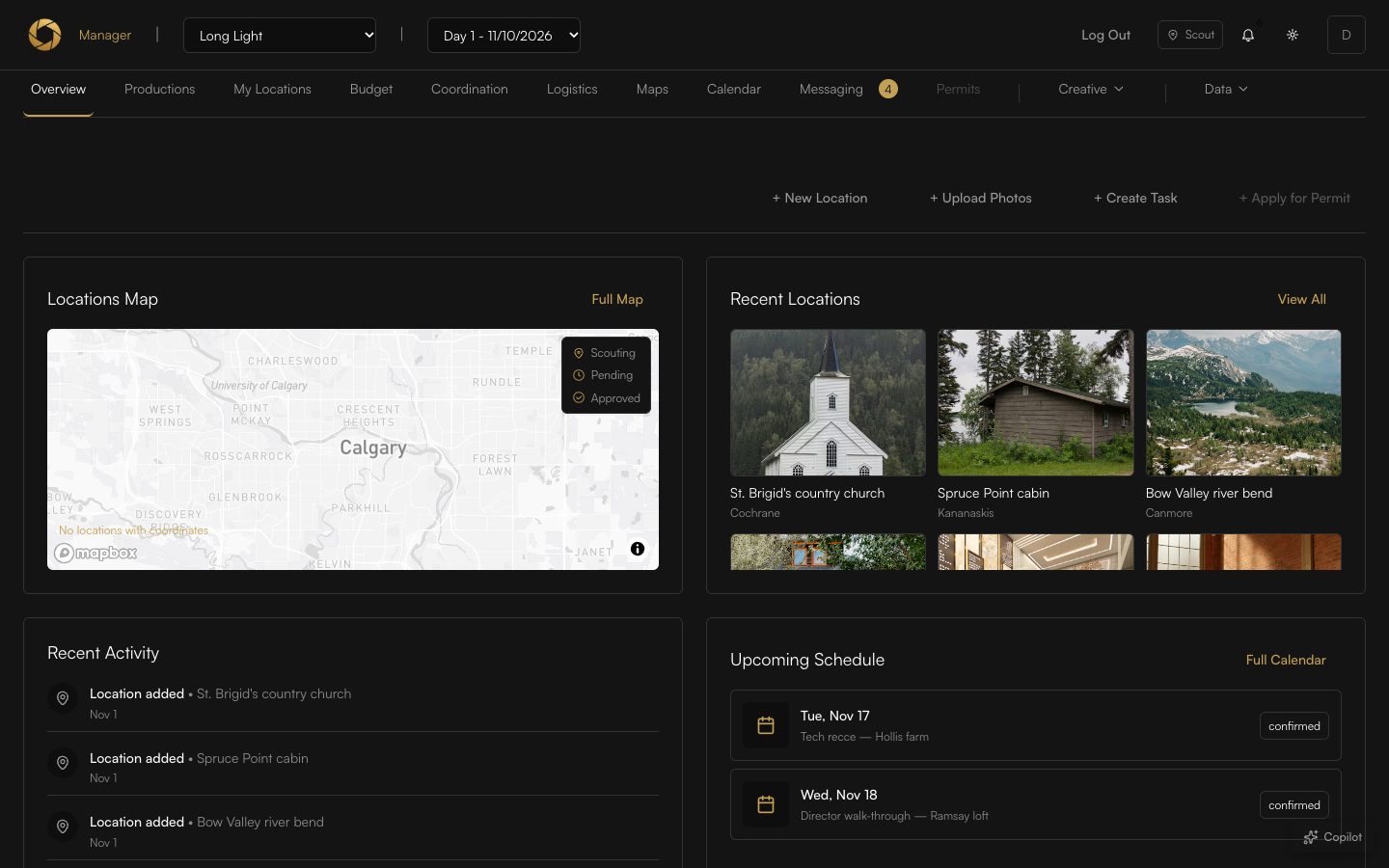
- Quick actions along the top: + New Location, + Upload Photos and + Create Task. + Apply for Permit is greyed out until permits open in your region.
- A map of the production's locations, with Approved, Pending and Scouting counts, and Recent Locations (View All opens My Locations).
- Recent Activity lists what changed lately: locations added or updated, photos, events, messages.
- Upcoming Schedule shows the next bookings and events; Full Calendar opens the calendar.
- Today's Priorities lists the tasks due today. Tick one to complete it. All tasks opens the full task list, where Create Task adds one and All Tasks / My Tasks filter it.
Productions
Productions lists every production you run or belong to on the left, with its status, and the chosen production's details on the right.
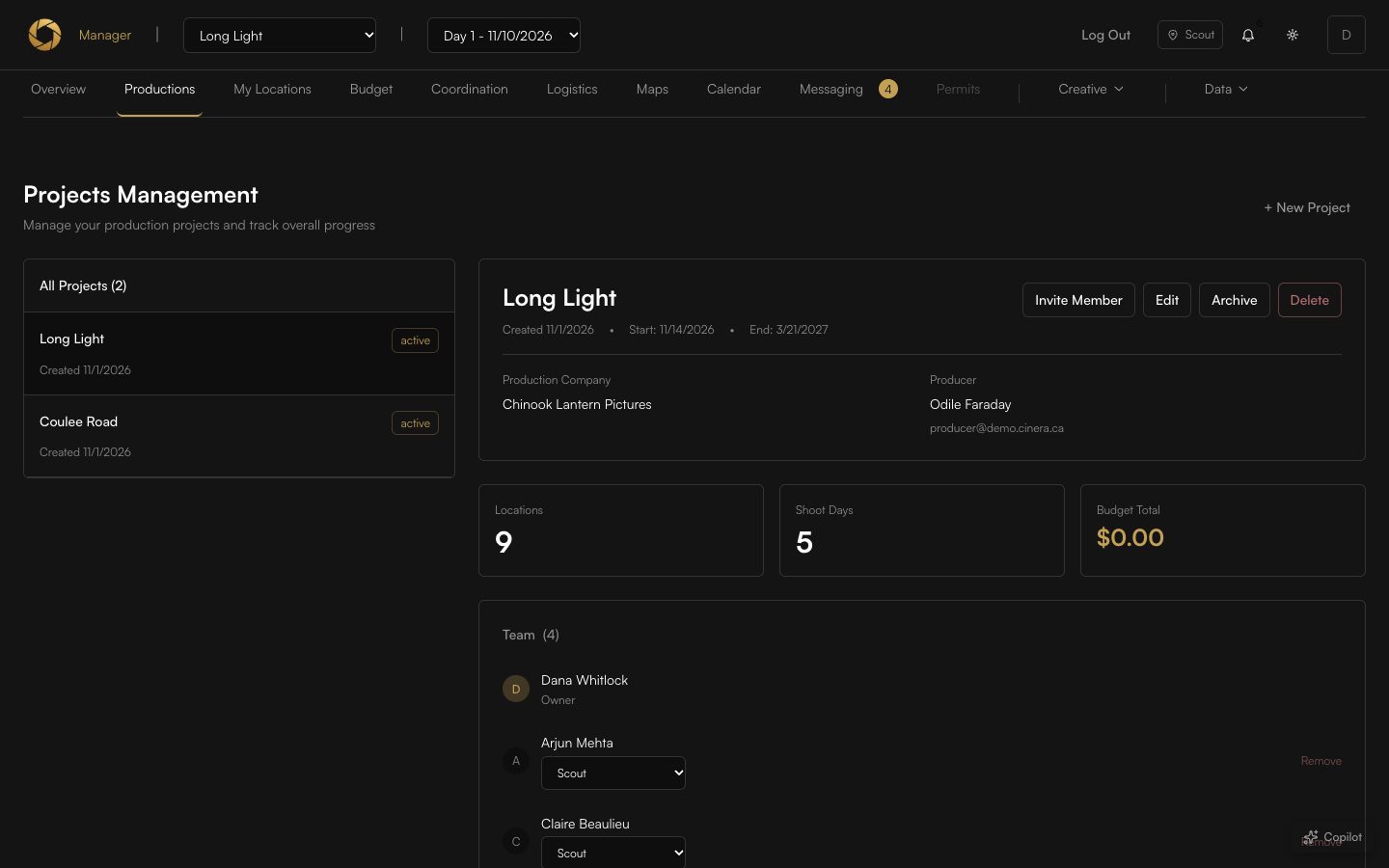
- + New Project opens Create New Production. Use Basic Setup for a production name, dates, the production company and the producer's contact details, or Import from Scouting to turn a project a scout already built into a production.
- Edit changes the details, including the status (Active, On Hold, Archived). Archive puts a production away; Delete is for the owner or a location manager only.
- The page also shows the Project Timeline, the production's documents, a Scouted Locations Map and any notes.
Script breakdown and folders
- Script Breakdown takes a script PDF (Upload & Ingest) and breaks it into scenes and the places they call for. You review the matches before anything is applied.
- Location Folders are how you tell scouts what to find: one folder per scene or area ("Hollis farm, scenes 3, 12, 40"). + Folder adds one; Edit Folders lets you rename, nest, reorder by dragging and archive them.
The team
The Team panel shows the owner, everyone on the production with their role, and pending invitations.
- Invite Member sends an invitation by email to a Key ALM, Coordinator, ALM or Scout (only the owner or a location manager can invite another Location Manager). You also get a link you can share yourself.
- The owner or a location manager can change anyone's role from the menu under their name. Remove takes someone off the production; Cancel withdraws a pending invitation.
- A scout you invite works inside the production's folders. You see what each scout has placed in it; other scouts don't see each other's work.
Access codes
Access Codes gives the production a Team App code and a Client App code. Crew and clients type the code in the Team or Client app to join. Copy Code copies it, New Code replaces it (the old one stops working), and each shows how many people have joined with it.
Team permissions
Settings → Team Permissions sets what each role can do on every production you run, in one place.
- Edit team permissions opens the matrix. Pick a role (Key ALM, Coordinator, ALM, Scout, Location PA) and switch rights off, one at a time or a whole category at once. Save Changes keeps them; Reset to Defaults puts the role back.
- You can only take rights away. A role never gets more than its defaults.
- A location manager always has full access, and only the location manager can change this matrix. Anyone else sees "Only the Location Manager can change team permissions."
- CINERA checks these switches when someone approves or releases a location, or invites people or clients to a production.
Clients and what they see
Clients are the production's director, producers, designers and executives. They see the locations you release to them, in the Client app or the client web portal (see the Client guide).
- In Productions, the Clients panel invites a client by email with Invite client. They get an activation link and appear in the list.
- Give each client a tier: Designer, Director / Producer or Executive. A client whose tier is Not set sees no locations at all.
- Under each client you can see the locations they've favourited.
Each location has a Client release level, which decides which tiers see it:
| Released to | Seen by |
|---|---|
| Designer | Designer clients only |
| Director / Producer | Designer and Director / Producer clients |
| Executive | Every client tier |
| Not released | No client |
Release options up the ladder as they survive discussion, and pull them back when discussion reopens. The change reaches clients straight away.
Approving scout locations
When a scout submits a location, it waits for your review.
- My Locations → Review queue lists every location awaiting review across your productions. Refresh reloads it. When it's empty you'll see "Nothing awaiting review."
- Open one to see its photos, details and the Internal sign-off panel:
- Approve accepts it into the production.
- Request changes sends it back to the scout with what to fix.
- Reject turns it down with a reason.
- The reason goes to the scout. The Internal note stays with the managers and is never sent to the scout.
- Approving doesn't show a location to clients. Approval is your internal sign-off. Clients see a location only once you release it: set its Client release level (see Clients and what they see). A release level it already had is kept.
- Only approved locations can be released. A location not yet in a production shows "Add to a project to review."
Your locations
My Locations → Library is every location across your productions, the same library scouts use (see the Scout guide), with a few manager extras:
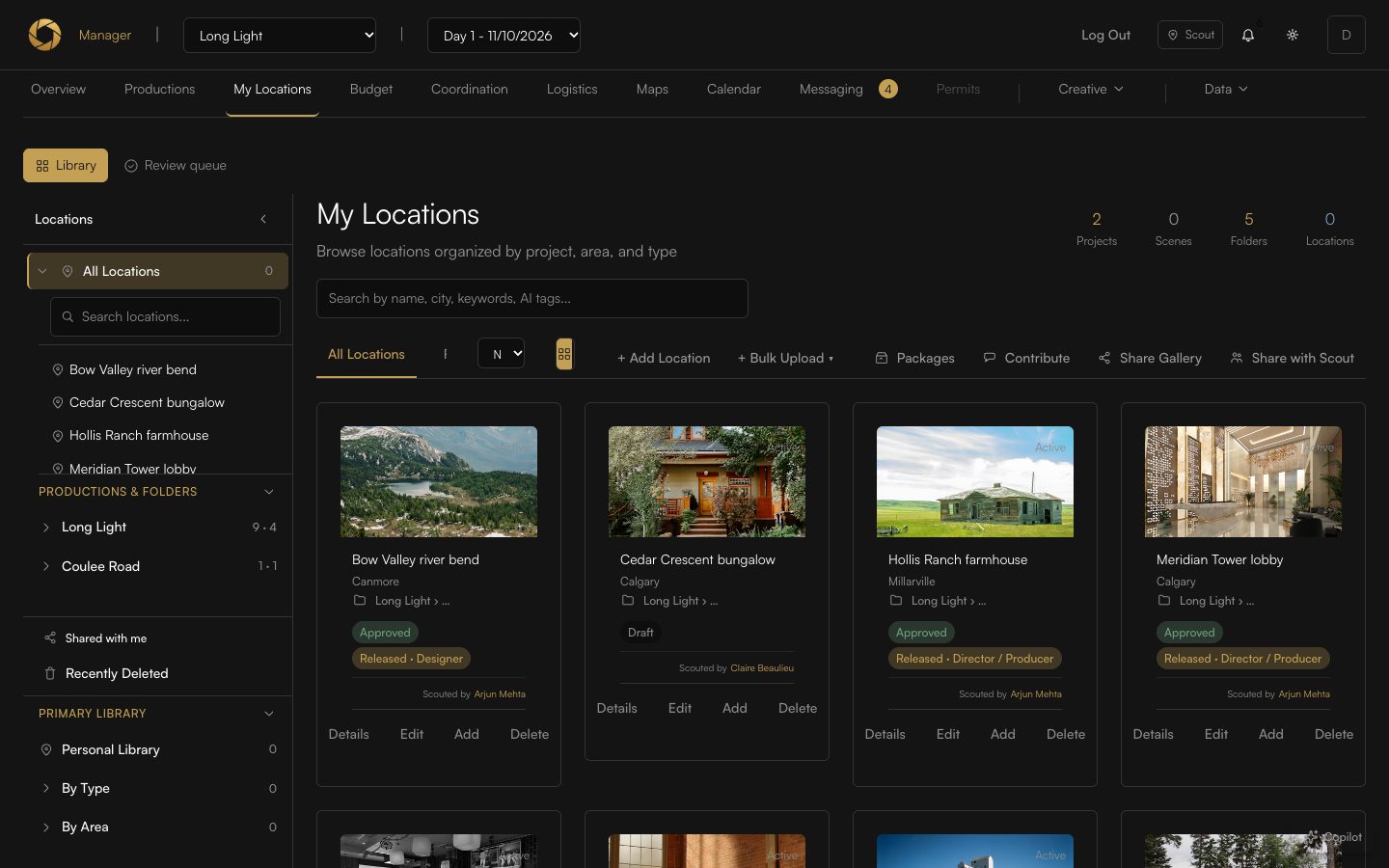
- Under each production, Scout Contributions shows what each scout has added.
- Sort by Status to group locations by where they stand in review.
- Select several locations and the tray at the bottom lets you Approve them all at once (this releases nothing to clients), release them with Release to… (only approved ones are released), Merge two copies of one place, or Remove from the production. Removing takes them out of that production only; they stay in your library.
- A location can sit in more than one production. Approval and release are per location, so a decision applies wherever it's placed.
A location's page
Open a location for its photos, videos and details, and three panels managers rely on:
- Client feedback shows who favourited it and the client discussion about it, including comments on single photos. Clients read this thread, so anything you write in Reply to the client… they see.
- Crew issue reports lists problems crew reported at the location from the Team app (see the Team guide).
- The buttons along the top: Invite Owner to List (send the owner an invitation to list their property), Import Scouting Notes, Create Agreement, and Contribute to Commission where a film commission accepts contributions.
Packages
Packages, the private links you send to a director or a production, are made in the Scout portal. Choose Scout in the header, then follow Packages in the Scout guide.
Budget
Budget holds the production's location budgets.
- + New Budget (or Create Your First Budget) starts one; Import Budget from Excel brings in an existing sheet.
- Each budget has views for Summary, Top Sheet, Sets, Labour, ROS (run of show), Budget vs Actual, Cost Report, Financial and Settings.
- Export as PDF gives you a report to send. A locked budget can't be edited.
- The production's Budget Total also shows on its Productions page.
Coordination
Coordination is the production office for locations. Its tabs:
- Dashboard and Planning for the shoot days ahead.
- Agreements and Releases for the paperwork with owners.
- Vendors, Inventory Management and Contacts for the people and kit.
- Timesheets & DTR for the team's time.
- Vault for the production's files.
Logistics
Logistics works location by location: pick one from Location:, then use Parking & Street Use, Traffic Control and Community Relations.
Maps
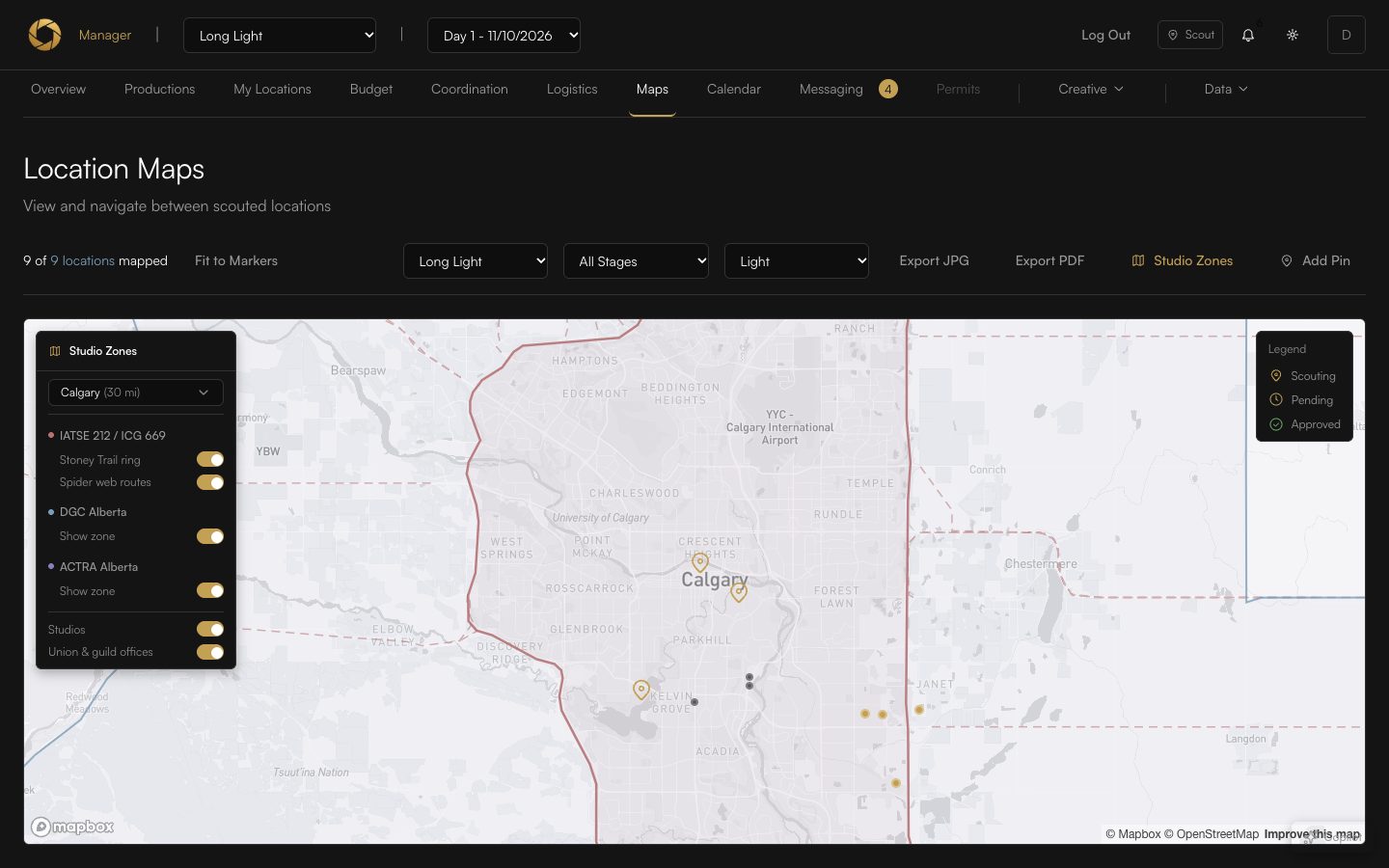
Maps shows every location on one map. Filter by production and stage, Fit to Markers, set an origin and Get Directions, drag a marker to correct its position (Save Position), and Export JPG or Export PDF. Studio Zones shows the studio zone line. Double-click a marker to open the location.
Calendar
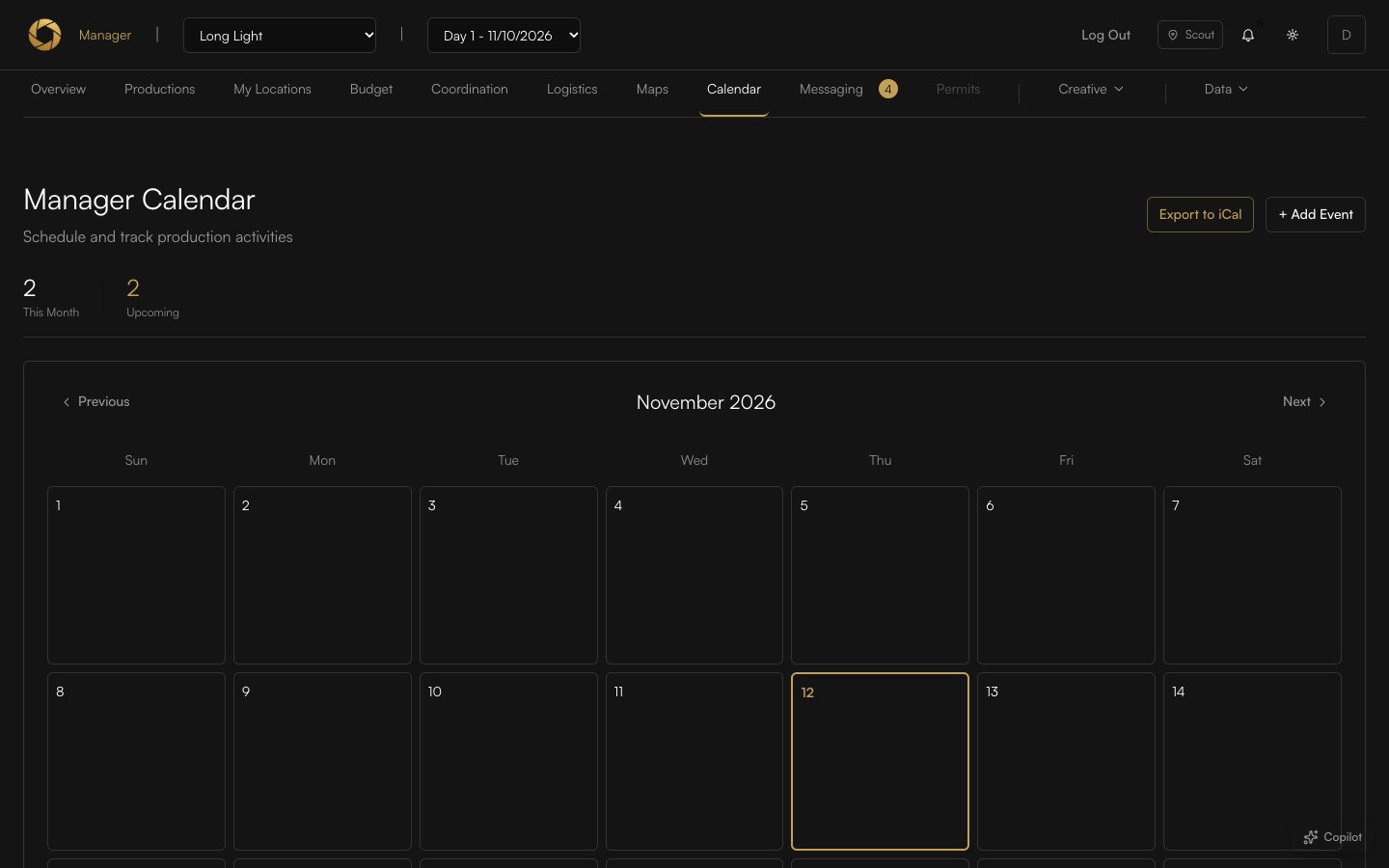
Calendar holds recces, tech scouts, bookings and other production events. + Add Event adds one, tied to a production and a location if you like; This Month and Upcoming switch the view; Export to iCal puts it into your own calendar.
Messaging
Messaging holds the production's conversations, the same threads the phone apps show.
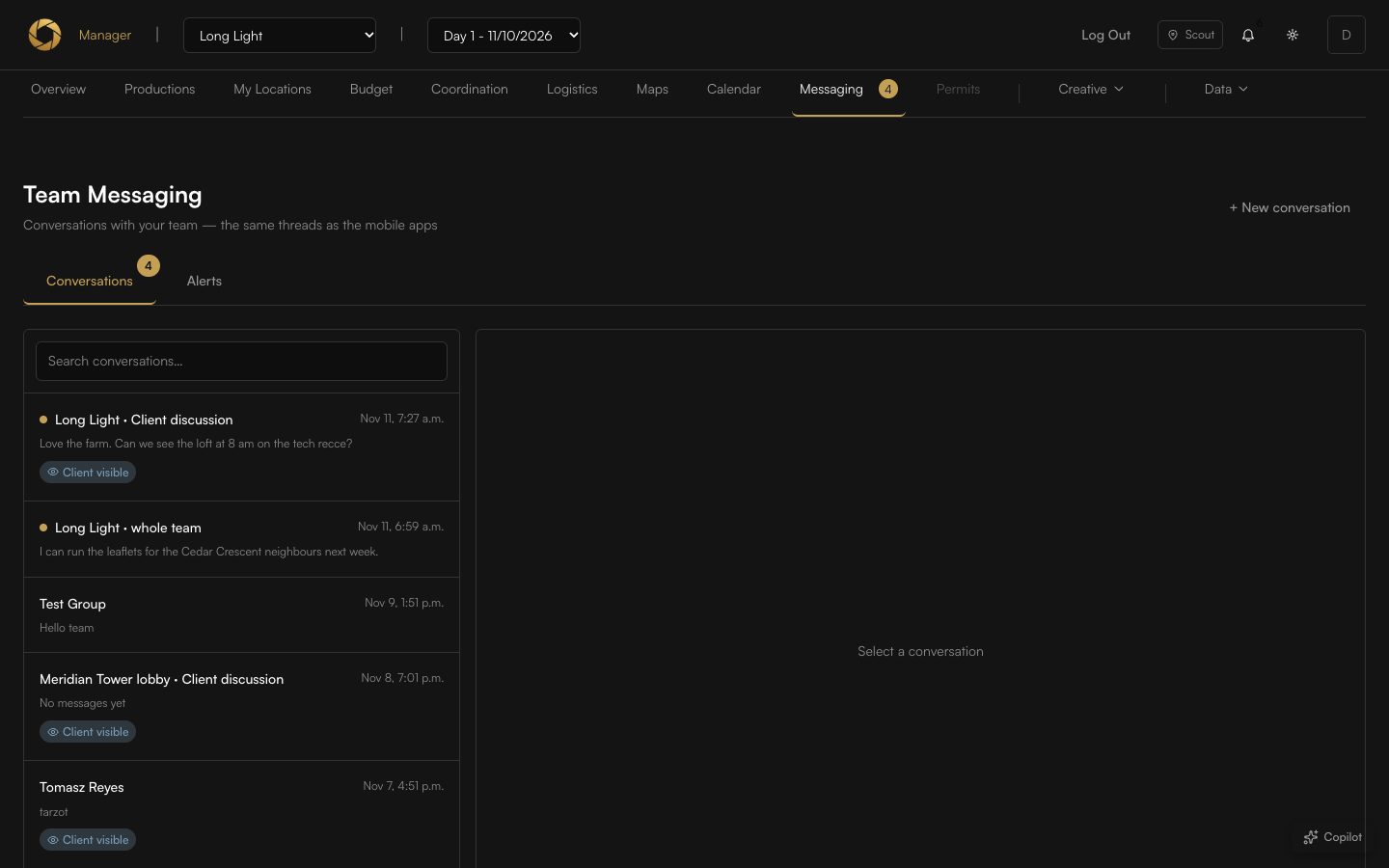
- + New conversation starts one with One person, A group of people, The whole production team, or The production's clients.
- A thread marked Client visible is read by the production's clients. Keep team-only notes out of it.
- When a client comments on a photo, the photo shows in the thread.
Permits
Permits is greyed out: permit applications aren't open in your region yet. The tab lets you Invite Your Jurisdiction to CINERA.
Creative and Data
- Creative → Review collects what CINERA's assistants have proposed, such as place matches for your script breakdown. Nothing is applied until you approve it.
- Creative → Narratives writes descriptions of your locations for you to approve.
- Creative → Match searches your approved locations by describing what you need in plain words.
- Data → Reports generates Scout Reports, which use credits or the Unlimited add-on.
- Data → Storage opens the Storage Organizer, a one-time add-on that tidies photo storage. See the pricing page for both.
Settings
The gear opens Settings. The tabs a manager uses most:
- Productions & Access lists the productions you're on and your role in each, plus any Dailies you belong to (see the Review guide).
- Notifications sets which push and email notifications you get.
- Team Permissions, described above.
- Account, Security and Billing & Payment are covered in the Account guide.
Copilot
The Copilot button (bottom right) answers questions about your productions ("which locations are still awaiting review?") and about how CINERA works.
The Manager app
CINERA Manager is the location manager's phone app. Its tabs are Inbox, Projects, Map, Daily, Messages and Settings.
- Inbox. Everything waiting on you: AWAITING REVIEW (scout locations) and JOIN REQUESTS (scouts asking to join a project). Review opens a location; Approve accepts it on the spot without releasing it to clients. "All caught up" means nothing is waiting.
- Reviewing a location. The review screen shows the scout's details and notes, how often it has been viewed in shared galleries under SHARE ACTIVITY, and CLIENT RELEASE: it starts at Not released (or the location's current release); pick Designer, Director / Producer or Executive before you Approve to release it as you approve it. Changes and Reject ask for a reason for the scout.
- Projects. New creates a project (name, production type, network or studio, shoot start date). Each
project card opens its locations, its members, and two sheets:
- Invite a scout makes a code with an Expiry and a maximum number of uses. Tap the code to copy it; revoke old ones from Active codes.
- Project settings → Open to scout requests lets scouts find the project and ask to join. Their requests land in your Inbox.
- Map. The project's locations on a map, with Directions and Review.
- Daily. Pick the project, day and location, then open the Calendar, Tech Survey, Prep List, Shoot List, Wrap List or DTR (daily time report).
- Messages. The same team and client threads as the web portal.
- Alerts. Settings → Notifications → Alerts holds production alerts. + New Alert sends one to a project's team: choose the type (Alert, Status Update or Schedule Update), the project (only your active projects are listed) and the message, then Send Alert.
- Notifications. Push notifications for new messages, locations to review, join requests and alerts open the right screen when you tap them. Choose which ones you get in the web portal's Settings → Notifications.
- Help. Settings → About → Help and guide opens this page.
Getting help
Email support@cinera.ca.
Last reviewed November 2026.