CINERA HELP
Scout guide
CINERA Scout is where a location scout keeps everything they find: the places, the photos, who to call, and what's been sent to whom. The Scout phone app captures it in the field; the Scout portal on the web organises it and shares it.
The screenshots follow a demo scout, Arjun, working on Long Light, an invented feature shooting around Calgary. Every person and place in them is made up.
Before you start
- Plans. The Scout app is for capturing in the field. The web portal comes with Scout Pro, which adds projects, packages, maps and everything else in this guide. You can see and change your plan in Settings → Subscription in the app.
- Productions. A location manager can add you to their production. You then work inside it, and your locations count toward it. You can also keep projects of your own.
- Your locations are yours. On a production, the location manager sees what you've placed in it, but other scouts on the same production don't see your work.
Overview
The Overview tab is your dashboard: how many locations you have and where they stand, and your packages.
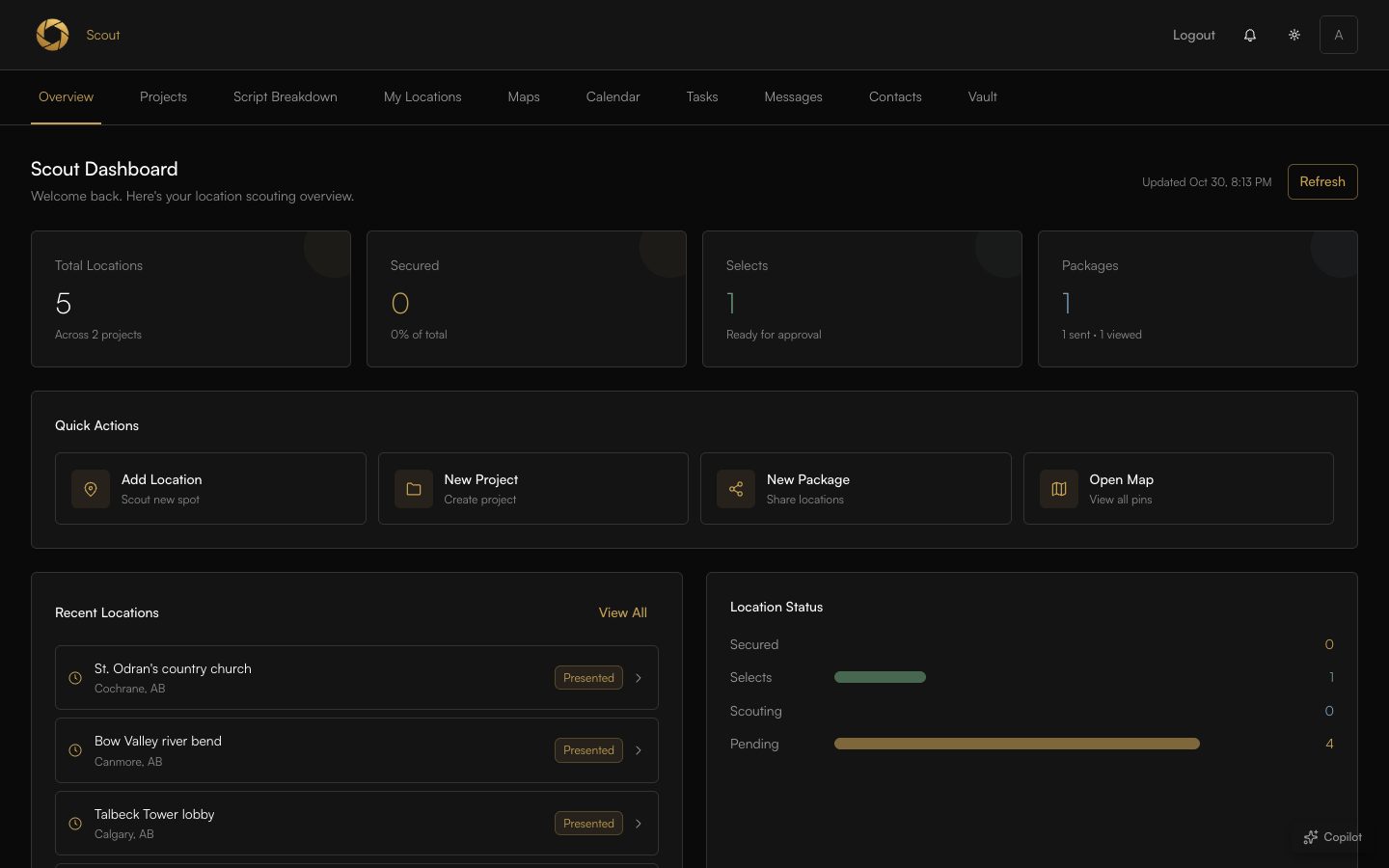
- Secured counts locations booked or wrapped, Selects the ones selected, Pending the ones you've presented and are waiting on, and Scouting everything still in progress.
- Quick actions start the four things you do most: add a location, start a project, make a package, open the map.
- Recent locations shows what you touched last, with each one's stage.
Projects and folders
Projects holds each production you scout for, and the folders inside it. A folder is usually a scene ("Hollis farm, scenes 3, 12, 40") or an area ("Highway 2 town").
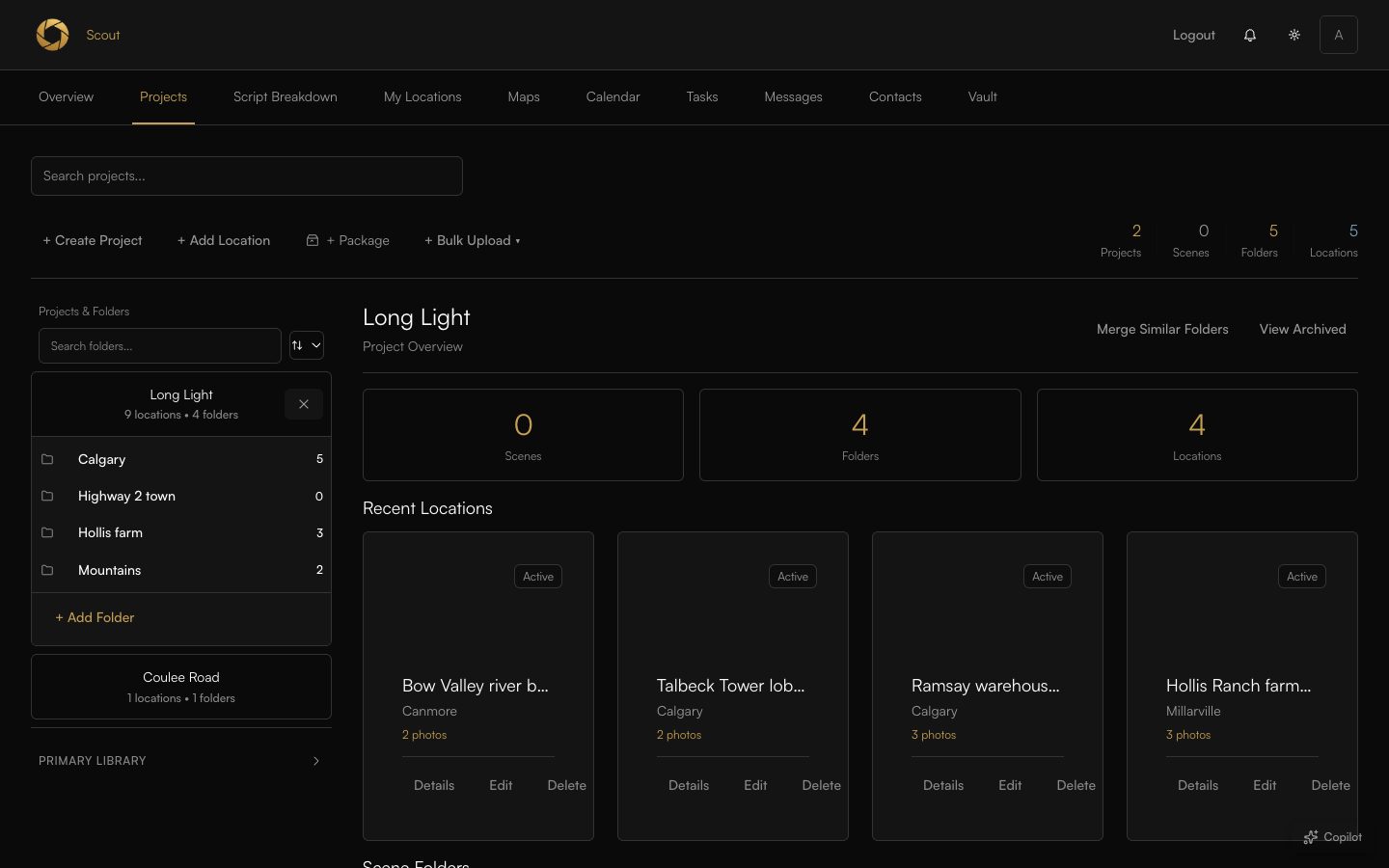
- Choose a production on the left to see its folders and recent locations.
- + Add Folder makes a new scene or area folder. Merge Similar Folders tidies up near-duplicates.
- + Create Project starts a project of your own; + Add Location and + Bulk Upload add locations straight into it.
Your locations
My Locations is your library. The left side groups it by production and folder, and also by type and area across everything you've scouted.
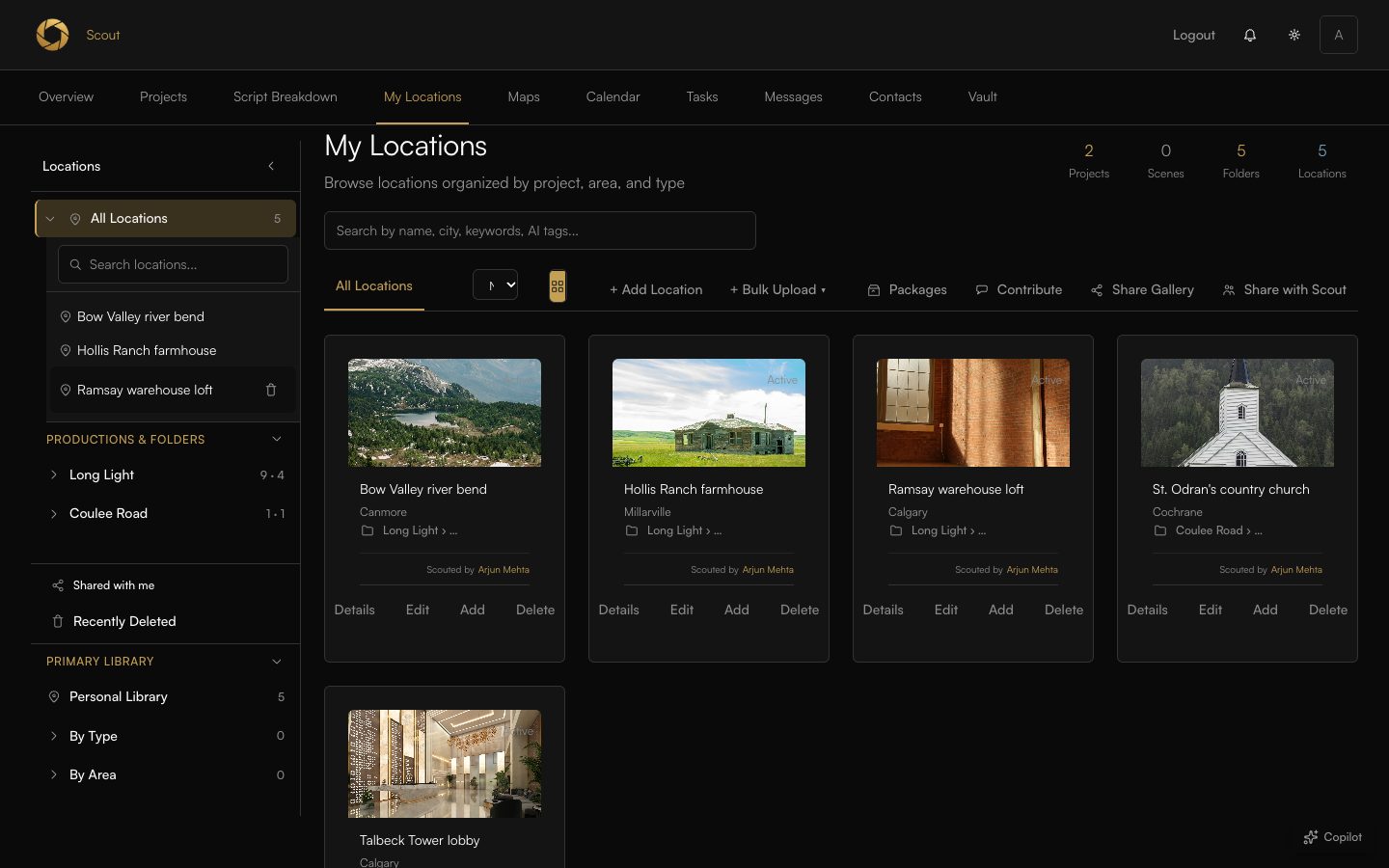
- Search by name, city, keywords or the AI tags CINERA adds to your photos.
- Switch between cards and a list, and sort by name or date.
- Recently Deleted keeps deleted locations for a while, so you can bring one back.
Open a location with Details to see its photos, videos and everything you recorded about it.
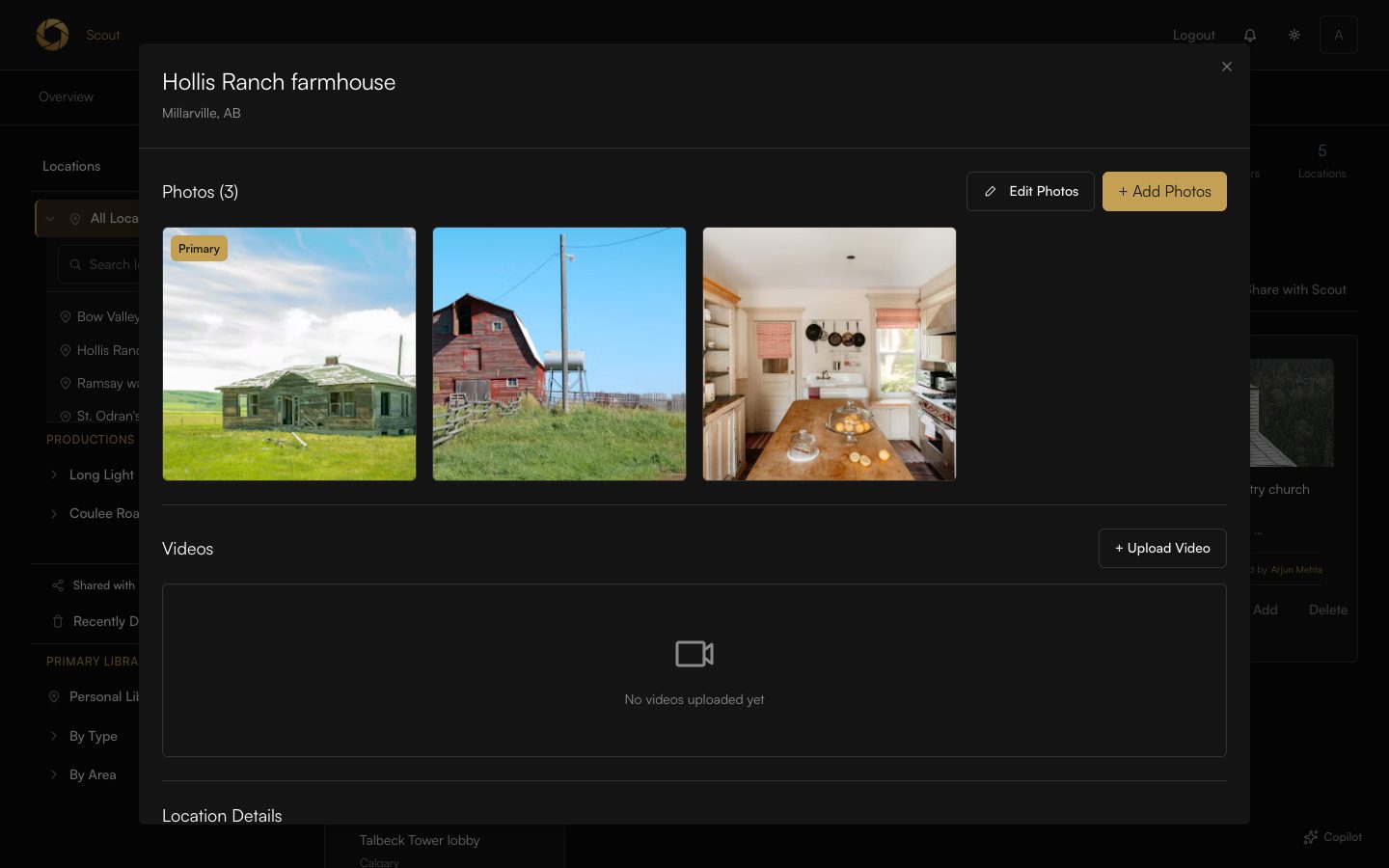
- Add Photos uploads more; Edit Photos lets you reorder them, pick the cover (Primary) or delete.
- Below the photos are the location's details: address, contact, parking, power, permit notes, your scout notes, and the sun's path through the day (and the weather, where your organisation has weather turned on).
- How precise the address is that others see is up to you: exact, approximate or hidden.
- Sun studies lists the moments you saved from the Scout app's sun path (see Sun path below). The location manager sees them on the location too.
Adding a location
On the web, choose + Add Location from the Overview, Projects or My Locations, fill in what you know and add photos. In the field, the Scout app is faster: see The Scout app below.
Each location moves through the pipeline as you work: draft, scouted, photographed, presented, selected, booked, wrapped. The dashboard counts from it.
Map
Maps shows every location you've scouted on one map.
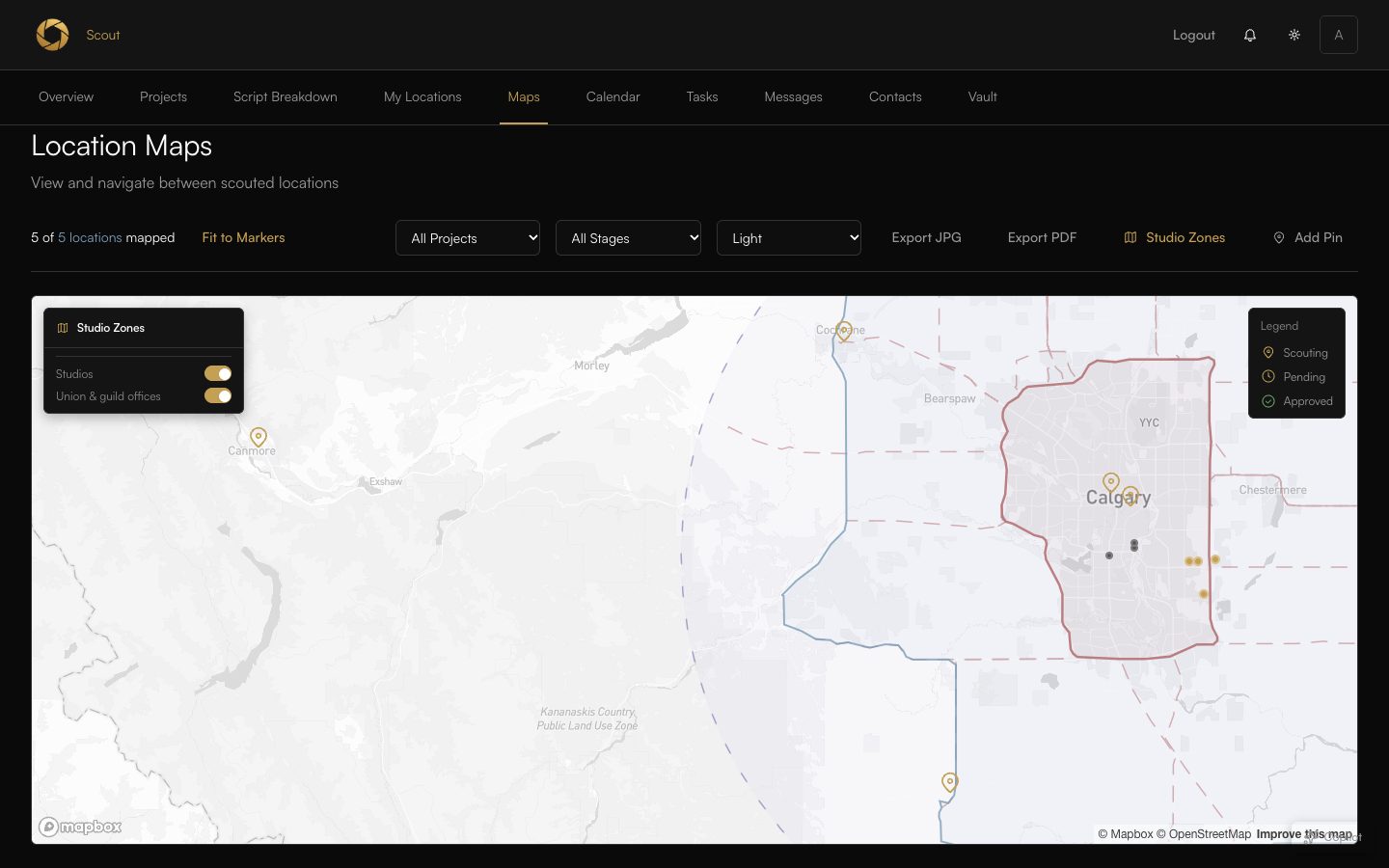
- Filter by production and by stage, and change the map style.
- Fit to Markers frames them all. Add Pin marks a spot you haven't scouted yet.
- Studio Zones shows the studio zone line, studios, and union and guild offices, so you can see at a glance what's inside the zone.
- Export JPG and Export PDF give you a map to drop into a deck or send.
Packages
A package is a set of your locations, shared with someone by a private link. It's how you send options to a location manager, a director or a production.
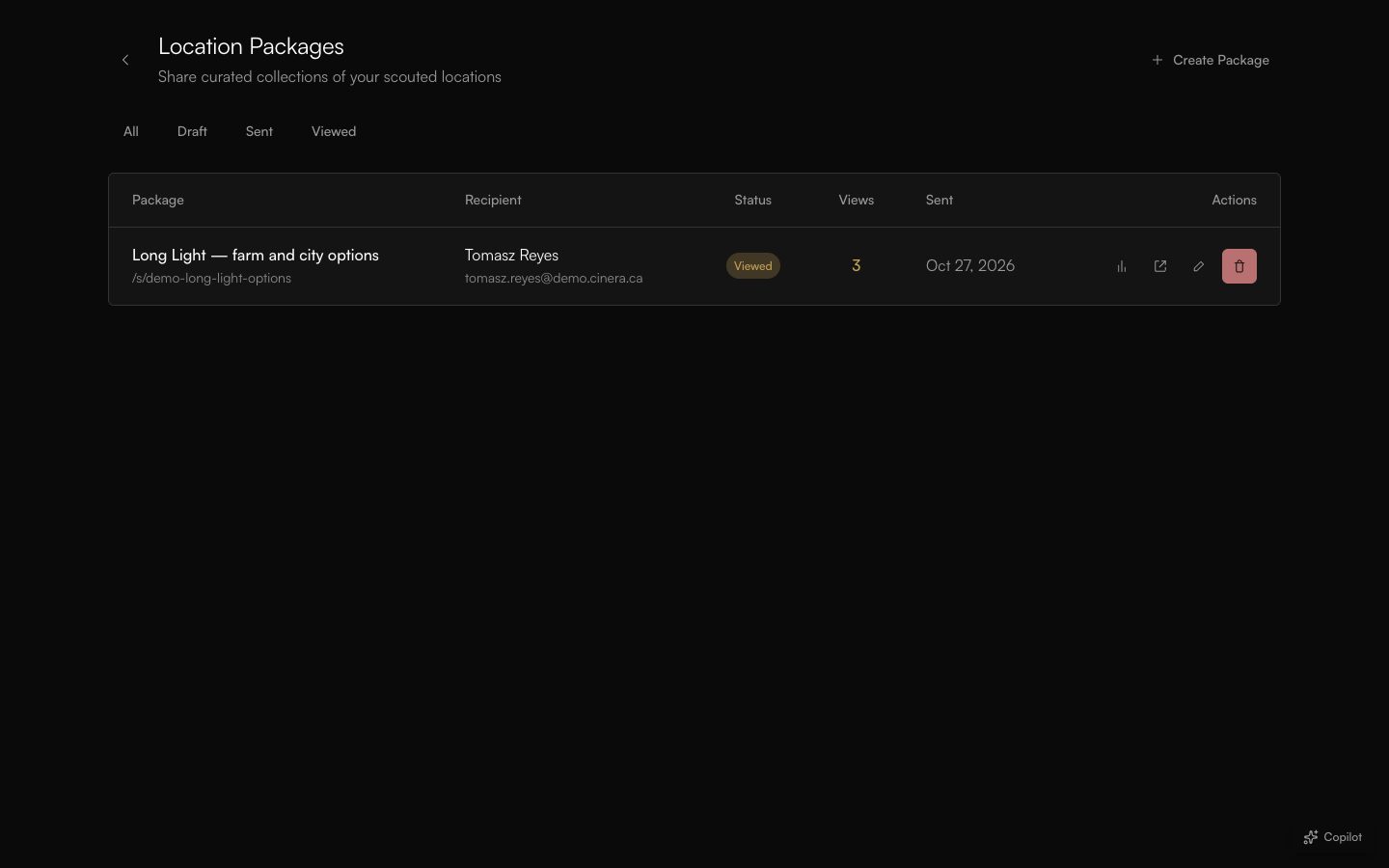
- Create Package → pick the locations, group them if you like, add a note, and send it.
- The list shows each package's recipient, whether it's been viewed, and how many times.
- From a package you can see its view analytics, open it as the recipient sees it, edit it or delete it.
This is what the recipient sees:
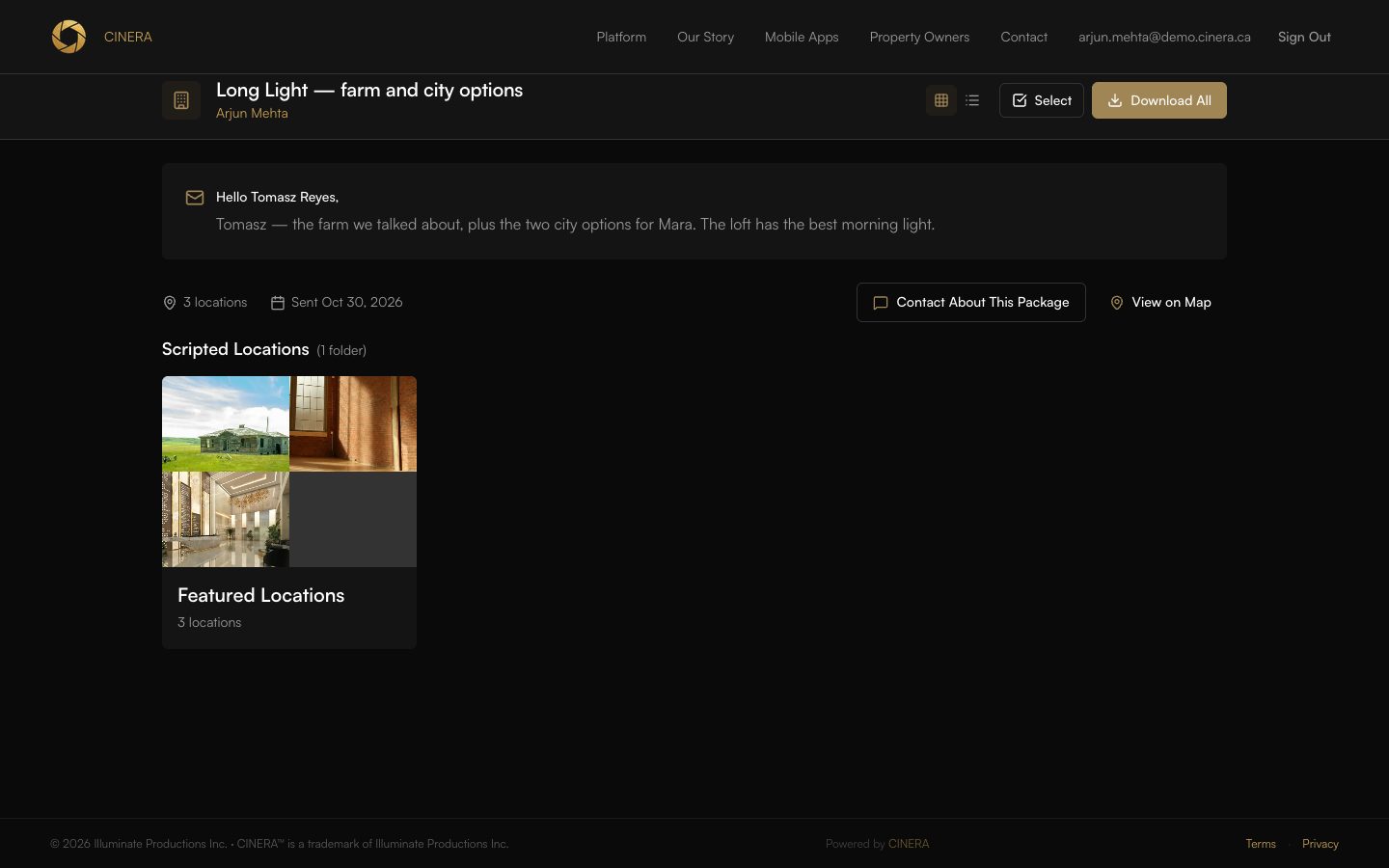
They can browse the photos, see the locations on a map, select the ones they like, download the photos, and contact you about the package. They don't need a CINERA account.
Calendar
Calendar holds your recces, walk-throughs and scouting days.
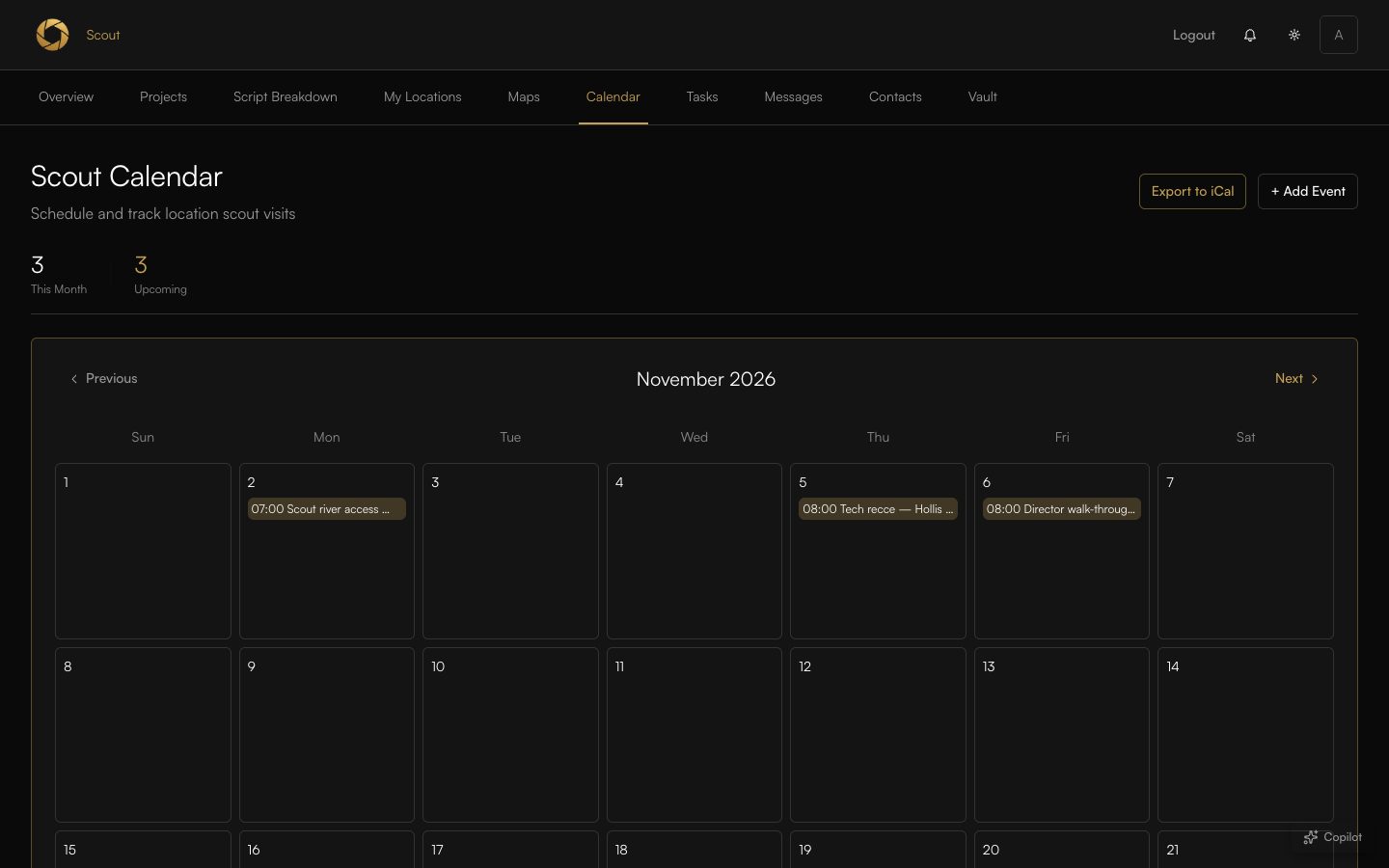
- + Add Event adds a visit, optionally tied to a location and a production, with times and a contact.
- Export to iCal puts your scouting days into your own calendar.
Tasks
Tasks is your to-do list, by status: pending, in progress, completed.
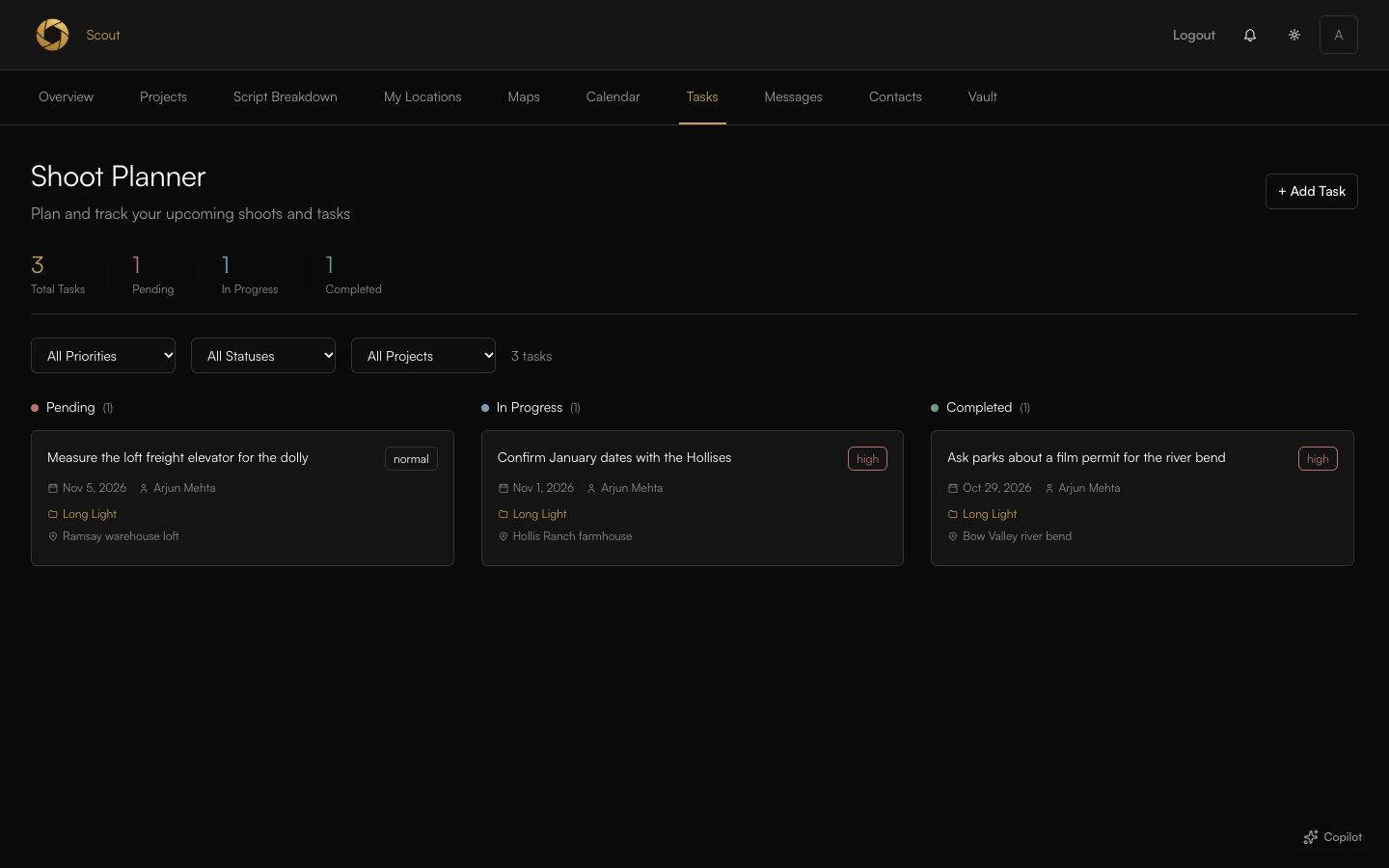
Each task can belong to a production and a location, with a due date and priority. Filter by priority, status or production.
Messages
Messages holds your conversations with the team, the same threads you see in the phone apps.
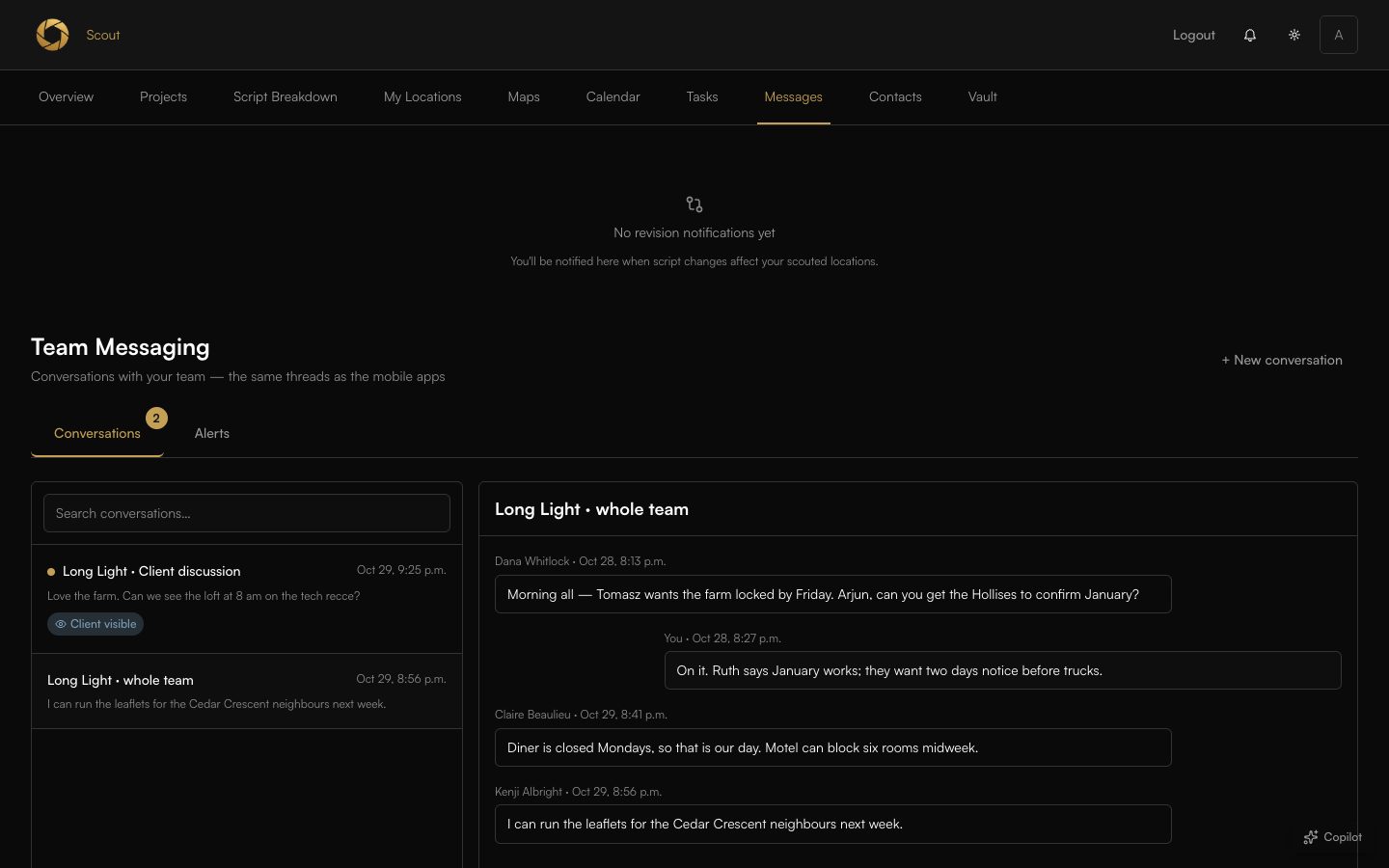
- Each production has a team thread. You can also start a conversation with anyone on your productions.
- A thread marked Client visible includes the production's director or creatives. Anything you write there, they read.
- The top of the page shows script revision alerts when script changes affect locations you've scouted.
Contacts
Contacts keeps the people behind your locations: owners, property managers, building operations.
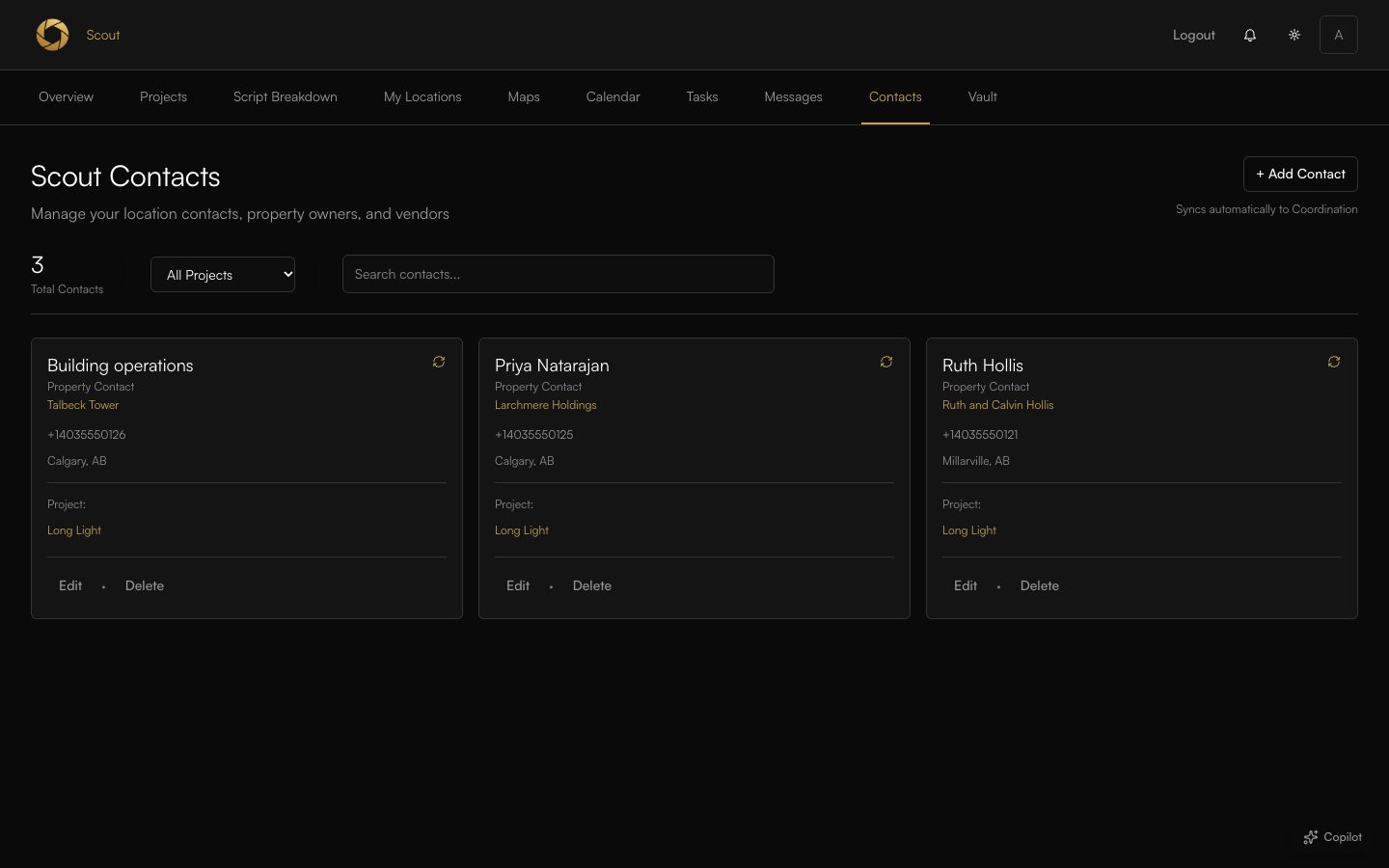
Contacts you add here sync to the production's coordination, so the location manager has the same names and numbers.
Vault and script breakdown
- Vault stores files that belong with your scouting work, in folders you make.
- Script Breakdown breaks a production's script into its scenes and the locations they call for, with your notes on each (location, access and more). Upload a script revision and CINERA shows what changed — omitted and new scenes — before anything is applied.
Your public profile
Your public profile is a page about you and your work, at cinera.ca/scout/ followed by your username. Send it to a production that's hiring, or put the QR code on a card. It's off until you switch it on.
- Switch it on. On the web, go to Settings → Profile, turn on Enable Public Profile, choose a username and Save Profile. In the app, it's Settings → Public Profile (see The Scout app).
- Choose what it shows. Nothing from your library appears on your profile until you choose it. In the Profile locations card under Settings → Profile, add locations from your library, put them in order, and choose how much each one shows: City only (name, photo and city) or Full location (adds the address). Then Save locations. Locations you've published through a film commission also show.
- Available for work puts a badge on your profile so people know you're taking work.
- The card also shows how many people viewed your profile in the last 30 days.
What visitors see:
- Share gives them your link to copy, and a QR code they can download.
- Contact opens a short form. Their message reaches you through CINERA with their email address, so you can reply straight to them. Your own contact details stay private.
Copilot
The Copilot button (bottom right) answers questions about your own work ("which of my locations have power?") and about how CINERA works.
The Scout app
The phone app is built for the field. It works offline and syncs when you're back in signal.
- Capture a location. Photos are tagged with GPS as you take them. Add the details on the spot, or later on the web.
- Shooting sessions. Start a session at a location and the app records your GPS track while you work, even with the phone in your pocket. On Android, the app explains this and asks for "Allow all the time" first; on iPhone, choose "Always" for location. End the session when you're done.
- Sync. Everything you capture appears in the portal under the same production and folder. Settings shows what's waiting to sync.
- Messages. The same team threads as the web, with notifications for new messages.
- Help. Settings → About → Help and guide opens this page.
The latest version of the app also has the following. If you don't see them, update the app.
Public profile and inquiries
- Settings → Public Profile edits your profile from the phone: the Public profile switch (off until you turn it on), Available for work, your username, about, work and links, and the locations on your profile (Add locations, then City only or Full location for each). Under Share, Show QR code, Share link and View public profile. The page also shows how many people viewed your profile.
- Settings → Inquiries holds messages sent through your profile's contact form, with a count of new ones on the row and a notification when one arrives. Reply opens an email to the sender, Call rings them if they left a number, and Archive files it away.
- Share Profile and View Public Profile work once your profile is switched on and has a username. Until then, the app offers to set it up.
Sun path
Open a location and tap Sun path, golden hour, shadows under Sun to open the Sun path.
- The dial shows the sun's path from above for the chosen day, with the summer and winter paths, sunrise and sunset directions, where the sun is, and where the shadow falls. Tap North up · tap to follow compass below it and the dial turns with your phone; tap again to go back to north up.
- Change the day with the arrows or the chips: −1 mo, Jun 21, Equinox, Dec 21, +1 mo. Tap the date to come back to now. Drag along the 24-hour bar to change the time; golden hour and blue hour are drawn on it.
- Below are sunrise and sunset, the golden and blue hour times, and the shadow's length and direction for a person, a truck, a two-storey house or a tree (choose one).
- Times are in the location's own time zone, not your phone's, so a recce from out of province still reads right.
- Save sun study keeps that moment with a name and a note. Saved studies are listed below it; tap one to jump back to it. They also appear on the location on the web, for you and the location manager, and in the Manager app.
Looks (LUTs)
A look (a LUT) shows how a location could read on camera.
- Settings → LUTs has seven starter looks made for scouting (from Neutral to Day for Night) and your own LUTs. Import .cube from Files adds your own 3D LUTs; they're kept on your account, so they're on every phone you sign in to. Tap a look to Use on this phone, or to make it the default for the current project.
- On a photo. In the photo viewer, tap Look, choose a look, and hold the photo to see the original. Save graded copy adds the graded version as a new photo. The original photo is kept as it is.
For signing in, two-factor sign-in and your settings, see Your account. To capture a location in 3D, see Cinera Capture.
Getting help
Email support@cinera.ca.
Last reviewed November 2026.