CINERA HELP
Client guide
CINERA Client is for the directors, producers and creatives a production brings in to look at locations. You see the locations the production has approved for you, keep your favourites, and talk them over with the locations team. The Client phone app and the Client portal on the web show the same things.
The examples follow Long Light, an invented feature shooting around Calgary. Every person and place in them is made up.
Before you start
- You're invited. Joining is by invitation only. The production's location manager adds you by email; there are no project codes for clients, and you can't create an account from the app.
- Opening the invitation signs you in to the Client portal at cinera.ca and sets up your access to that production. To sign in on the phone app, you need a password: if you've never set one, use Forgot password? on the sign-in screen.
- Mobile number. The first time you sign in to the app, it asks you to Add your mobile number. The production uses it for SMS notifications.
- What you see. Only the locations the production has approved and released to you, in the production's own folders. You don't see drafts, other productions, or the team's internal conversations.
- Access being set up. Right after you're invited, you may see Your access is being set up. The location manager still has to choose what you can see. Locations and discussion appear once they have.
- Several productions. If you're a client on more than one, pick one when you sign in. Everything you see is for that production until you switch.
For your password, two-factor sign-in and deleting your account, see Account and settings.
Choosing a production
In the app, after you sign in, Choose a production lists the productions you're a client on. Tap one to open it. To change later, go to Settings → PRODUCTION → Switch production.
On the web, the production picker sits at the top of every page when you have more than one.
If the list is empty, the screen says Joining is by invitation: your invitation hasn't been accepted yet. Check your spam folder, or ask your location manager to resend it.
Today
Today shows the production's call sheet for today, once the AD has published it.
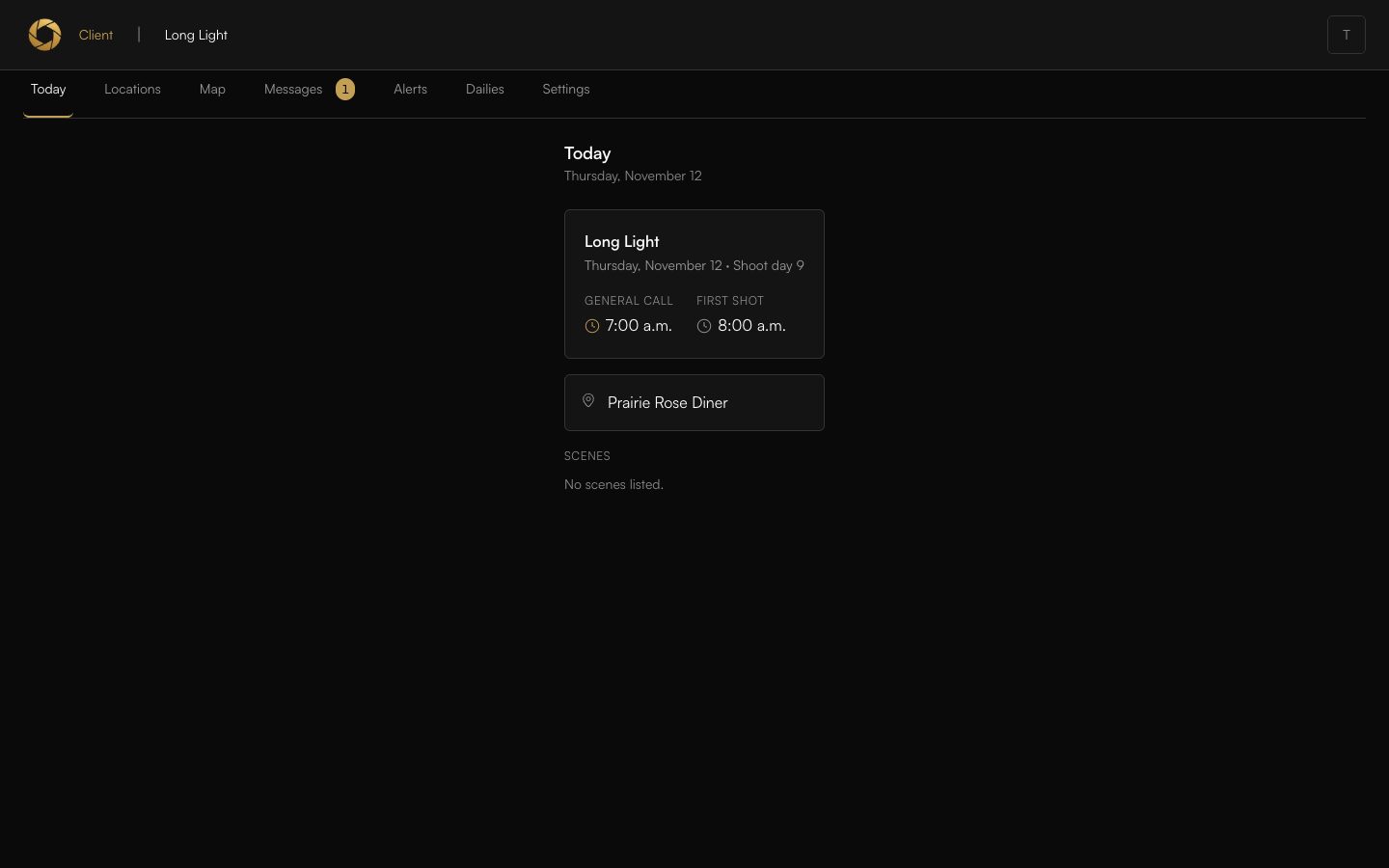
- The production name, the date and the shoot day number.
- General Call and First Shot times.
- The day's location and its address.
- The AD's note, if there is one.
- SCENES: each scene's number, set, interior or exterior, and page count.
If there's no sheet yet, you'll see No call sheet today. Pull down to refresh (or reload the page on the web). If you see No call sheet access yet, the production hasn't given you access to call sheets.
Locations
Locations is the production's approved locations, grouped by the production's folders (usually a scene or a script location, such as "Hollis farm").
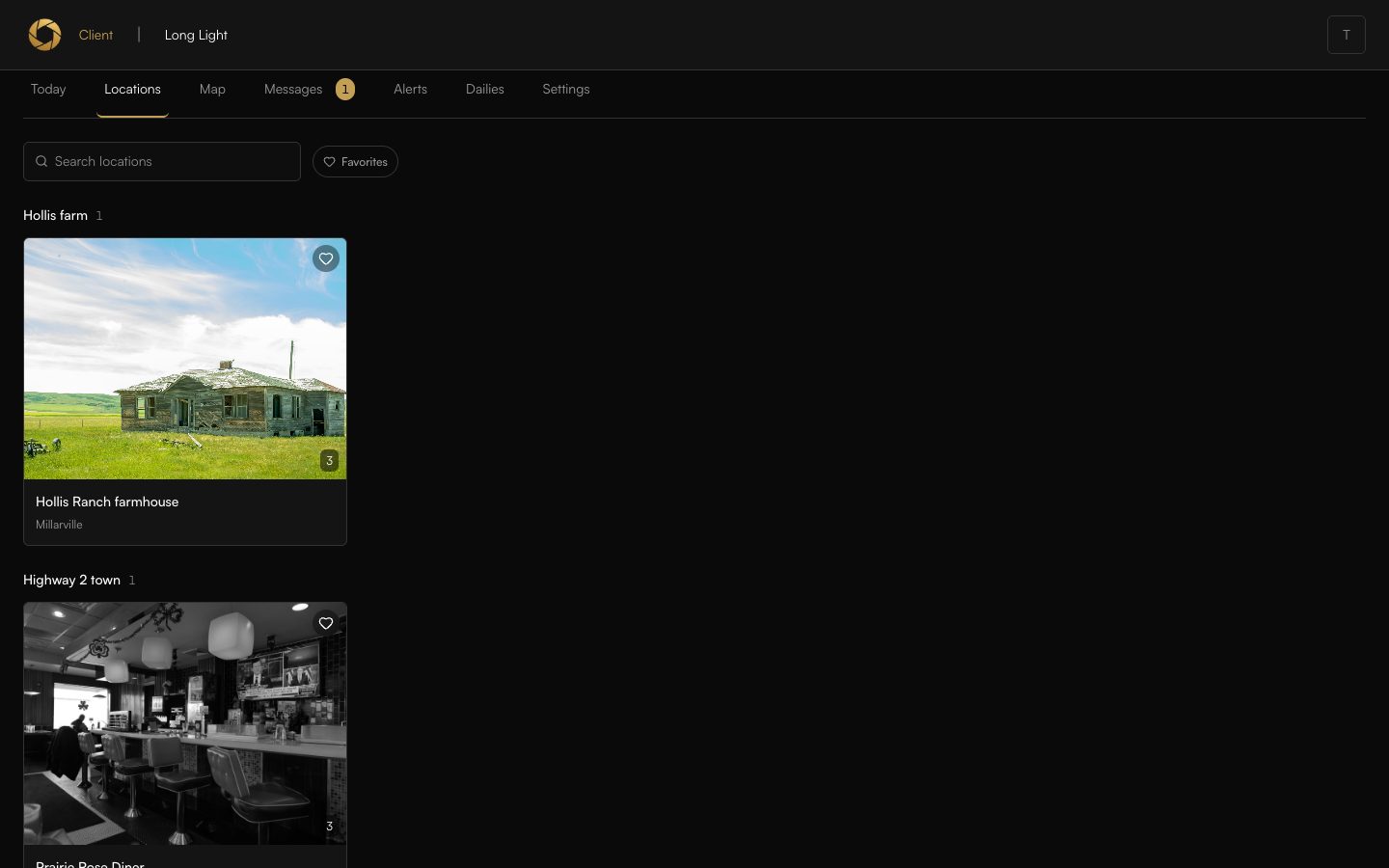
- Search locations by name, address or city.
- Tap the heart on any location to add it to your favourites. Favorites (in the app) or the heart button (on the web) shows only the ones you've saved.
- New locations appear here as the production confirms them for you.
Your favourites aren't private notes: the location manager sees which locations each client has favourited. It's the quickest way to say "this one".
A location
Open a location to see its photos and details.
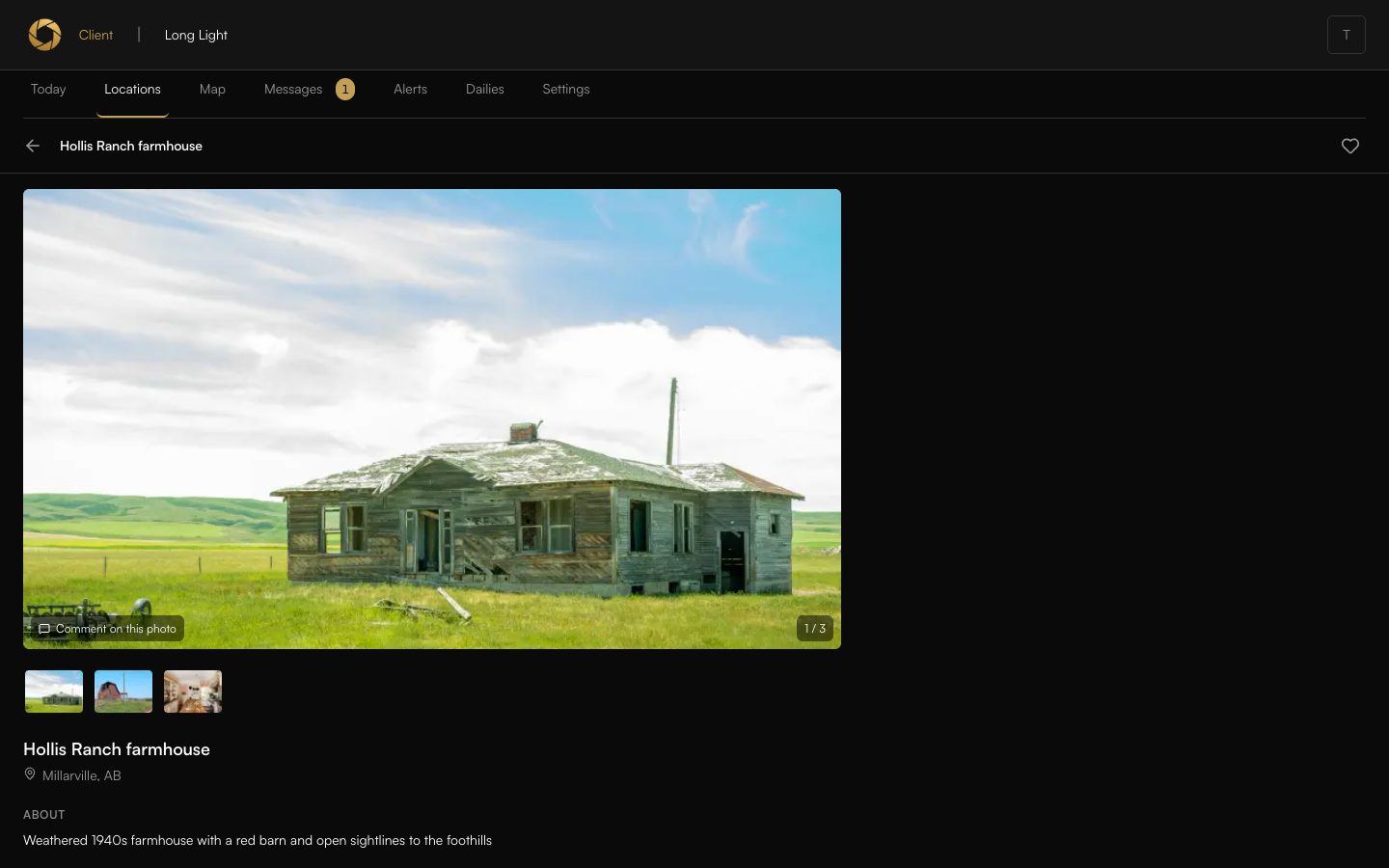
- Tap a photo to see it full screen and swipe through the rest.
- NOTES and DETAILS (in the app) or About and Details (on the web) give what the production has shared: for example the type of place, vehicle access, parking, power, restrooms and the best times.
- On the web, View on map opens the location in Google Maps.
Commenting and discussion
Every location has its own Discussion with the production team.
- In the app, tap Discussion under the location's name. On the web, the Discussion panel is at the bottom of the location's page.
- Comment on this photo pins your comment to one photo. The photo sits at the top of the conversation, so the team knows exactly which shot you mean.
- The first message starts the conversation; just opening a location doesn't.
Discuss and Messages
Discuss (in the app) and Messages (on the web) hold all your conversations on the production.
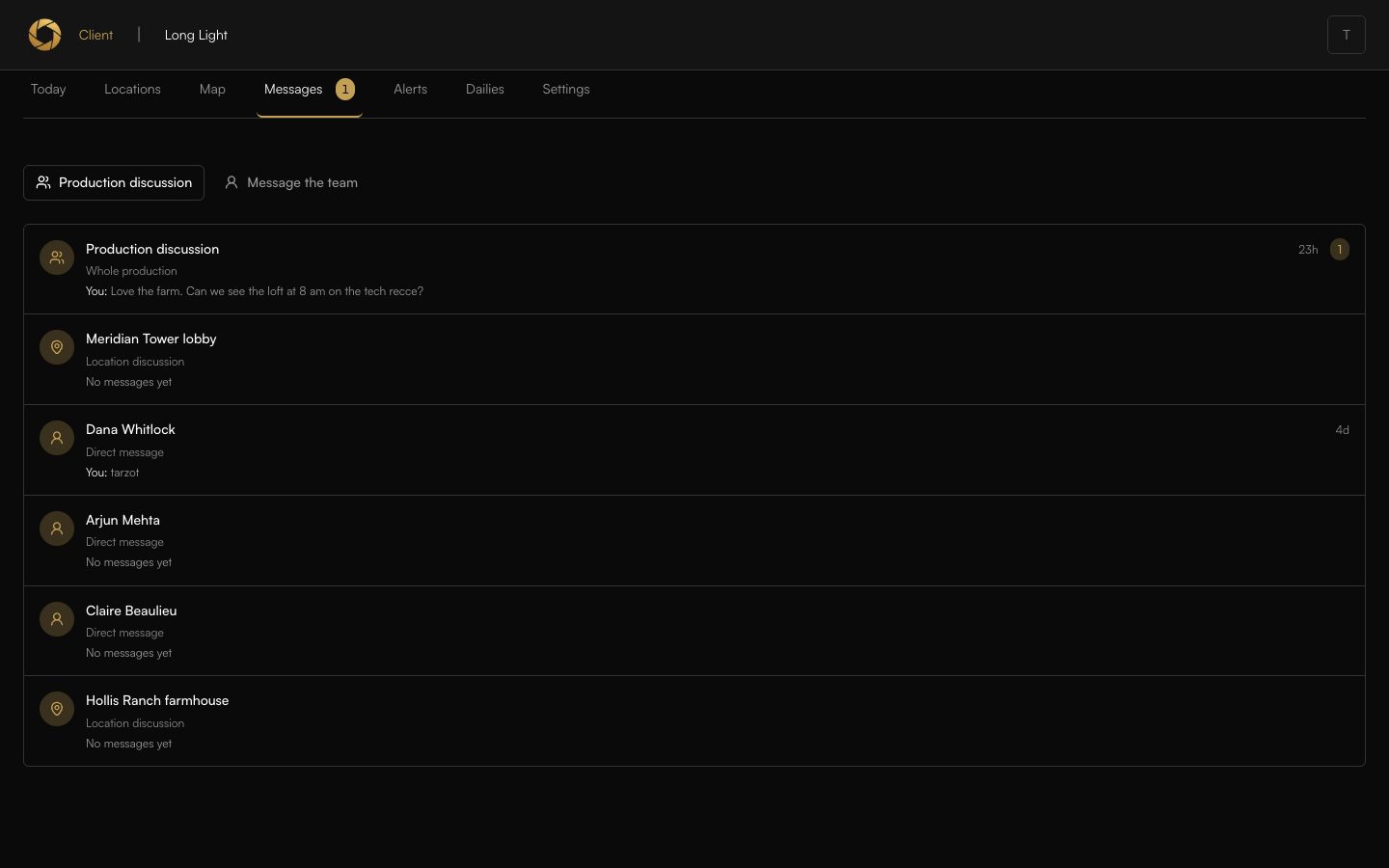
- Production discussion is the production-wide conversation with the team. It's always there; your first message starts it.
- Each location you've discussed has its own thread, listed under CONVERSATIONS.
- Message the team starts a direct conversation with one person on the production team.
- Every message from someone else shows their name. A number on a thread shows how many messages you haven't read; on the web, the Messages tab shows your unread count too.
What you can see is deliberately limited. You only see conversations made for clients: the production discussion, location discussions and your direct messages with the team. On the team's side, those threads are marked Client can see this, so they know you'll read what they write there. Their own team threads stay private, and you can only message people on the production team, not other clients.
Map
Map shows the production's locations on a map.
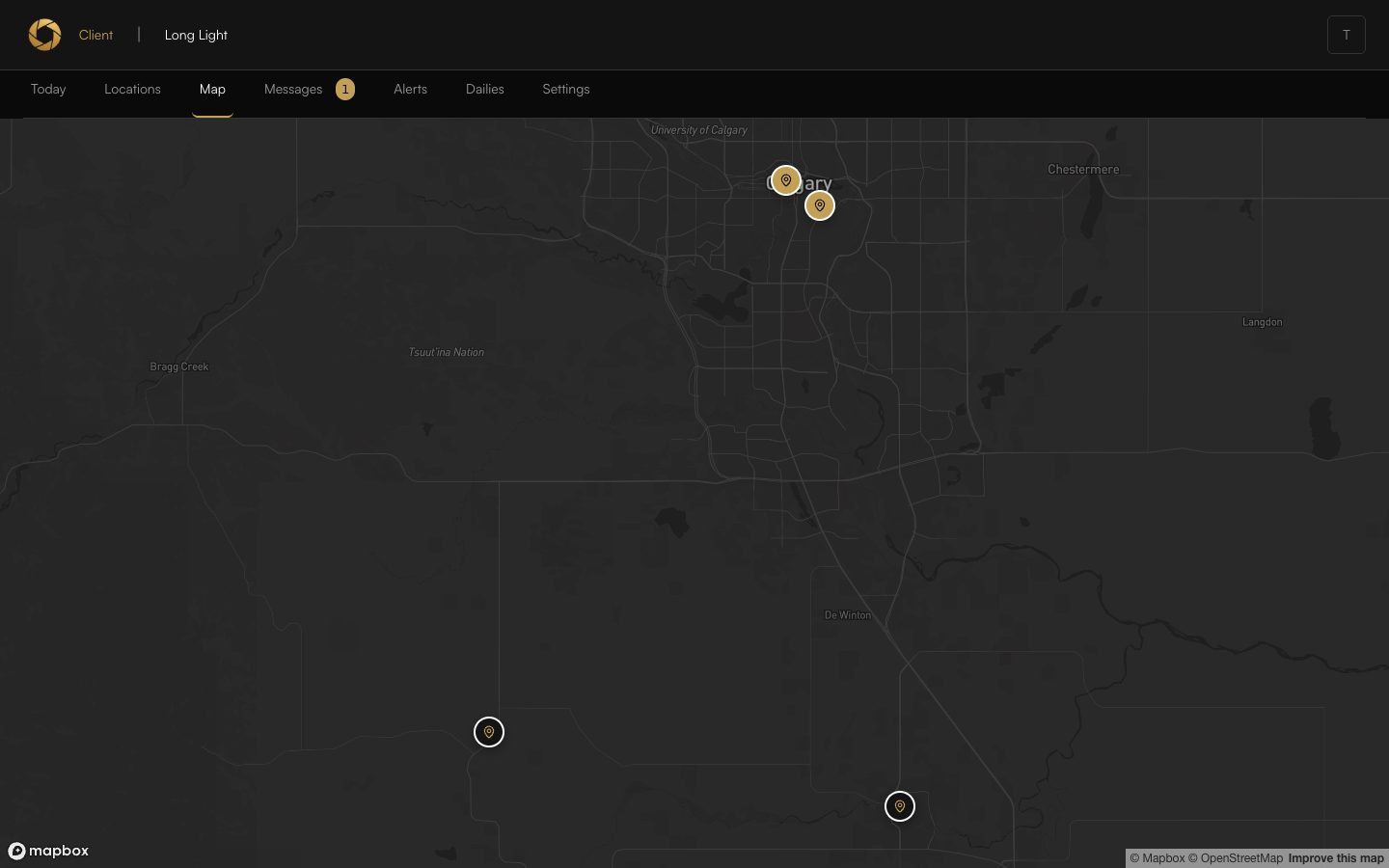
- In the app, switch the map style between Map, Dark, Streets and Sat, zoom with + and −, and centre on where you are.
- Tap a pin to see the location. View opens it; Directions opens your maps app with directions.
- On the web, click a pin, then Tap to view → to open the location.
Alerts and notifications
The production can send alerts, such as a status or schedule update.
- In the app, alerts are in Settings → NOTIFICATIONS → Alerts, with the unread count beside it. On the web, they're on the Alerts tab. Opening an alert marks it read.
- New messages arrive as push notifications on your phone. Tap one to go straight to that conversation. Messages that arrive while the app is open show as a banner at the top.
- On the web, Settings → Notifications sets which emails CINERA sends you.
Dailies
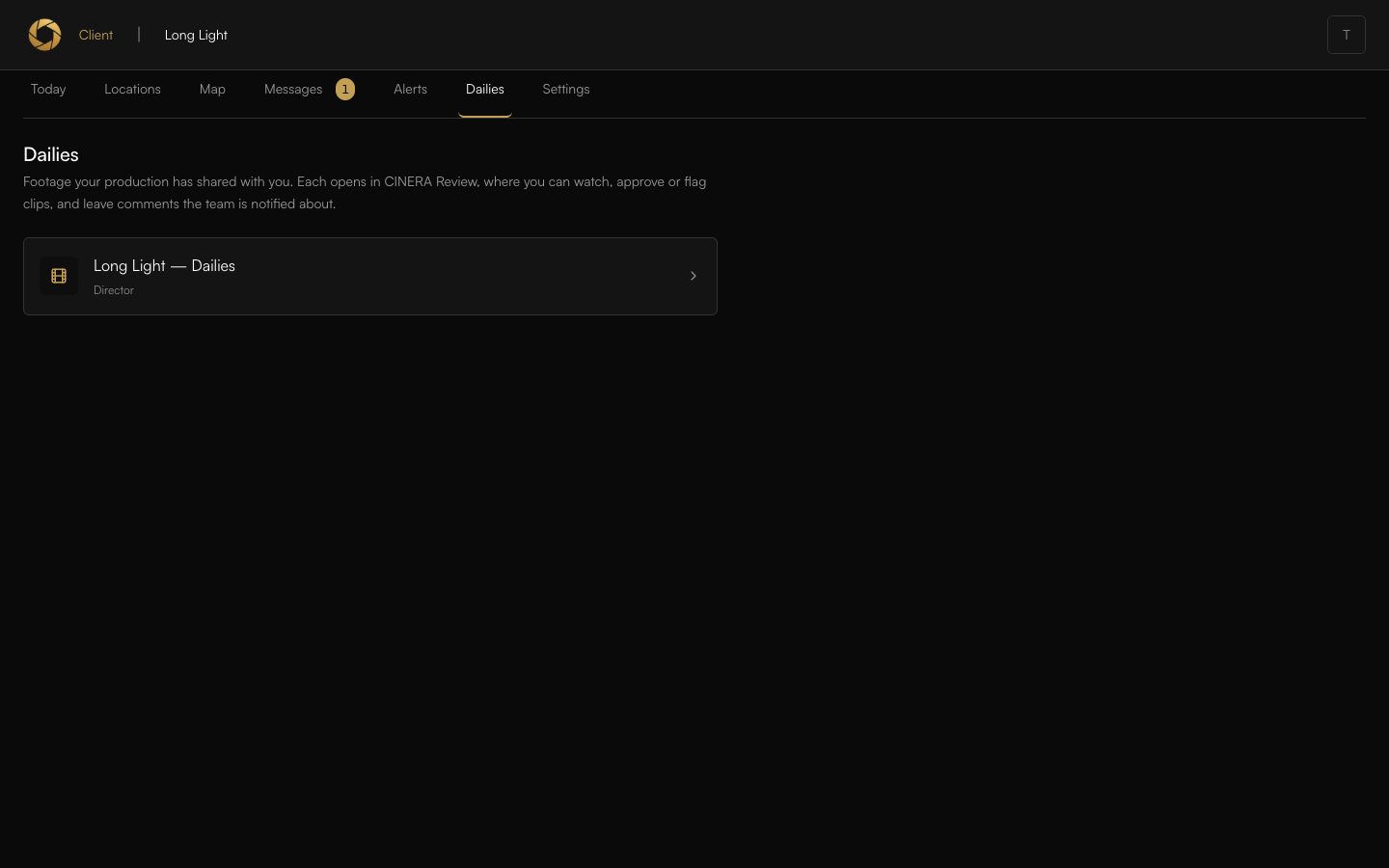
If a production also shares its dailies with you, the Dailies tab lists them. On the web, the tab only appears once you've accepted a dailies invitation. See the Review and Dailies guide for watching and commenting on clips.
Settings
- ACCOUNT (in the app) or Account (on the web): your name (you can change it), email and role.
- PRODUCTION: the production you're looking at, and Switch production. On the web, Your productions lists each one with your role.
- APPEARANCE: light, dark or match your phone.
- On the web, Get the CINERA Client app links to the app downloads.
- Sign Out and Delete Account. Deleting gives you a 90-day grace period, and signing back in during that window cancels it. See Account and settings.
The Client app
The phone app is for looking at options wherever you are: on set, in the car, between meetings.
- Offline. Locations, their photos and the map are kept on your phone, so you can look through them without signal. Today and Discuss need a connection; pull down to refresh when you're back.
- Notifications. New messages from the team arrive as push notifications and open the conversation.
- Help. Settings → About → Help and guide opens this page.
Getting help
Email support@cinera.ca.
Last reviewed November 2026.