CINERA HELP
Security guide
The Security portal is where a production's security coordinator runs the department: the posts at each location, the guards, the schedule, incidents, timesheets and the budget. The CINERA Guard phone app is the guard's side of it: their shifts, checking in and out at the post, the shift log, incident reports and messages with the coordinator.
The examples follow the security department on Long Light, an invented feature shooting around Calgary, with Darlene as coordinator and Cody as one of her guards. Every person and place is made up.
Before you start
- Who uses what. The portal is for the coordinator and for oversight (the producer or production manager who signs things off). Guards don't use the portal; they use the Guard app.
- Access. Coordinator and oversight access is given on the production by CINERA, not from inside the portal. If you need it, email support@cinera.ca. Settings → Who can reach this department lists everyone who has it and whether their access is active.
- What each role can do. The coordinator sets up and runs the department: posts, guards, rates, coverage, shifts, incidents, timesheets and budget drafts. Oversight approves timesheets, countersigns incidents and approves budgets. Both can print the schedule.
- Locations come from the Locations department. The places security works are the production's scouted locations. The portal reads them and never adds or edits one. If a place you need isn't there, ask your location manager to add it (see the Location Manager guide).
- The portal's own manual. How it works, at the bottom of the portal's menu, explains the reasoning behind each rule. This guide and that page agree; this one is the step-by-step.
Departments
The Departments page lists every production you have security access on.
- A production with a department shows its state (setup, active or wrapped) and its operating timezone. Open takes you in.
- A production with no department yet shows Open department. Choose it, check the Operating timezone, and confirm. The department opens in setup and you become its coordinator.
- Choose the timezone with care. Security is overnight work, and the timezone decides which night a shift from 22:00 to 06:00 belongs to. It can't be changed later.
Setting up, in order
Each step needs the one before it, so a button stays greyed out until you've done what comes first:
- A rate card on Personnel, so a shift has a rate when you publish it.
- Posts on Sites: where guards stand at each location.
- Coverage on Personnel: how many guards each post needs, and when.
- Activate the department from the Overview.
- Shifts on the Schedule: draft them, assign guards, publish.
Overview
The Overview is the department at a glance, headed with the show's name ("Long Light · Security"). Each card opens the page it summarises.
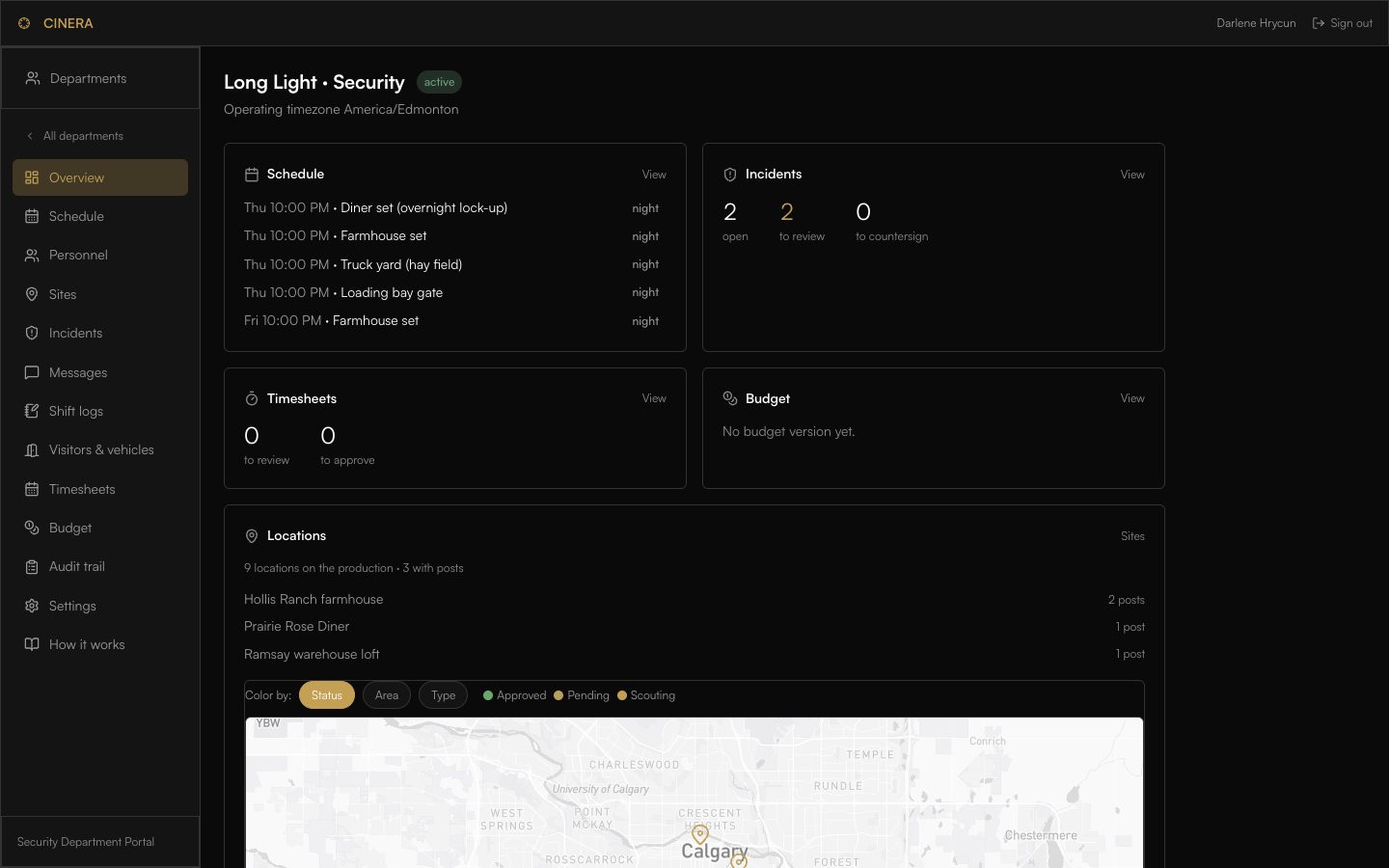
- Activate department (top right) appears while the department is in setup. Nothing can be drafted until you activate it.
- Notices appears only when there's something to say: nights the Guard app closed for a guard who left without checking out, and nights that ran past the shift, from the last few days.
- Schedule shows what's on the board next, naming the post for each shift. Incidents counts open incidents and those waiting to be reviewed or countersigned. Timesheets counts those waiting to be reviewed or approved. Budget shows the approved figure.
- Locations maps every location on the production, not only the ones with posts. A booking the locations team flagged as needing security is marked with a shield.
- Prep, shoot, wrap shows the production's calendar, so you can judge the coverage you'll need before any shift exists.
Sites and posts
Sites is the department's map: the production's locations on the left, and the posts at each one.
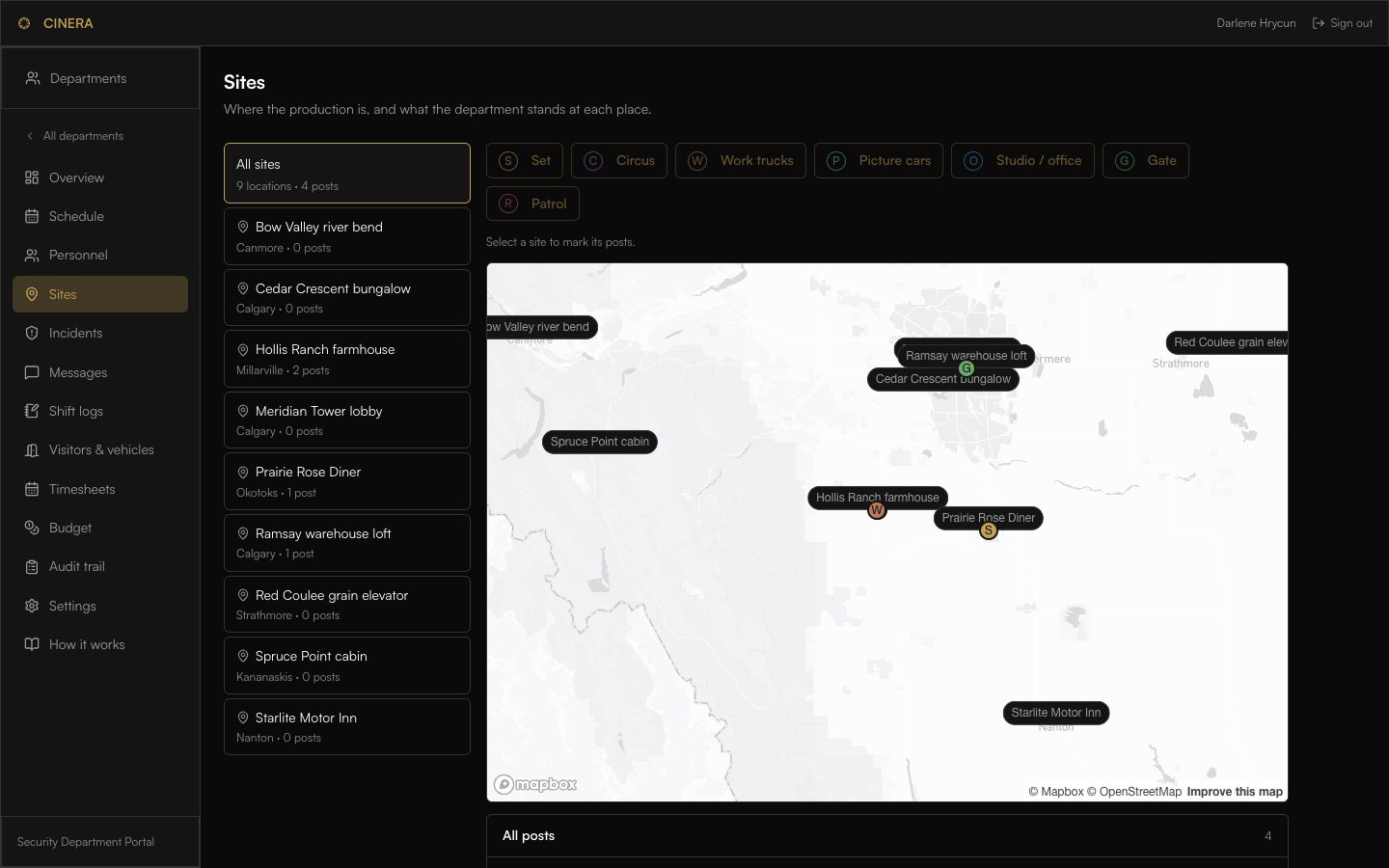
- A post is a place a guard stands, at a location. One location on one night might need four posts: the set, the circus, the work trucks and the picture cars.
- To add one, choose a location, pick a post type (Set, Circus, Work trucks, Picture cars, Studio / office, Gate or Patrol) and click the map where it stands. Give it a Label ("Set — north gate"), an optional QR identifier and the dates it's active, then Define post.
- If the post has a QR label, enter the identifier it carries as the QR identifier. Guards can then scan the label to check in and out (see Tonight under The CINERA Guard app). A post with one shows QR in the list.
- The circle on the map is the post's geofence: where a guard's check-in is confirmed. A check-in outside it still counts; it's just recorded as not confirmed.
- Edit a post from the list to change its details. What changed is recorded, so the fence a post had on any given night can always be checked.
- A location with no coordinates on file can't take a post on the map until the locations team adds them.
Personnel
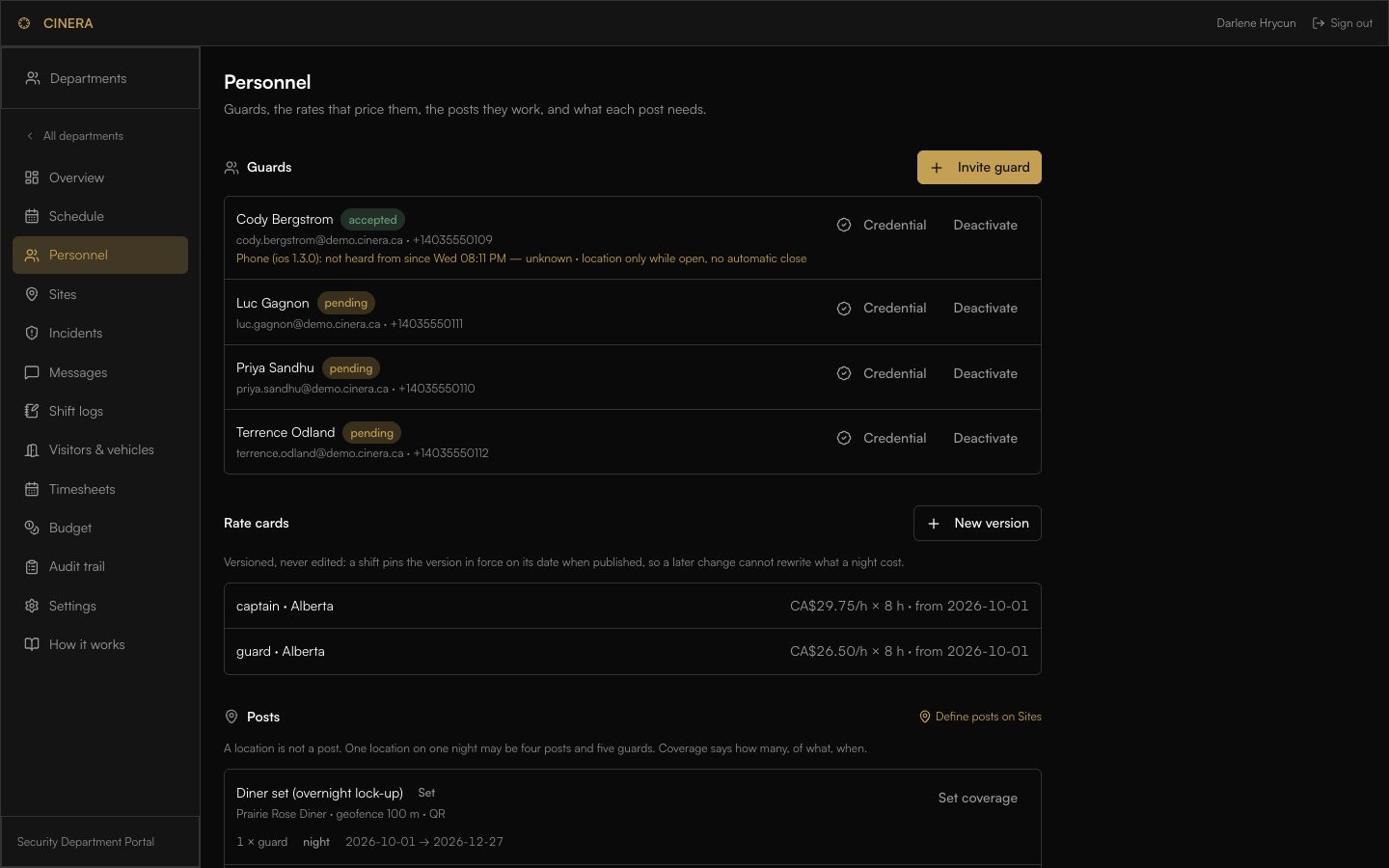
Personnel holds the guards, the rates that price them, and what each post needs.
Guards and invitations
- Invite guard → their Name, Email, Phone and Role (guard, captain or coordinator). You can put a guard on the schedule straight away; they can't check in until they accept.
- After you invite someone, CINERA shows the invitation link once. If you gave an email address, it's emailed to them too; if not, or if the email couldn't be sent, Copy the link and send it yourself. You won't see the link again. If it goes astray, invite them again for a fresh one.
- The link opens CINERA Guard and joins them to the production. If it has expired, they can sign in with the email you invited and the app still finds the invitation.
- Each guard shows pending or accepted. Deactivate retires a guard from the production; Reactivate brings them back.
Guards' phones
Under each guard, a line for each phone they use with CINERA Guard says whether it has sent you everything:
- everything sent · last heard 22:30: nothing is waiting on the phone.
- 3 waiting to send (oldest 21:10): check-ins, reports, log entries, photos or messages are still on the phone, usually because it has no signal.
- not heard from since 21:10 — unknown: the phone hasn't been in touch for 15 minutes. CINERA can't tell what's on it, so it never shows a silent phone as up to date.
- location only while open, no automatic close (or location off) means the app can't close a shift the guard forgets to check out of. Ask them to set location to Always.
Credentials
Credential records a guard's licence or certificate: type, number, issuing body, expiry and where the copy is kept. CINERA stores it as you enter it and doesn't check it with anyone, so you'll see an expiry warning but never a "valid" tick.
Rate cards
New version adds a rate for a role: jurisdiction, hourly rate, contracted pay hours, the date it takes effect, and whether it comes from an agreement. Rates are never edited: a new version takes over from its date, and a shift keeps the rate in force when it was published. A shift can't be published until there's a rate for its role.
Coverage
Posts are listed here (you define them on Sites). Set coverage on a post says how many guards, of which role, on Day or Night, from and to which dates. Tick Holiday or Additional where it applies; additional coverage needs a reason.
Schedule
The Schedule is the board: guards plotted against locations across dates, in the department's timezone. Move by week with the arrows; This week brings you back.
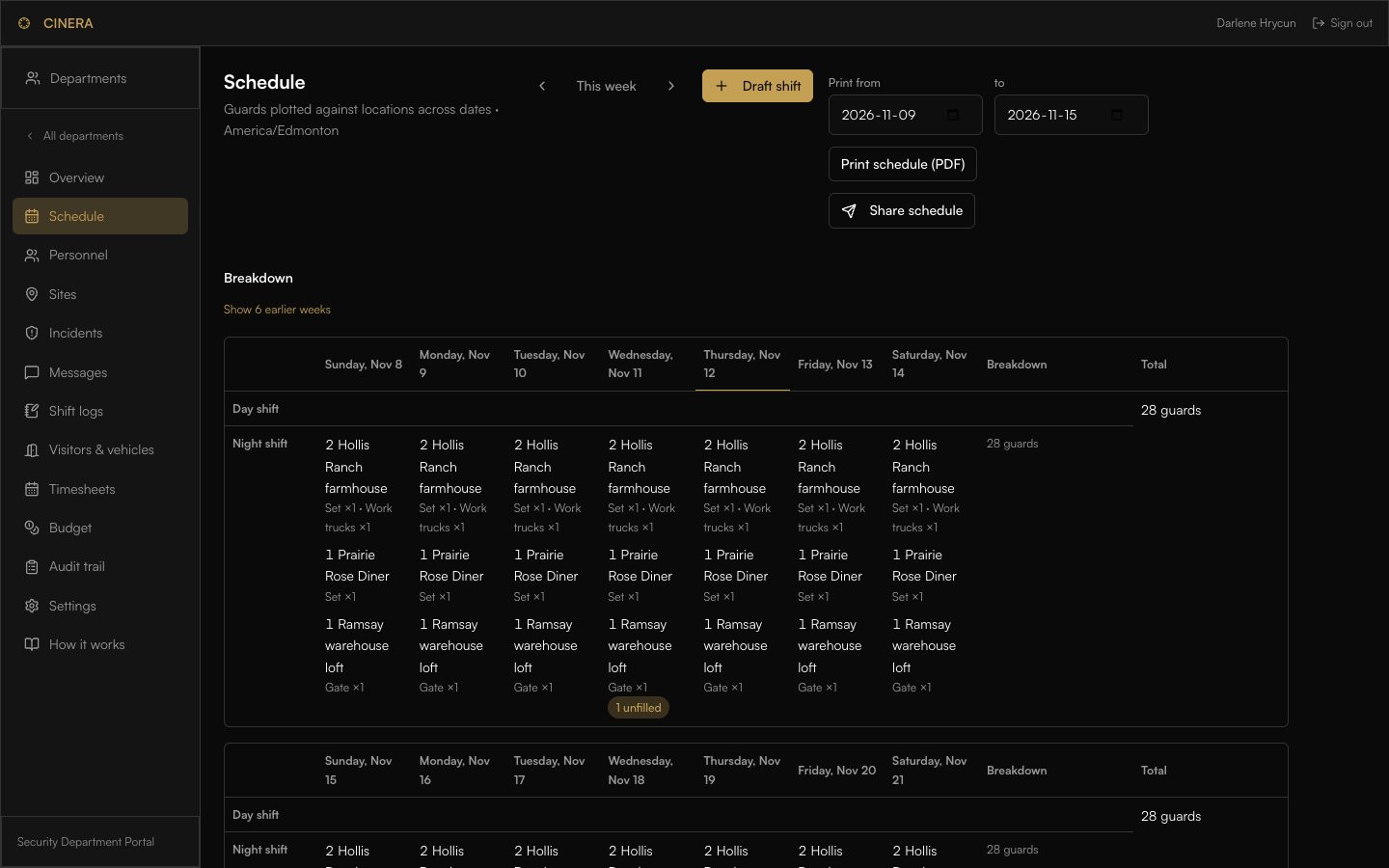
- Breakdown draws the run the way a production reads it: weeks stacked, a Day row and a Night row, and in each cell how many guards at each location with the posts beneath. Gaps are spelled out: unfilled is a shift without its guards; unscheduled is coverage nobody has drafted a shift for. Draft shifts are labelled as draft.
- The breakdown starts at this week. Weeks already finished are folded away: Show 6 earlier weeks (or however many there are) brings them back, and Hide earlier weeks folds them again.
- Draft shift → choose the Post, Day or Night, and when it Starts and Ends.
- On each shift: Assign guard, then Publish. A draft is your working copy; a published shift is what guards see and what the budget counts. Discard removes a draft; Cancel shift cancels a published one, with a reason.
- On each assigned guard: Confirm, Substitute (put someone else in, with a reason; the original stays on record) or Drop.
- If a guard is on two overlapping shifts at different posts, a scheduling conflict panel lists it. Change one shift's hours, or Override with a reason (for example, a guard walking between two posts at a handover).
Printing and sharing
- Choose Print from and to, then Print schedule (PDF): the published shifts only, with each guard's days beneath.
- Share schedule (coordinator only) emails the same dates to someone as a private link. Choose how long the link works and add a message. Shared links shows whether each was opened, and Revoke stops one working.
Incidents
Incidents is the department's record of what happened. An incident is always written by a person, a guard or the coordinator; nothing creates one automatically.
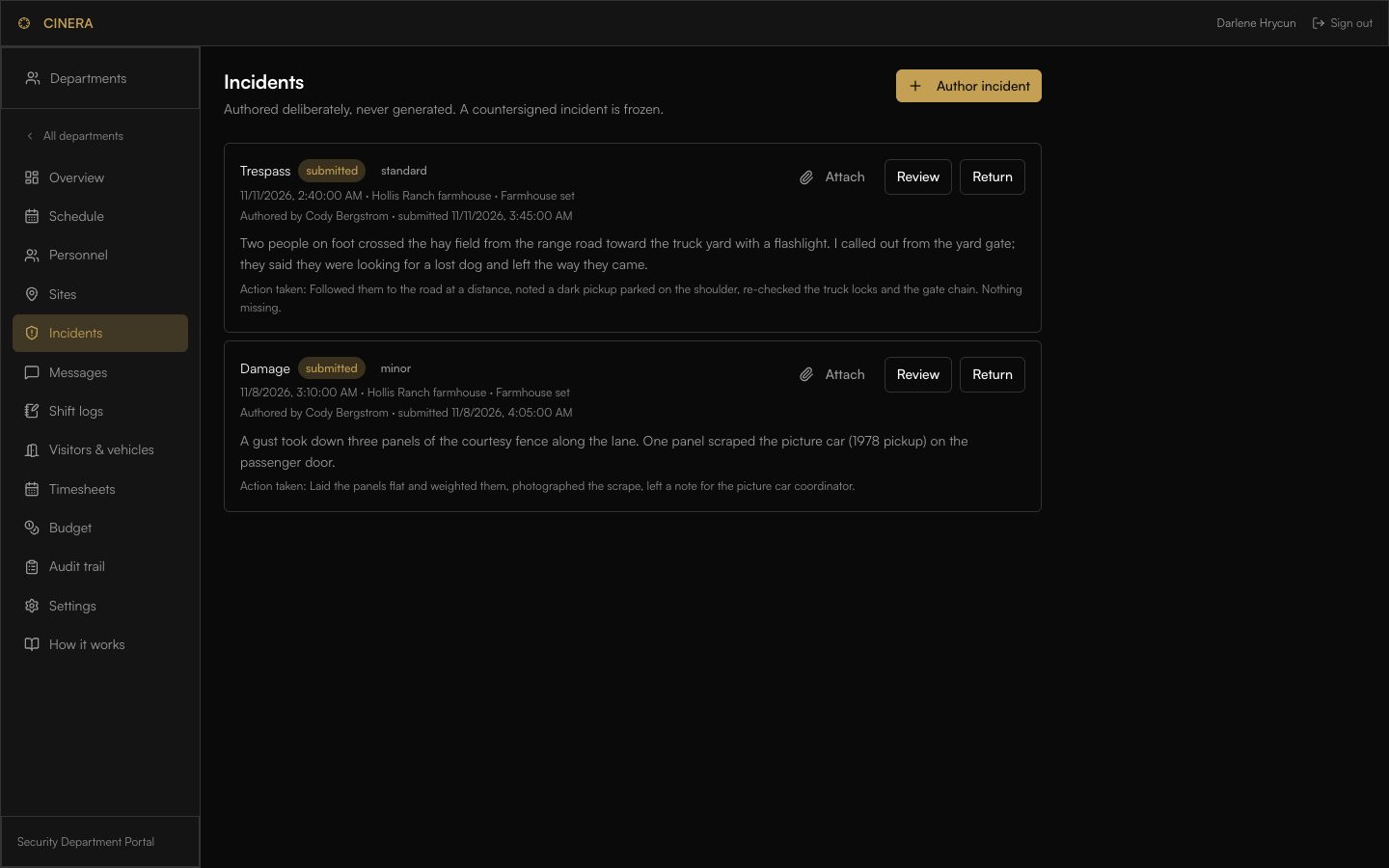
- Reports from guards. A guard who reports something from the Guard app (see Report under The CINERA Guard app) lands here already submitted, with Authored by naming the guard. Any photos they took arrive as evidence once the phone has signal. Review it like any other.
- Author incident (coordinator, once the department is active): Type, Severity, when it occurred, the Location and optionally the Post, What happened and Action taken.
- Attach adds evidence (a photo, video or document) with a note on where it came from.
- An incident moves through Submit, Review (the coordinator's sign-off) and Countersign (oversight). Either can Return it with a reason for rework.
- Countersigning freezes the incident for good. A later correction is an Amend: added beneath, with its own author, time and reason; the original isn't changed.
- Whoever wrote an incident can't countersign it; another oversight holder does.
Messages
Messages is the coordinator's side of the Guard app's chat.
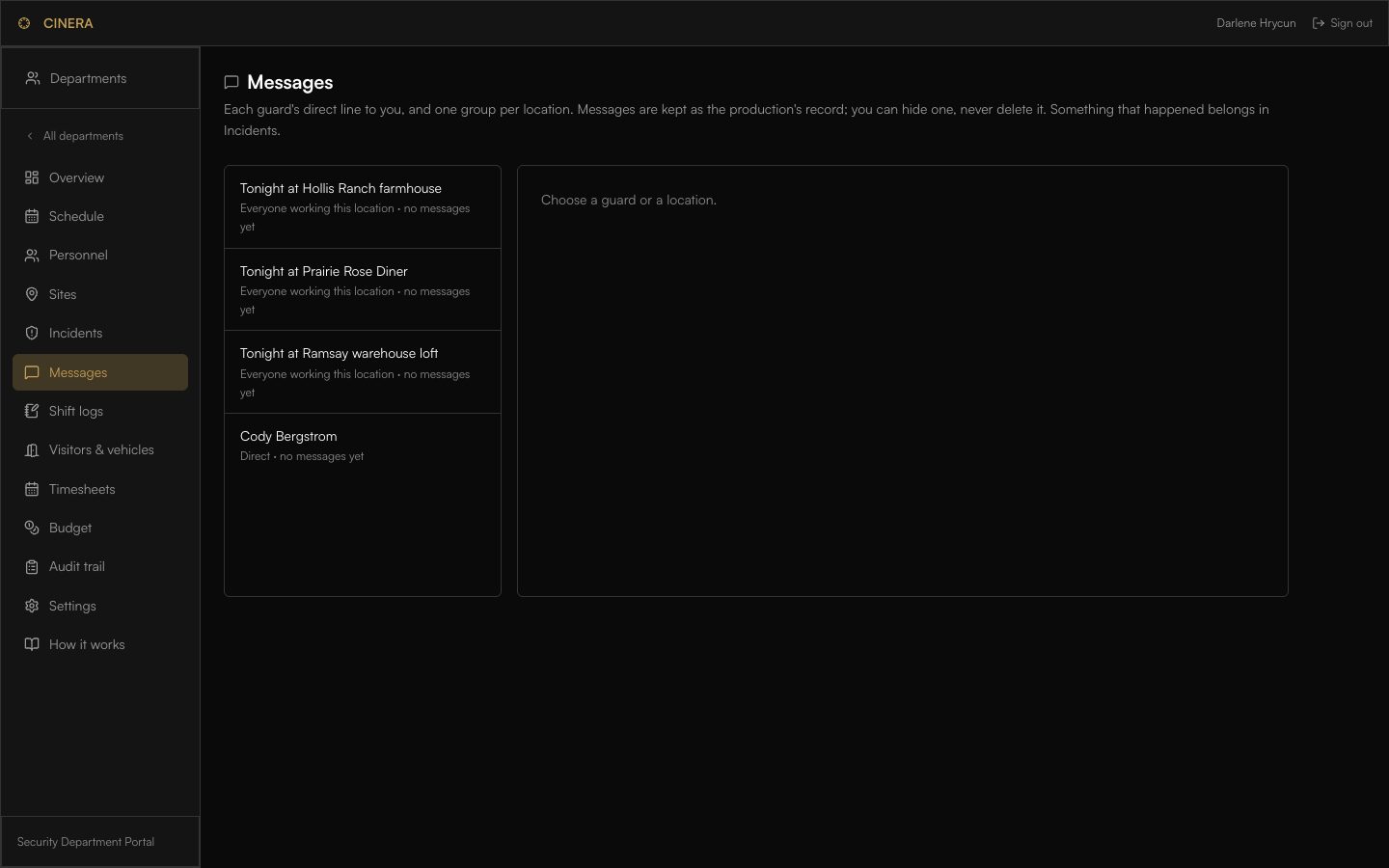
- The list on the left has one group per location, Tonight at the location, for everyone working it, and a Direct thread with each guard. Guards can't message each other privately.
- Choose a thread, Write a message and Send (coordinator). Messages reach the guard's phone as a notification.
- Messages are kept as the production's record. You can't delete one, but Hide (coordinator) takes it out of guards' view, with a reason. You still see it, struck through and marked hidden; guards see only that it was hidden.
- Something that happened belongs in Incidents, not in a message. Guards have a link to report it from the chat.
Shift logs
Shift logs shows what each guard noted through the night, in their own words, at the time their phone recorded it. Guards write these from the Guard app (see The CINERA Guard app); nothing on this page writes.
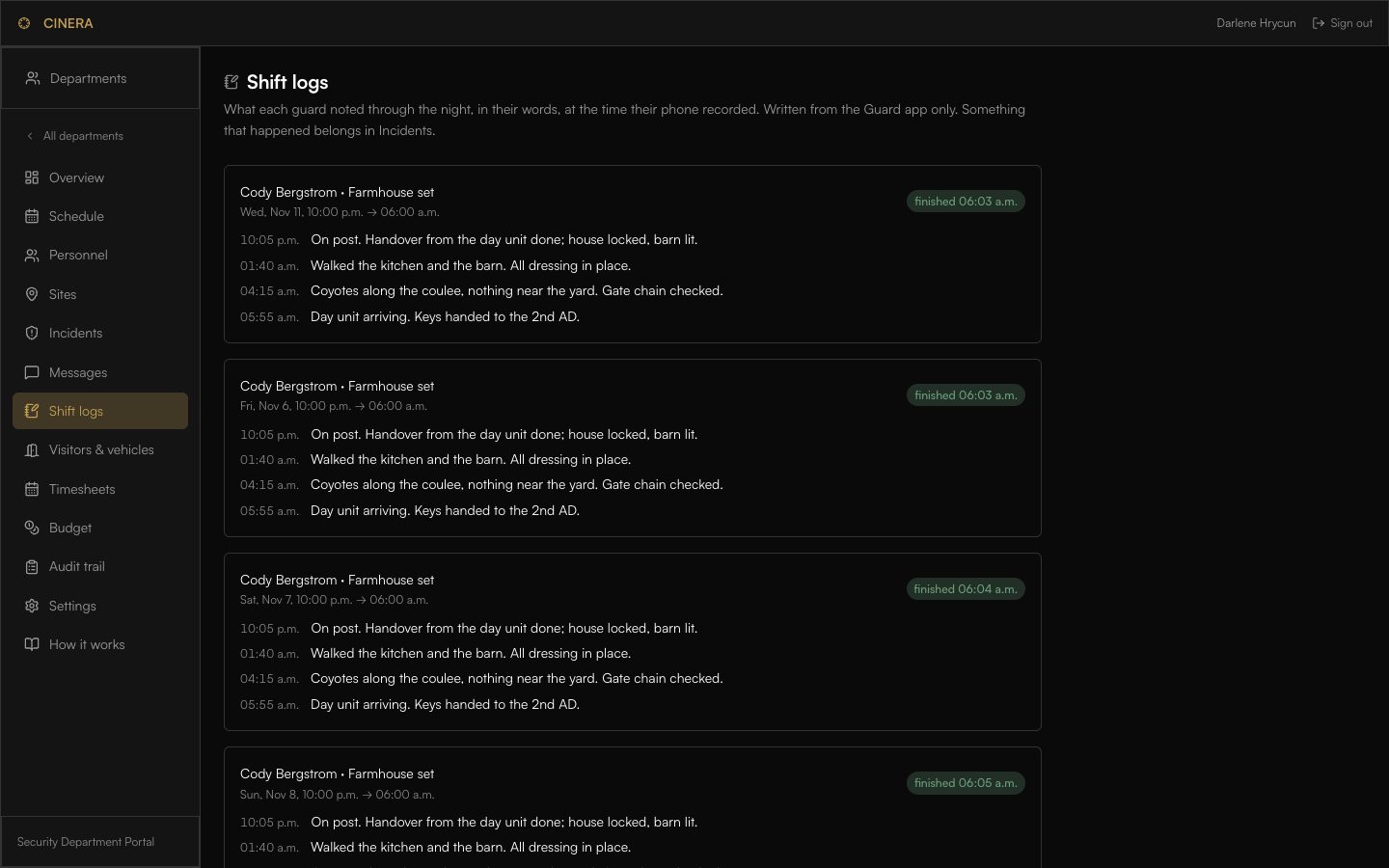
- Each log shows the guard, the post and the shift's times, newest night first, with its entries in time order.
- A log reads open while the guard is still adding to it, and finished with the time once they finish it.
- "No shift logs yet. Guards start one from Tonight." means no guard has logged anything.
- A log is for routine notes. Something that happened belongs in Incidents.
Timesheets
Timesheets turns the nights guards worked into timesheets for payroll. CINERA calculates no deductions and pays no one.
- Match. A guard who checked in without a shift on their phone (sent somewhere at short notice, say) appears at the top as not yet matched, with the note they wrote. Match it to the shift it belongs to, with a reason. Until it's matched it can't be paid.
- Look over flagged nights. Nights that ran past the shift, that the app closed after the guard left the post, or that two phones reported are listed for you to read. They don't change what a night pays.
- Derive. Choose the First day and Last day and Derive: one timesheet per guard for the nights they submitted. Pay hours are the contracted hours on the night's rate card, not the clock; overtime is settled outside CINERA.
- Review (coordinator), then Approve (oversight). The person who reviewed a timesheet can't approve it. Either can Return it.
- Export marks an approved timesheet as sent to payroll. Adjust corrects an approved one's pay hours, with a reason, as a new adjustment beside it.
Budget
Budget holds the department's budget in versions. Spending is worked out from approved timesheets.
- New version, then Add line for each location: personnel lines (rate × hours × shifts), per-shift lines and flat amounts.
- Approve (oversight) locks a version. To change an approved budget, start a new version; the old one stays beside it.
- Once shifts are published, Reconcile with board puts the schedule's figures next to the plan for each location. Accept the board's figure, or Keep the planned figure with a reason.
- Published shifts that no line covers are listed as proposals on the draft; Author adds the line.
- Export records that an approved version has been sent on.
Cameras
Cameras appears in the menu only once a camera is registered to the department, or a rented camera has been delivered to the production and is waiting to be registered.
- Register camera connects a camera to a location.
- Each location shows the last still its main camera sent and when. A still isn't a live view. A camera that hasn't sent one says No still yet.
- Open a location to see every camera there. A camera CINERA hasn't heard from shows as unknown, never as fine.
Audit trail and Settings
- Audit trail lists every action taken in the department, who took it and when.
- Settings shows the production, status, timezone and who has access.
- Your phone, in the Guard app (coordinator): guards see their coordinator under who's on tonight, but your number only if you add it here. Enter it and Show this number; clear it and Hide my number. Guards never see each other's numbers.
- Wrap (coordinator) closes the department for good: nothing new can be added, nothing can be reopened, and every record stays readable. Wrap only when the show is finished and every timesheet is approved.
The CINERA Guard app
CINERA Guard is the guard's app. It has four tabs: Tonight, Messages, Report and Settings.
Joining
- Your coordinator invites you. Open the link on your phone: it shows the production you're joining and the name you were invited under. Join this production, or Create my account first if you're new (I already have a CINERA account if you're not).
- If the link has expired or you signed in some other way, the app shows No production yet with I was invited — find my invitation. That finds it by the email you signed in with.
- Nothing to work means your coordinator has deactivated you on the production.
Tonight
- Your shifts lists your published shifts in time order, each with its production, post, day or night, and times. If you're a guard on more than one production, they're all here.
- Check in when you're at the post. The app records where you are and whether you're inside the post's circle. If location isn't available, the check-in still counts and says so.
- Scan post QR to check in appears under Check in when your post has a QR label. Point the camera at the label. If it belongs to a different post, the app tells you, and your check-in is still recorded, marked as not matching. Tell your coordinator if the label at your post is wrong. A scan never stops you checking in.
- While you're on shift, a card shows On shift since with Check out (and Scan post QR to check out where the post has a label). You can't check in anywhere else until you've checked out.
- After you check out, Submit the night so your coordinator can put it on your timesheet.
- No assignment here? If you've been sent somewhere that isn't on your phone, write where you were told to be and Check in provisionally. Your coordinator matches it to a shift later.
- Not accepted lists a night CINERA refused, with the reason. If you did work it, tell your coordinator; they can record it for you. Dismiss clears it from your phone.
- On tonight with you lists the other guards at your locations tonight (name, post and hours, and who's captain) and your coordinator, with Call if your coordinator has chosen to share their number. You need signal to see it; the app doesn't keep it on the phone.
Shift log
While you're checked in on a shift, a Shift log card sits under your open shift: rounds, handovers, anything worth noting.
- Type in Add to the log and Add. Each entry is stamped with the time on your phone and waits on the phone until there's signal.
- Finish the log closes it for the shift. That needs a connection, and nothing can be added afterwards.
- The log is for routine notes. Something that happened is a report: use the Report tab.
Report
Report is where you report an incident: something that happened on your post. Routine rounds don't need a report.
- Where: the post. The one you're working now comes first.
- What happened: Trespass, Theft, Damage, Suspicious activity, Fire or alarm, Injury or Other (say what, in a few words).
- When: Just now, 15 min ago, 30 min ago, 1 hour ago or 2 hours ago.
- How serious: minor, standard, major or critical.
- What you saw, in your own words, and What you did (optional).
- Take photo adds up to five photos from the camera. Tap one to remove it.
- Send report.
- The report is saved on your phone and sent as soon as there's signal. It reaches your coordinator's Incidents page as submitted. If anyone is hurt or in danger, call 911 first.
- Your reports lists what you've reported: waiting to send, sent to your coordinator, or not accepted with the reason. Photos follow the report and show how many have arrived.
Messages
- Messages has a thread with Your coordinator and one for each location you work, Tonight at the location, shared with everyone working it. There are no private threads between guards.
- Write a Message and Send. With no signal, it waits on the phone (Waiting to send) and goes when you're back online. You need signal to read new messages; offline, the app shows the last list it saw.
- Your coordinator can hide a message. You'll see Hidden by your coordinator in its place.
- Something happened? Report it as an incident opens Report. A message isn't an incident report.
Location, reminders and closing a forgotten shift
- When you turn on location from Settings, the app first explains, under Location during your shifts, why it asks: to notice when you arrive at or leave your post during a shift. It doesn't track your route; your position is kept only at the moment you check in and check out. Continue goes on to your phone's own prompt; Not now leaves it off, and you can still check in and out yourself.
- With location set to Always, the app reminds you when you arrive at your post (You're at your post, with a Check in button that checks you in from the reminder) and to check out when you leave. If you leave without checking out, it closes the shift at the time you left and tells you; your coordinator sees that too.
- With location only While Using, reminders work while the app is open, but you need to check out yourself.
- With location off, check-in and check-out still work; they record that your location couldn't be found.
- Settings shows what you've allowed for Location and Notifications, and what that means.
Offline and sync
- The app works without signal. Check-ins, check-outs, submissions, log entries, reports, photos and messages wait on the phone and send when you're back online. Each one says waiting to send, synced or why it wasn't sent.
- Settings shows your productions (Show), Last sync, anything Not accepted, and Sync now.
- Your coordinator can see whether your phone has sent everything, and when it was last in touch.
- Signing out sends anything waiting first. If it can't, the app asks before you leave anything unsent.
- Your phone only holds your own shifts, posts and nights: never other guards' records, rates or budgets.
Notifications
You're notified when a shift of yours is published or cancelled, when you're put on a shift, and when you're replaced on or dropped from one. Tapping one opens Tonight. A new message opens its thread in Messages.
Help
Settings → About → Help and guide opens this page. For signing in and your account, see the Account guide.
Getting help
Email support@cinera.ca.
Last reviewed November 2026.