CINERA HELP
Weather guide
CINERA Weather is weather built for planning a shoot: forecasts and radar for your locations, what a month has historically been like, live readings from stations on set, and alerts when conditions cross your production's safety limits. The Weather portal on the web is where you plan and share; the CINERA Weather phone app keeps it in your pocket on set.
The examples follow Long Light, an invented feature shooting around Calgary. Every person and place in them is made up.
Before you start
- Who can see weather. Weather is only for people on a production that has it. If your production has Weather, someone on it with access rights (or CINERA, at onboarding) gives you access; then the portal and the app open for you. A CINERA account on its own, without a production with Weather, doesn't see weather.
- Plans. Weather is sold per production. Daily Reports is reports by email only; Intelligence adds the full dashboard and one On Set monitoring station; Full Intelligence adds more stations. Stations can also be added on their own. See Weather Intelligence for the plans and what each costs.
- Onboarding. CINERA sets up your locations, who gets notified and your production's safety thresholds with you at the start, and keeps them up to date through the shoot.
- Signing in. Your CINERA account and two-factor sign-in are covered in the Account guide.
Choosing a production and a location
- Your production. If you're on more than one production with Weather, the production switcher in the top bar sets the one you're working in, and the dashboard remembers it. The production tabs (below) follow it.
- A location. On the Dashboard, search with Search locations or any address…. Your scouted locations come first, but any address works. CINERA finds the nearest Environment Canada climate station and shows it, with its distance, in the sidebar.
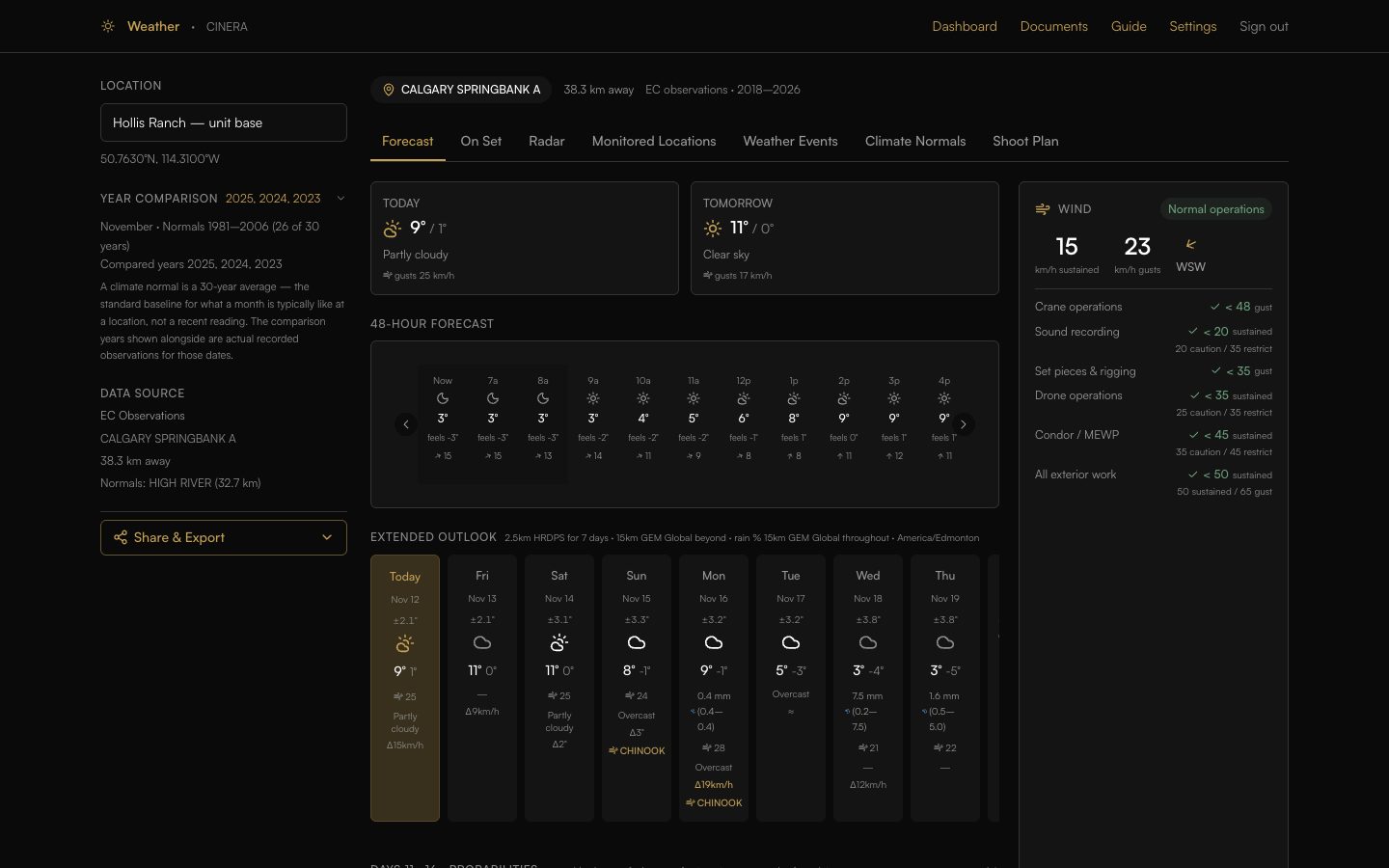
- A banner at the top shows any active Environment Canada alerts (warnings, watches, special weather statements) near the location.
The dashboard tabs
The tabs run from what's happening now to the reference material. Some appear only when they apply.
- Forecast: hour by hour for the next 48 hours, then day by day to 10 days, with temperature, chance of precipitation, wind, cloud and UV. The first two days come from Environment Canada's high-resolution model, the rest from its global model, and the label under the outlook says which is which. Treat the last few days as a trend, not detail. The wind card tracks the main wind direction and gusts.
- On Set: live readings from your production's weather stations (see below). Shown only when your production has stations.
- Radar: a map with one base layer at a time (precipitation radar, wildfire smoke, or cloud where available) and a timeline you can scrub or play from the recent past into the forecast. Lightning can be laid over any layer.
- Monitored Locations: the shoot locations CINERA watches for your production (see below). Production only.
- Storm Approach: a live map of storm cells and smoke approaching your monitored locations, with current readings. Only for people with a safety or management role on the production.
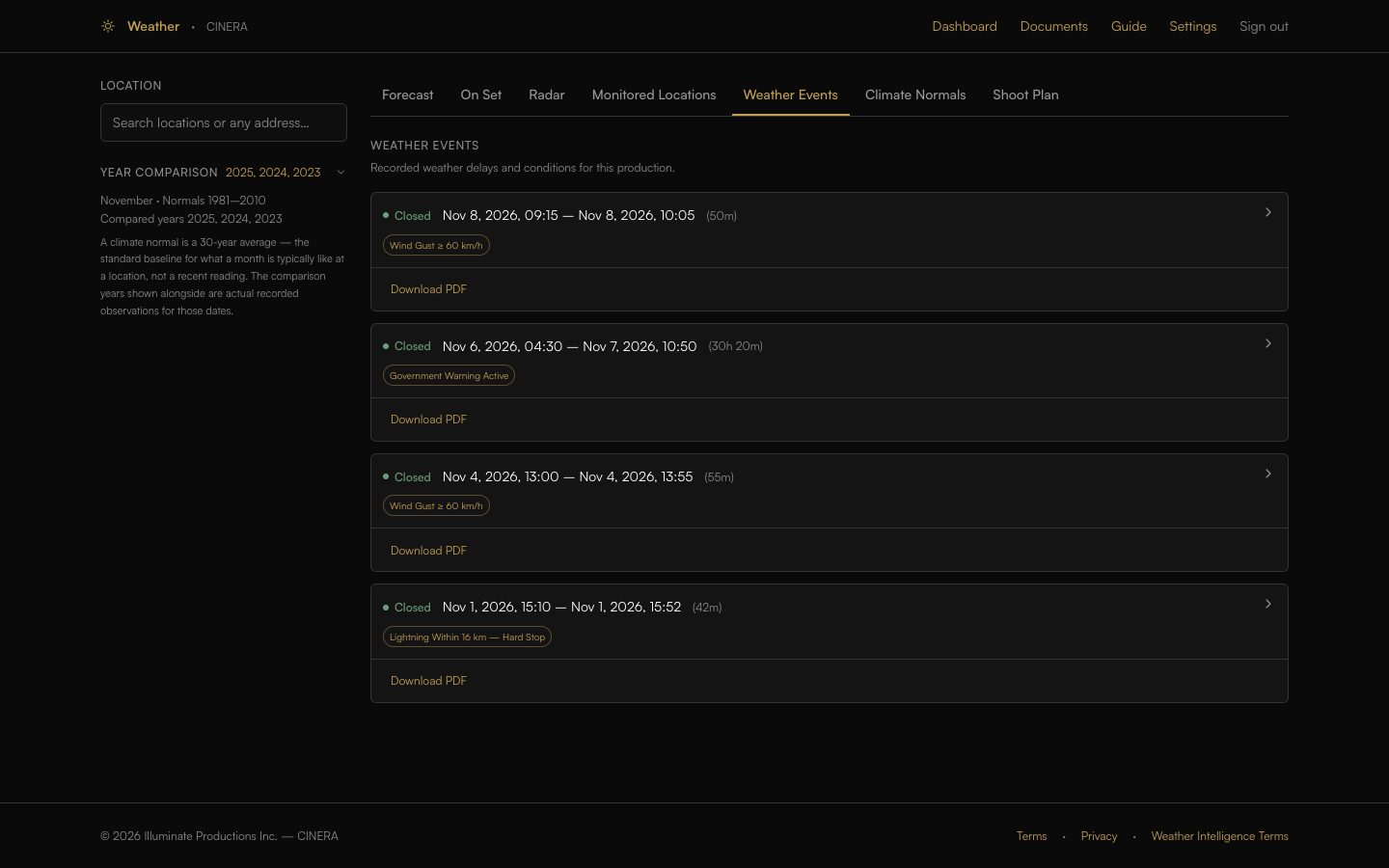
- Weather Events: the record of each time a monitored location crossed a safety threshold, such as a lightning hold, high wind or heat. Each closed event has View (the full record), a PDF download and Copy share link for sending it outside CINERA. Production only.
- Climate Normals: the planning tool. Pick a month and see the 30-year averages beside the actual years you choose under Year Comparison (up to five). Every figure says which normals period it comes from. Generate AI Summary writes a plain-language summary of what that month is usually like at the location; it describes the past, it isn't a forecast.
- Shoot Plan: a day-by-day view of your shoot dates, with a risk and recommendation for each day and the known hazards for the area. Days past the forecast are filled from historical averages and labelled as such. A plan has its own Share Link, Word export and print layout.
Stations on set
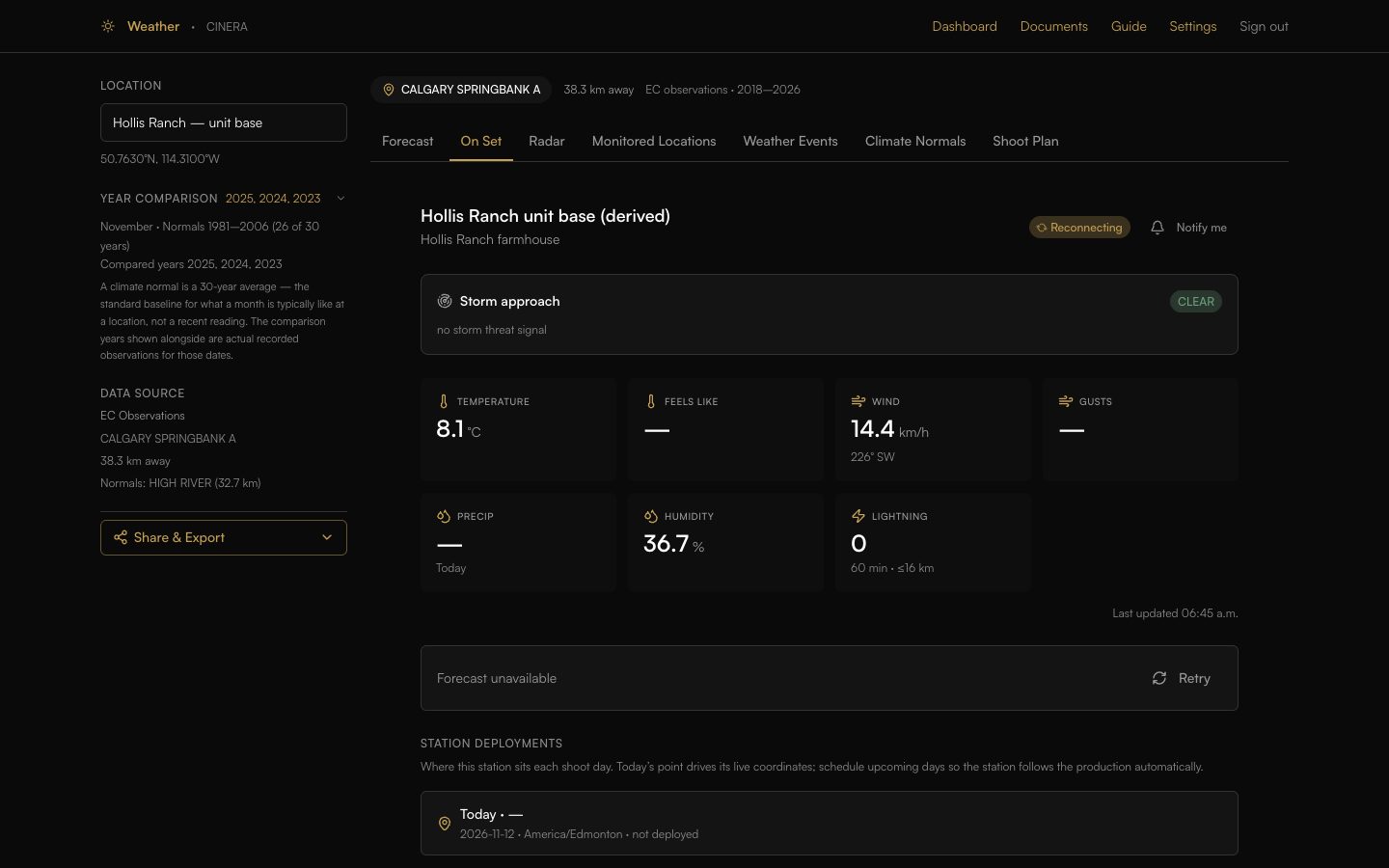
Where your production has a CINERA weather station, the On Set tab shows what it's measuring right now: temperature, feels-like, wind, humidity, precipitation, lightning distance, air quality and battery.
- CINERA installs, runs and looks after every station. You don't set anything up.
- Lightning warnings from a station appear at the top of the page. Notify me turns on lightning notifications for that station.
- Where a station has a camera, Site check asks it for a still or a short clip of the site, so you can see conditions for yourself.
- Station readings also appear beside a location's forecast, labelled as on-site.
Monitored locations and alerts
A monitored location is a shoot location CINERA watches continuously for your production: storm and smoke approach, and your safety thresholds.
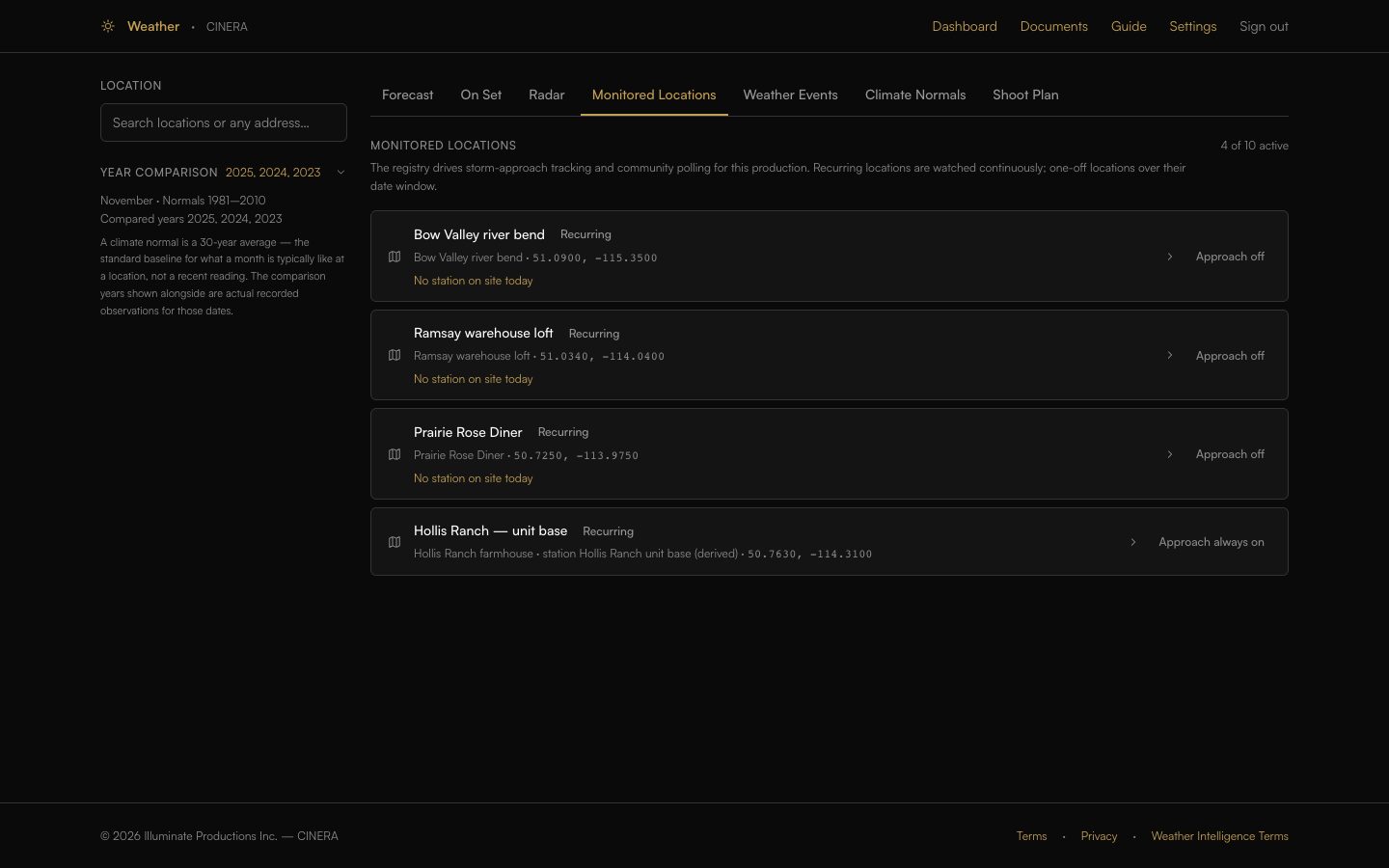
- Anyone on the production can see the list. People with a safety or management role can Add monitored location (by searching a scouted location or entering coordinates), set it as Recurring (watched all the time) or One-off (watched over a date window), turn approach tracking on or off, link the station on site, and deactivate or reactivate it.
- When a monitored location crosses a threshold, or a storm or smoke is approaching, the production team is notified. When it passes, a cleared notice follows on the same channels, so you know when it's safe to carry on.
- Lightning hard stops are always delivered. They can't be muted.
- Every event is kept in Weather Events.
Sharing and exporting
With a location selected, the Share & Export menu in the sidebar offers:
- Forecast Report (.docx): the 10-day forecast and its analysis, as a briefing for the coming shoot week.
- Historical Report (.docx): the climate normals and your comparison years, for planning further out. Turn on Include AI Narrative in .docx in Settings → Reports to include your summary.
- Print / PDF: a clean print layout through your browser.
- Share Link: a read-only link to the full report. The person you send it to doesn't need a CINERA account. Links expire after 7 days, and you can revoke one in Settings → Reports.
- Email Report…: sends the report as an attachment with an optional note. You can send up to 10 a day.
Every report states the dates it covers, the normals period behind its averages and where its observations came from.
Reports by email
Every plan includes weather reports you request by email. Your production has its own address, ending @wx.cinera.ca.
- Say where: GPS coordinates (51.0447, -114.0719) or a Google Maps link with the pin. Locations your production has used before work by name.
- Say when: a date, or a date range up to 10 days out. Write the date ("September 1"), not "Friday" or "tomorrow".
- Add concerns if you like (wind, rain, lightning, storms, heat, smoke), and the report leads with them.
- Send it. The report comes back by email. If something is unclear, you'll get one short question back; reply and the report follows.
Only people on your production's sender list can request reports, and each report also goes to your recipient list. On the Daily Reports plan, you manage both lists in the Daily Reports console (Who can request reports, Who receives reports), which also shows this month's reports and your invoices. Start Daily Reports sets a new production up. Productions that CINERA onboards get their address at onboarding.
Each plan includes a number of requested reports a month. Reports you make yourself from the dashboard don't count.
Documents
Documents holds what CINERA prepares for your production from its weather record: shoot-window outlooks and season records. Each link keeps working as the document is updated.
Settings
- Display: theme (system, light or dark) and units (metric or imperial).
- Dashboard: your Default Location, which loads when you open the dashboard, and a Preferred Station if you want a particular Environment Canada station instead of the nearest.
- Notifications: Weather alert emails for your saved locations, and the phones you've registered for push notifications.
- Reports: the AI narrative export setting, your Active share links (revoke any of them), Forecast Accuracy (how the models have performed at your locations) and how many emails you've sent today.
- Production: Team access, where people with a safety or management role grant access to this production's weather by CINERA account email and choose each person's role; a link to manage your Monitored Locations; and the status of your production's approach and temperature safety threshold sign-offs.
When your production wraps
When filming ends, ask CINERA to end your production's weather service. When it's ended:
- the production's stations are taken out of service and their alerts stop;
- its monitored locations are no longer watched;
- reports by email are closed;
- the production leaves Weather for everyone on it.
Your history (events, readings and records) stays attached to the production. Everything else about the production carries on: the crew keep it in every other CINERA app.
The Weather app
The CINERA Weather phone app is the dashboard for set. Sign in with the same account; there's no sign-up in the app, and it only shows weather if you're on a production that has it.
- Dashboard opens on where you are (with location access on), or your saved default location. Change picks another, including your monitored locations. It shows current conditions (and whether they come from an on-site station or the models), cold-stress guidance, government alerts, the forecast, climate normals, shoot-day risk and Generate AI analysis. A work-stoppage banner stays pinned at the top whenever weather has stopped work on your production.
- On Set shows your production's stations live. Deployments shows where each travelling station is scheduled; if you look after one, you can confirm today's location with your phone's GPS.
- Reports makes a current-conditions or shoot-plan report, with or without AI analysis, to email to the crew or share by link.
- Radar has the same layers and timeline as the web, with a lightning overlay and Jump to live.
- Events lists weather events across your productions. Open one for its timeline and alerts.
- Notifications. Lightning hard stops always come through. Settings → Weather alerts turns the others on or off, and Send test notification checks your phone receives them.
- Help. Settings → About → Help and guide opens this page.
Where the data comes from
Forecasts, alerts, radar, smoke and climate normals come from Environment and Climate Change Canada, with Open-Meteo for wider coverage and history. Your stations and nearby community weather stations add what's actually happening on the ground. The data is best for Canadian locations. Forecasts carry uncertainty: beyond two or three days, use them to plan, not to decide. See the Weather Intelligence Terms.
Getting help
Email support@cinera.ca.
Last reviewed November 2026.